



How to use the Co-op app (for those who are already members of the Co-op)
for existing members who are still using paper membership cards, etc., and
provides instructions on how to use the Co-op app. For
instructions on how to register for the app when you are a new Co-op member, please clickhere.
■ Procedures for starting the Co-op app
1. Confirm your email address registration
①Please access the link below and register your email address and mobile phone number
2. New registration and password registration for My Portal
Please check the email you registered and confirm whether to proceed with the "New Registration for My Portal" procedure or the "Password Registration" procedure.
• New Registration for My Portal procedure ⇒Click here
• Password Registration procedure ⇒Click here
Steps to register for My Portal:
My PortalherePlease access
Click "New Registration" and register your email address and date of birth.

②After entering the registration information, click "Register email address" at the bottom of the page
③ You will receive an email at the email address you registered. Tap the URL in the email and enter the required information.
*If you are already registered with the university co-op, the information will be pre-filled in the input fields.
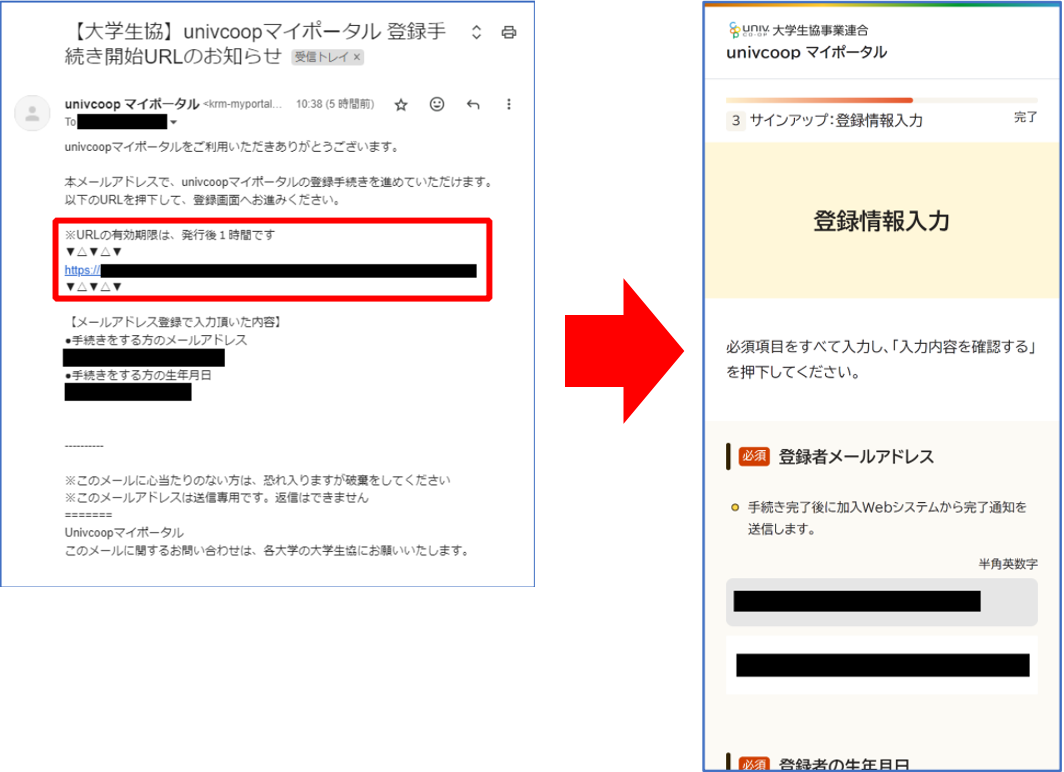
④ After entering the information, check the details and click "Sign up for univcoop My Portal."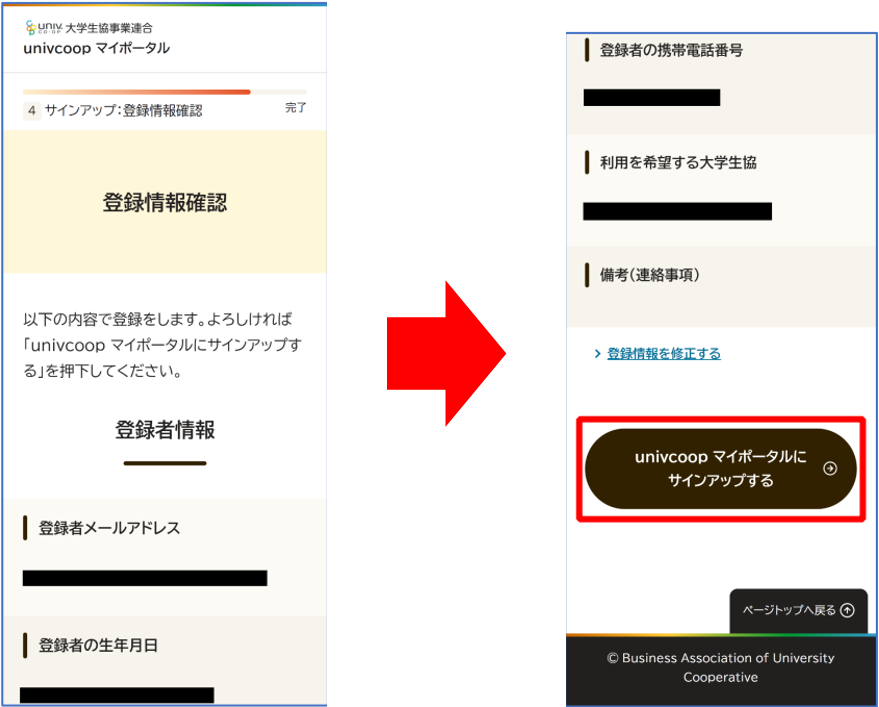
Password Registration Procedure
①this linkAccess
Enter your registered email address and the passcode you received.
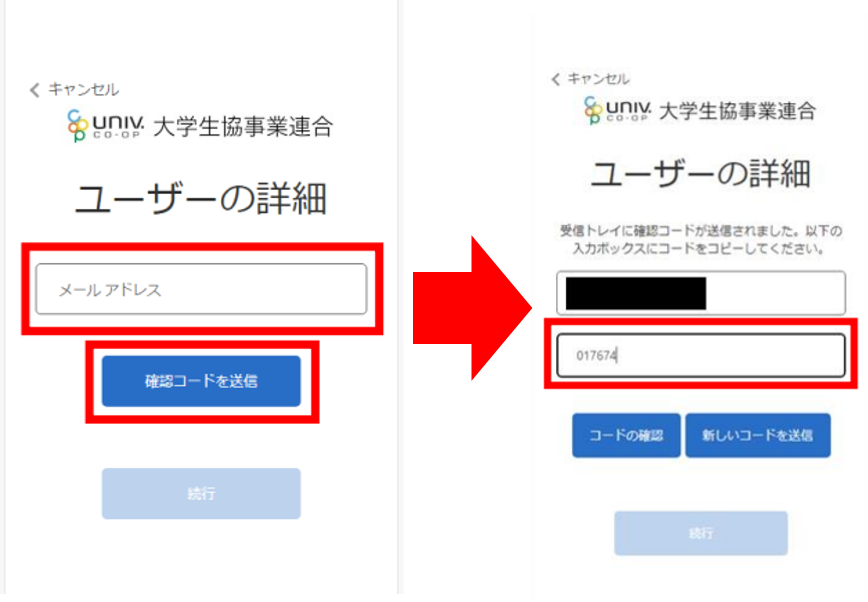
② Click "Continue" to set a new password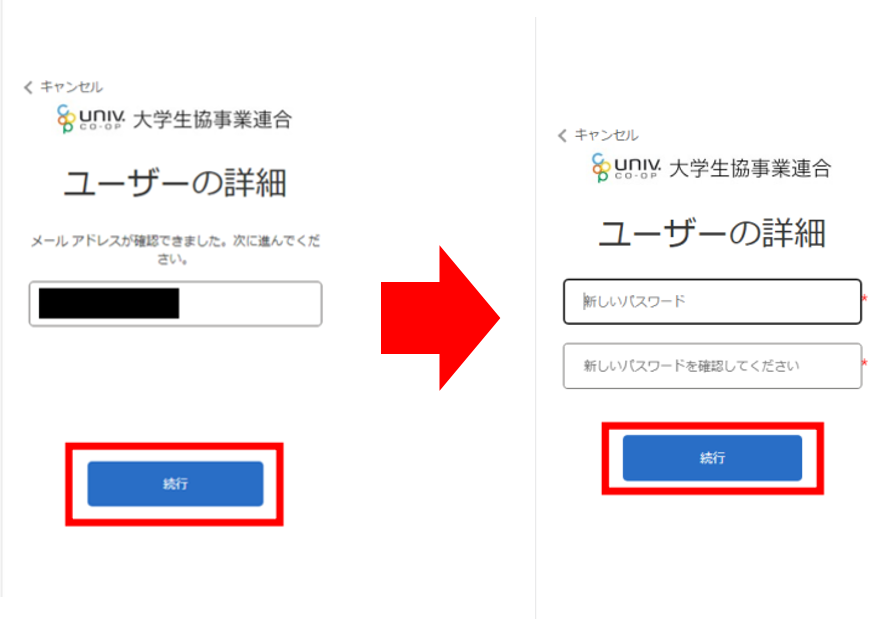
3. How to log in to the app
① Download the app
. Please download the app from the following website.

② Launch the app and
enter your registered email address and password to sign in.
*Please do not sign in with a social media account.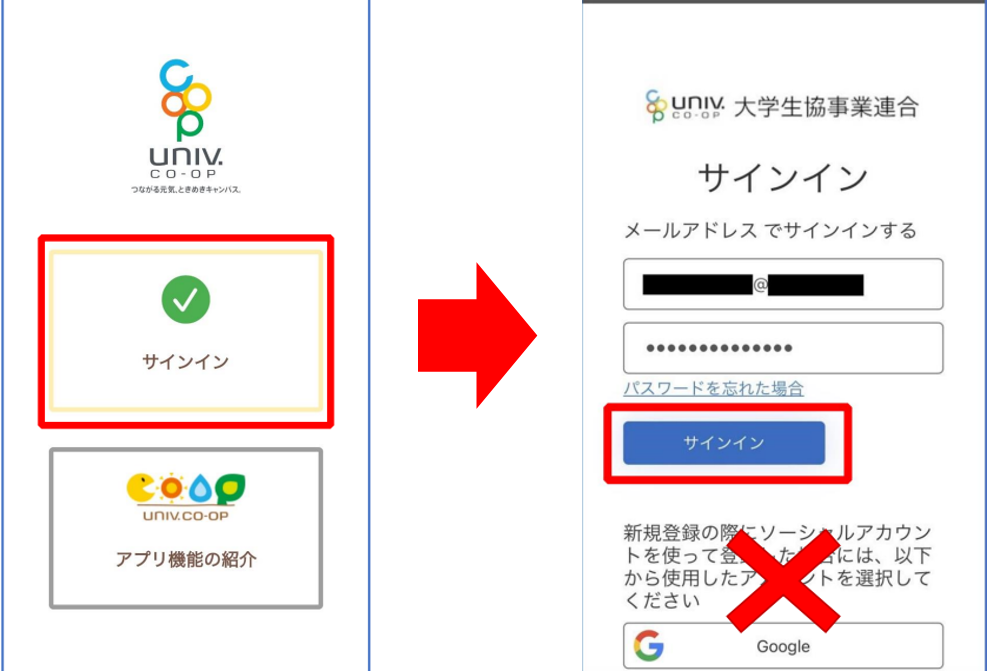
③ Follow the instructions on the
multi-factor authentication screen to complete the authentication process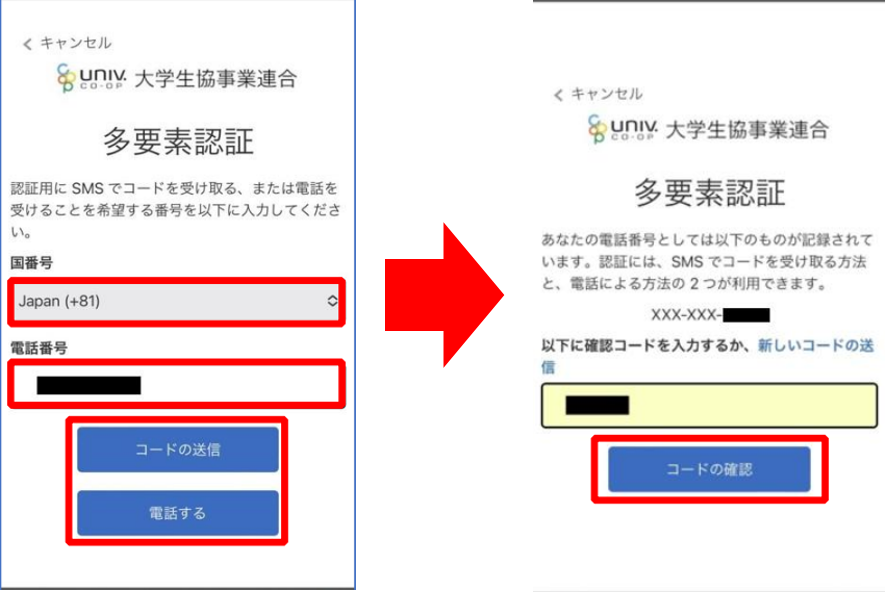
④ Log in to use the payment system.
Authentication will be performed using your phone number or email address.
⑤ After logging in, enter the authentication code sent to you to grant access
, and select "Allow access".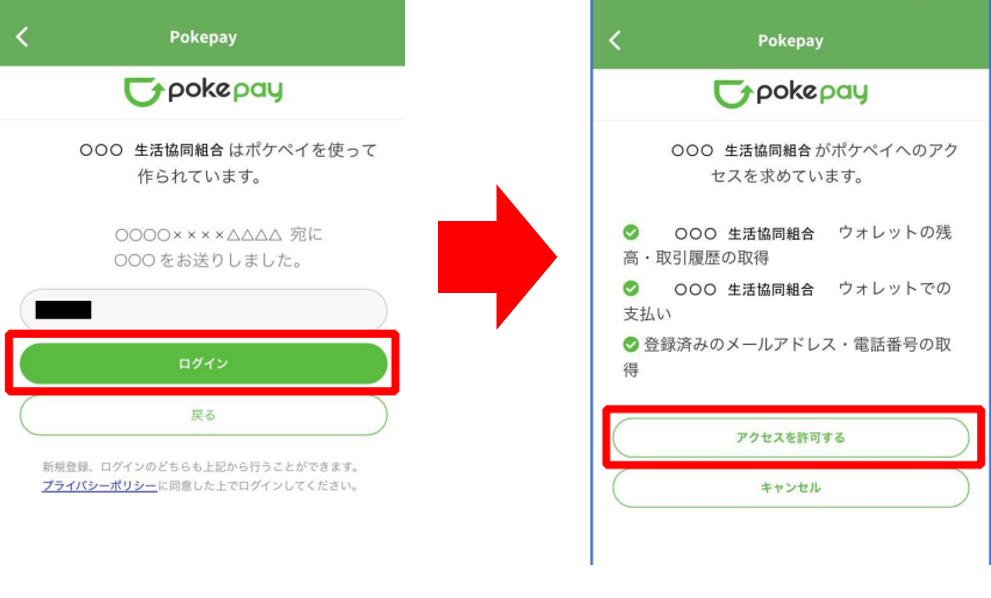
⑥ Register additional information.
Select "Set additional information" and follow the on-screen instructions to authenticate.
*Either "Authenticate by email" or "Authenticate by SMS" will be displayed.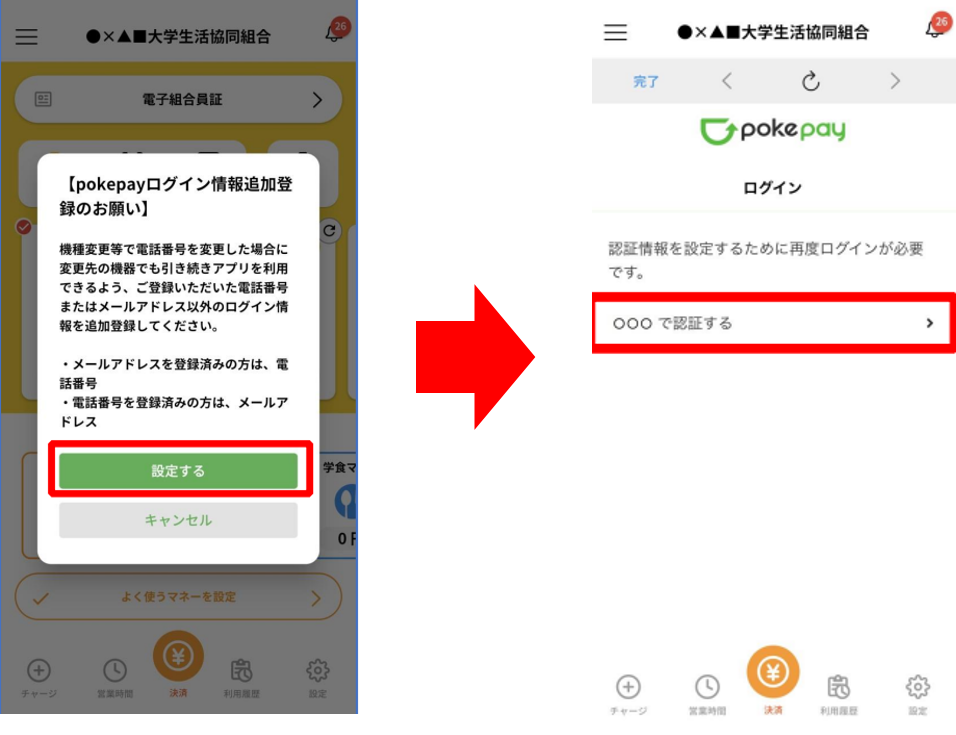
⑦ If you want to add or change the information required to complete the authentication
, select the item and follow the on-screen instructions to set the authentication information.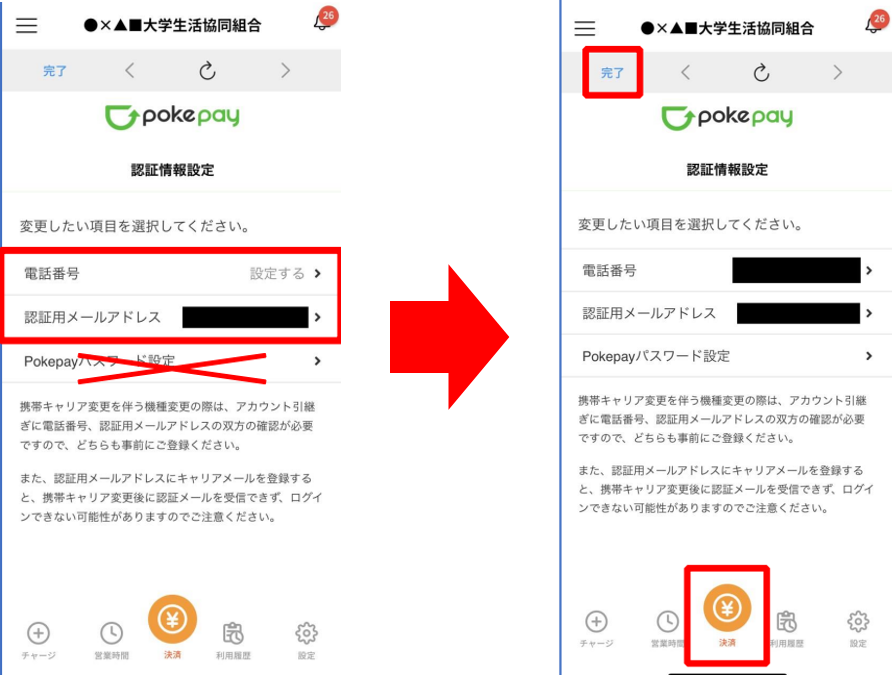
⑧ Complete.
Once you reach this screen, you will be able to use Co-op Money.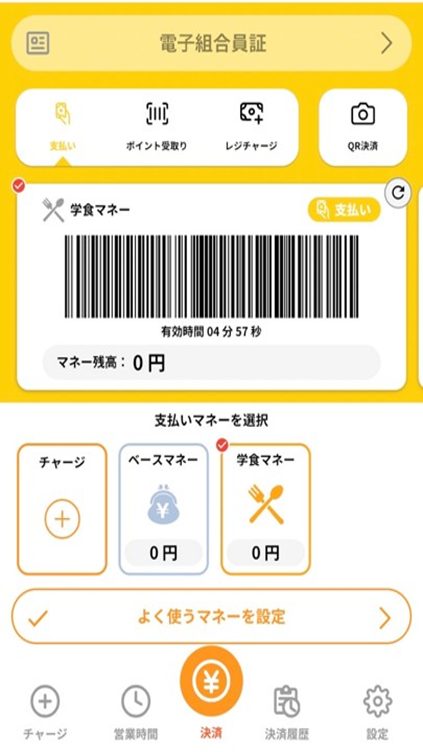
Please refer to the link below for information on how to use the Co-op app
| ☆ Various inquiries |
- App Error Inquiry:If you encounter an error when signing in after signing up for the app (portal registration), please submit a request using the app error request form. *App sign-up requires the email address registered as your member information. Please submit the form only if you still encounter an error even after using the correct email address.
<App Error Request Form>https://text.univ.coop/wfm_utcoop/app_error_2
- For inquiries
other than app errors, such as those related to your device or other issues preventing you from using the app or cafeteria money, or those who cannot confirm the transfer of their remaining balance from their cafeteria pass, please contact the Member Center by email.
University of Tokyo Consumer Cooperative Member Center
Email: sosen@mail.utcoop.or.jp
