


- Home
- University Co-op App/Co-op Electronic Money
- How to use Co-op electronic money
How to use Co-op electronic money
(Last updated 2026.3.11)
This page provides information on how to prepare for and use Co-op electronic money, how to make additional deposits, and how to check your history
You can also make additional deposits and check your history on your computer (MY page)!
Use Co-op electronic money
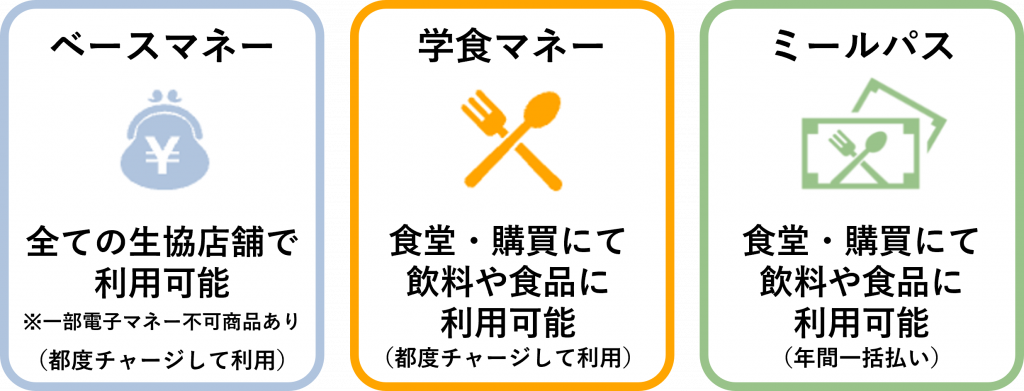
[Request] While you are waiting at the register, please take out your smartphone, open the app, and have your money code ready.
Please tell the cashier which money you will be paying with.
*Meal Pass/Café Money can only be used to pay for food and drinks. If you are using it for other items such as stationery, please charge it to your base money. Please be careful.
Prepare for use
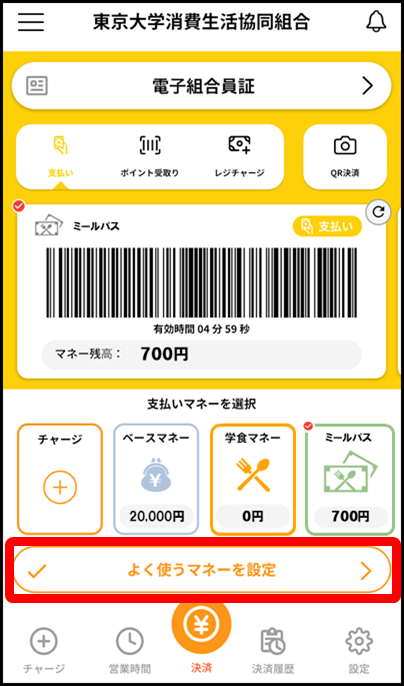
★Register frequently used money★
By registering frequently used money, it will be easier to switch between money!
Click "Set frequently used money" and select "Meal Pass," "Base Money," or "Catering School Money."
A check mark will appear next to the money you set as frequently used money.
When you open the app, money with a check mark will be displayed.
How to use
Please prepare the app in advance to ensure smooth use
 by launching it at the register
② Hold the barcode over the scanner
. Hold the app screen over the scanner at the cash register.
You can scan from the app startup screen, but if you touch the barcode, a larger barcode screen will appear.
If you are having trouble scanning, try this.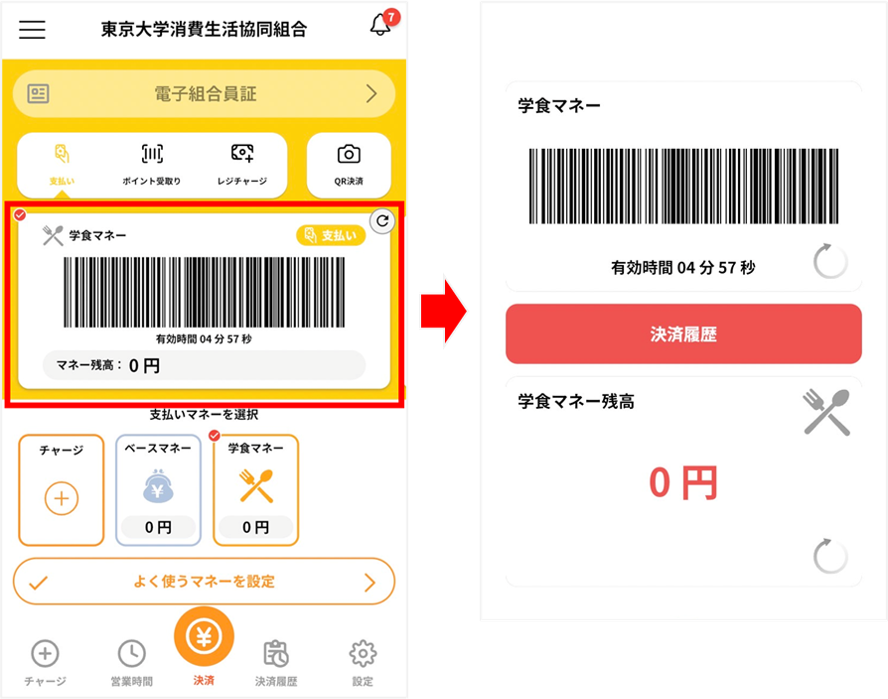
Additional deposit methods
*You can jump to each item
There are several ways
to add money to your card. *Currently, we do not accept credit card top-ups.
1. Top-up machine (cash only)
2. Bank account payment (BankPay)
3. Convenience store payment
4. Top-up at the register * Top-up from a computer is also possible.
For parental charges, please see
here
①How to charge using a charging machine
Locations of cash charging machines (as of March 2026)
○ Hongo Campus: Second Purchasing Department
○ Komaba Campus: Komaba Purchasing Department, Komaba Cafeteria 1st floor
1. Tap "Charge" on the app and select the charging method.
*Please be sure to scan from within the app.
If you register for the Pokepay app, you will no longer be able to use the app's electronic money payment.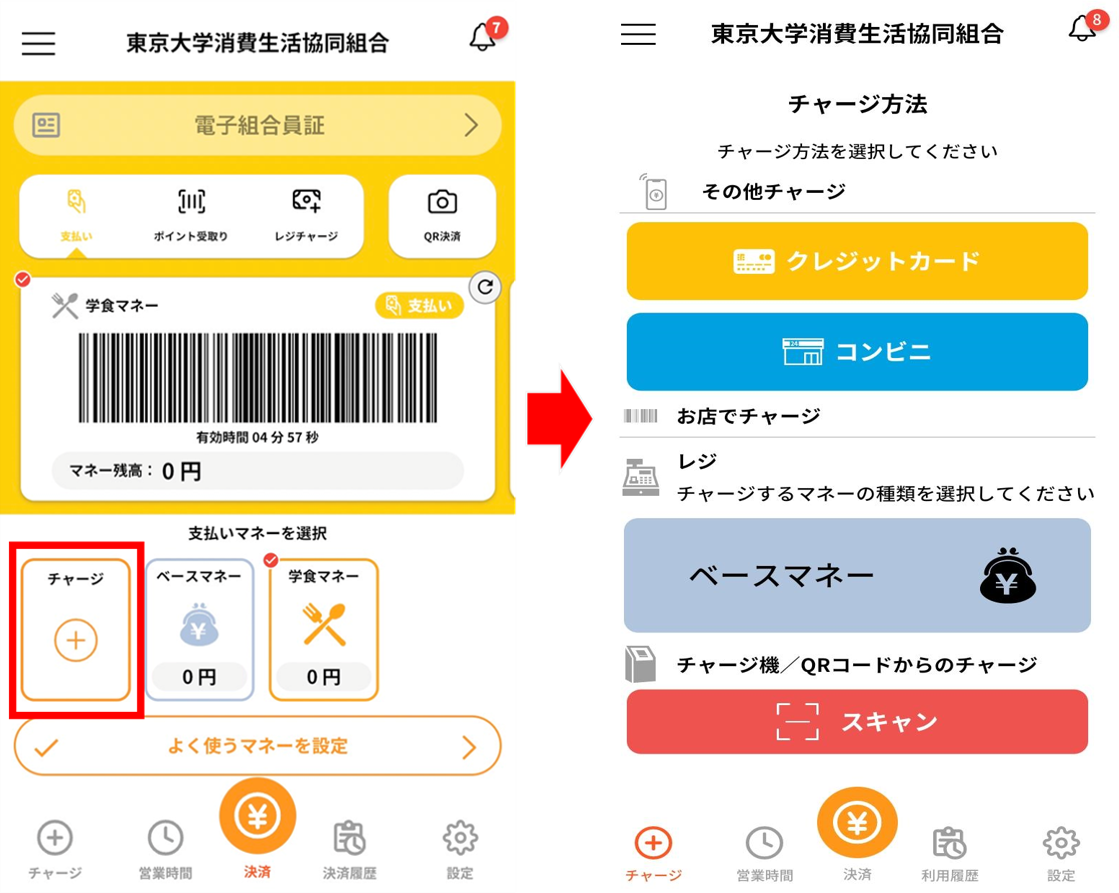
2. Tap "Scan", insert the amount of money you want to charge into the charging machine, and scan the QR code displayed on the charging machine.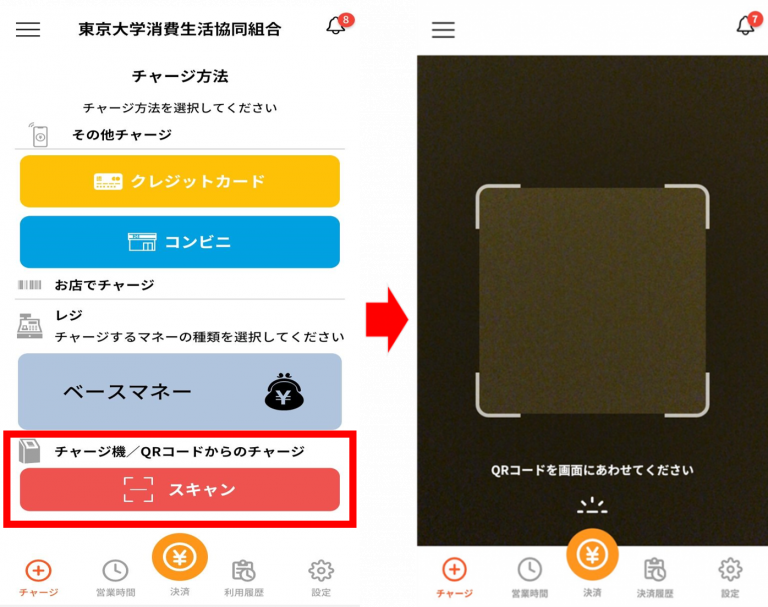
3. First, insert money into the charging machine!
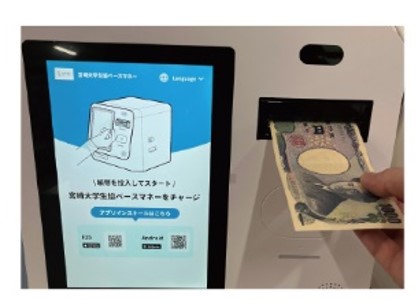
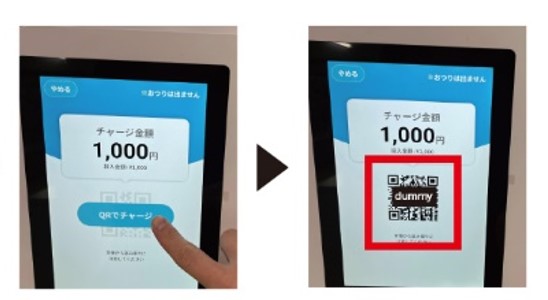
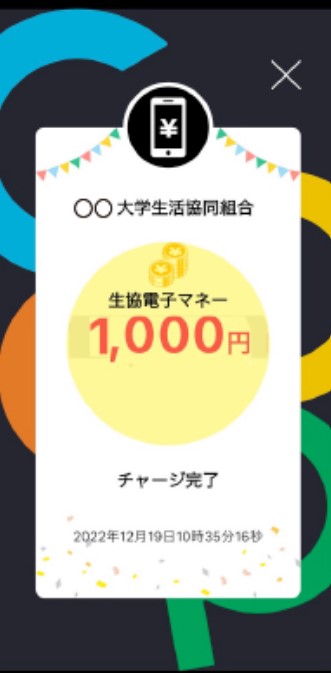
↓When you see this screen, charging is complete! ↓
3. How to charge at a convenience store
1. Select the amount you want to charge and select "Convenience store."
*If you want to charge 4,000 yen, tap "+1,000 yen" or "+3,000 yen."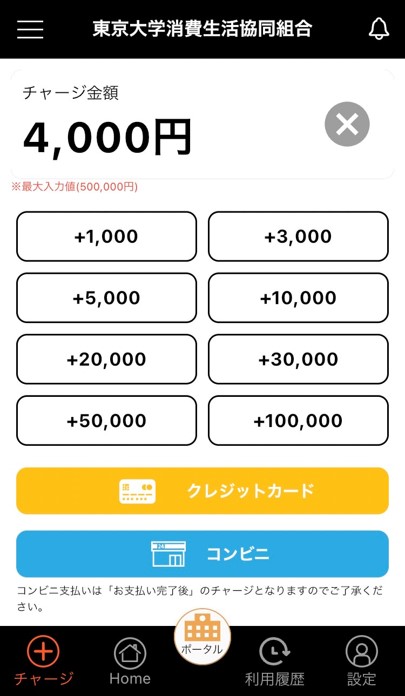
2. Select the charge destination, enter the required information, and click "Confirm" to move to the convenience store selection screen for payment. Check the payment method for each convenience store and follow the instructions to pay.
*You will also receive an email titled "Notice about Convenience Store Charges (University Co-op Business Union)" to the address you entered in the required information, so you can also check the URL in the email for instructions.
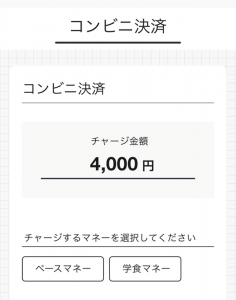
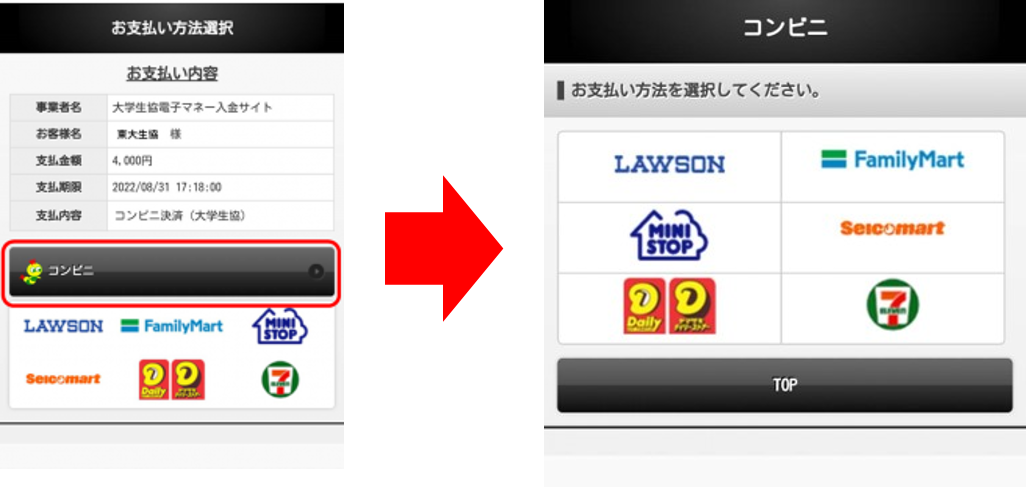
*The amount will be reflected after payment is complete.
④How to charge at the register
1. Tap "Register Charge" on the app to display the barcode for charging.
2. The cashier will scan the barcode, so tell them the amount you wish to charge and pay the charge amount.
*Charge payments are cash only.
How to charge from a computer
1. here and log in.
*Please enter your registered email address and password.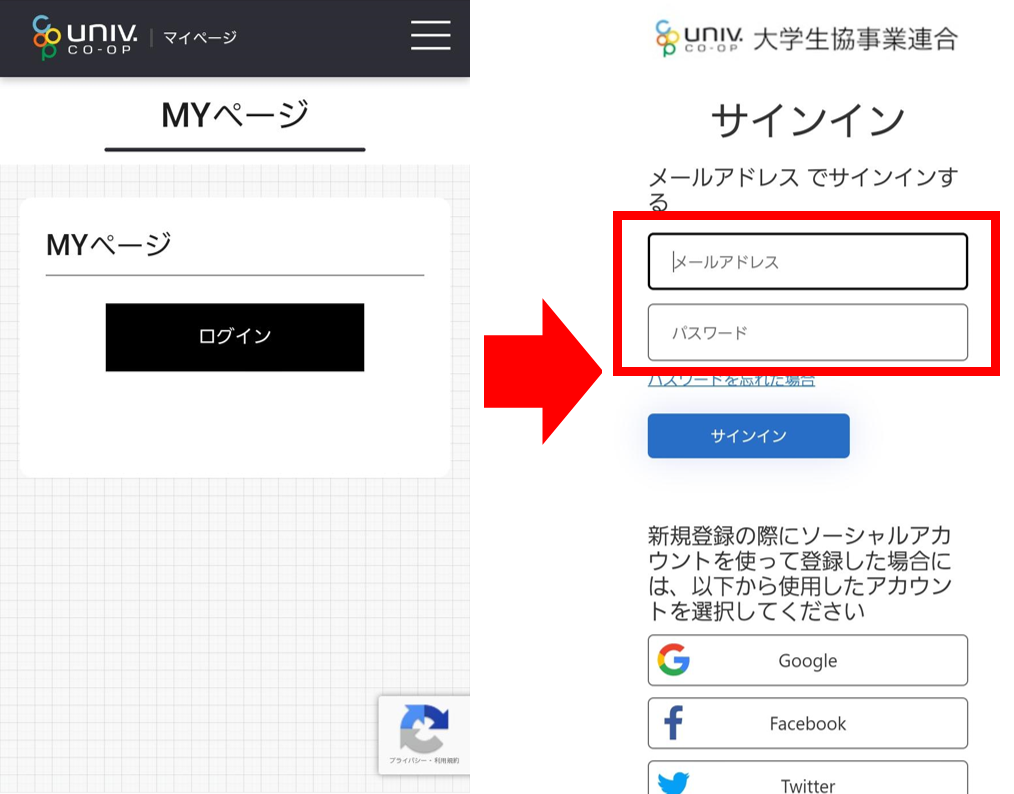
2. After logging in, click the three lines in the top right to open the menu.
You can check your balance history by scrolling.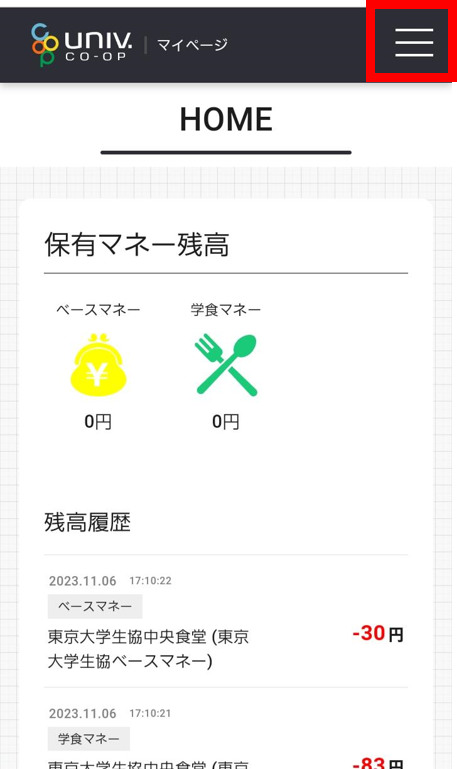
3. From the menu, click "Charge" → "Self-Charge".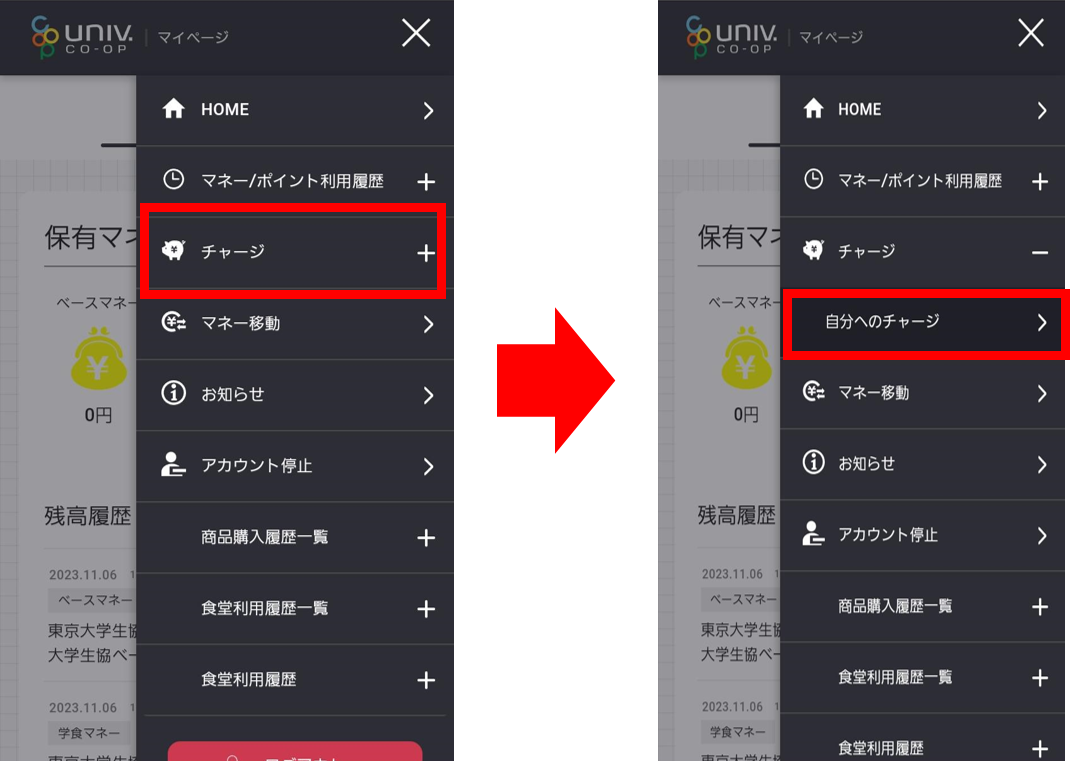
4. Select the charge amount and choose "Credit card" or "Convenience store". Select
"Co-op electronic money" as the money to charge and enter the required information.
*For credit cards: Immediate charge
For convenience stores: Charge after payment at the convenience store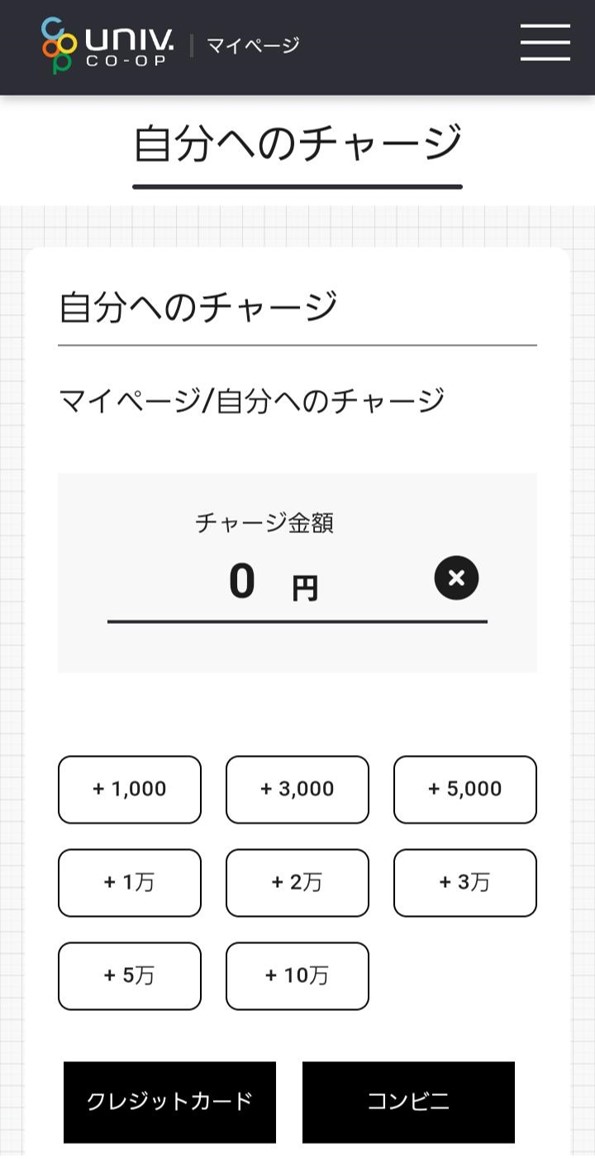
Check your history
You can check your history from the app or your computer.
For computers, please log in
here The procedure for checking is the same for both the app and your computer.
Electronic money usage history
① Press Payment History, then press Electronic Money Usage History.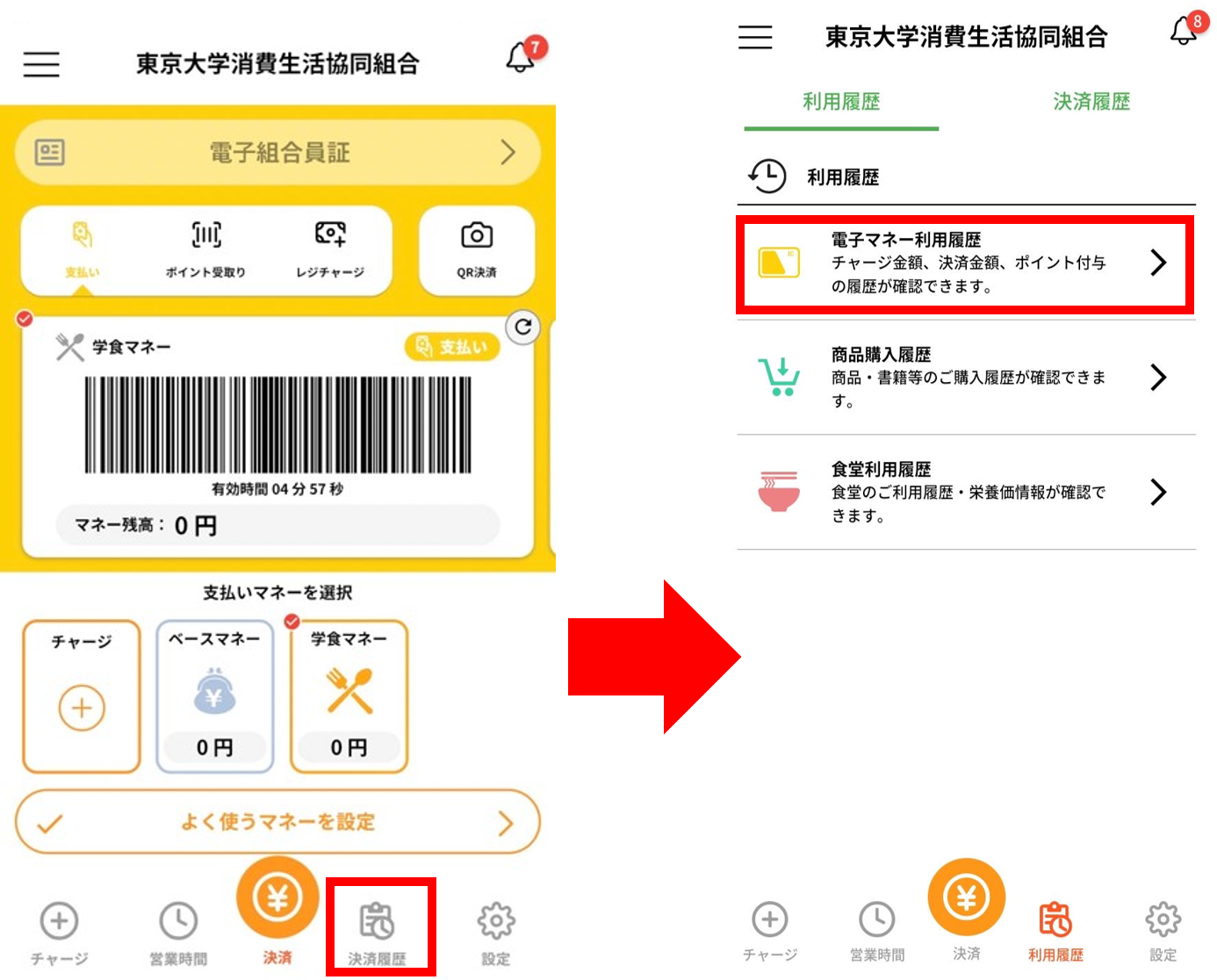
② Select the type and period you want to check the history for, and perform a search.
*If you do not set a period, the search will cover the entire period.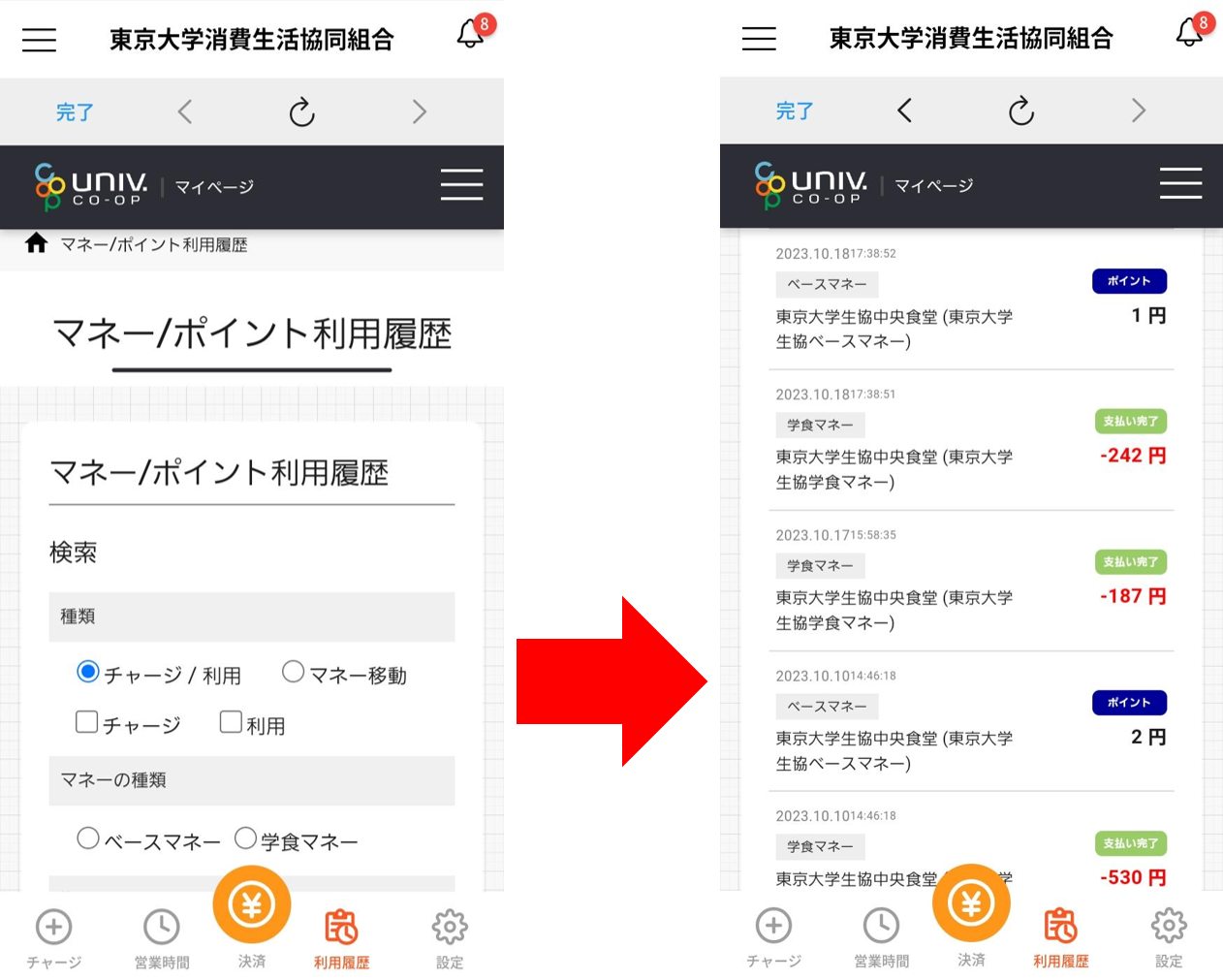
Product purchase history
① Click Payment History, then Product Purchase History
. You can check all product purchase history.
② Select the period you want to search.
*If no selection is made, the entire period will be searched.
Cafeteria usage history
You can also check the nutrition graph from your usage history!
① Press Payment History, then press Cafeteria Usage History.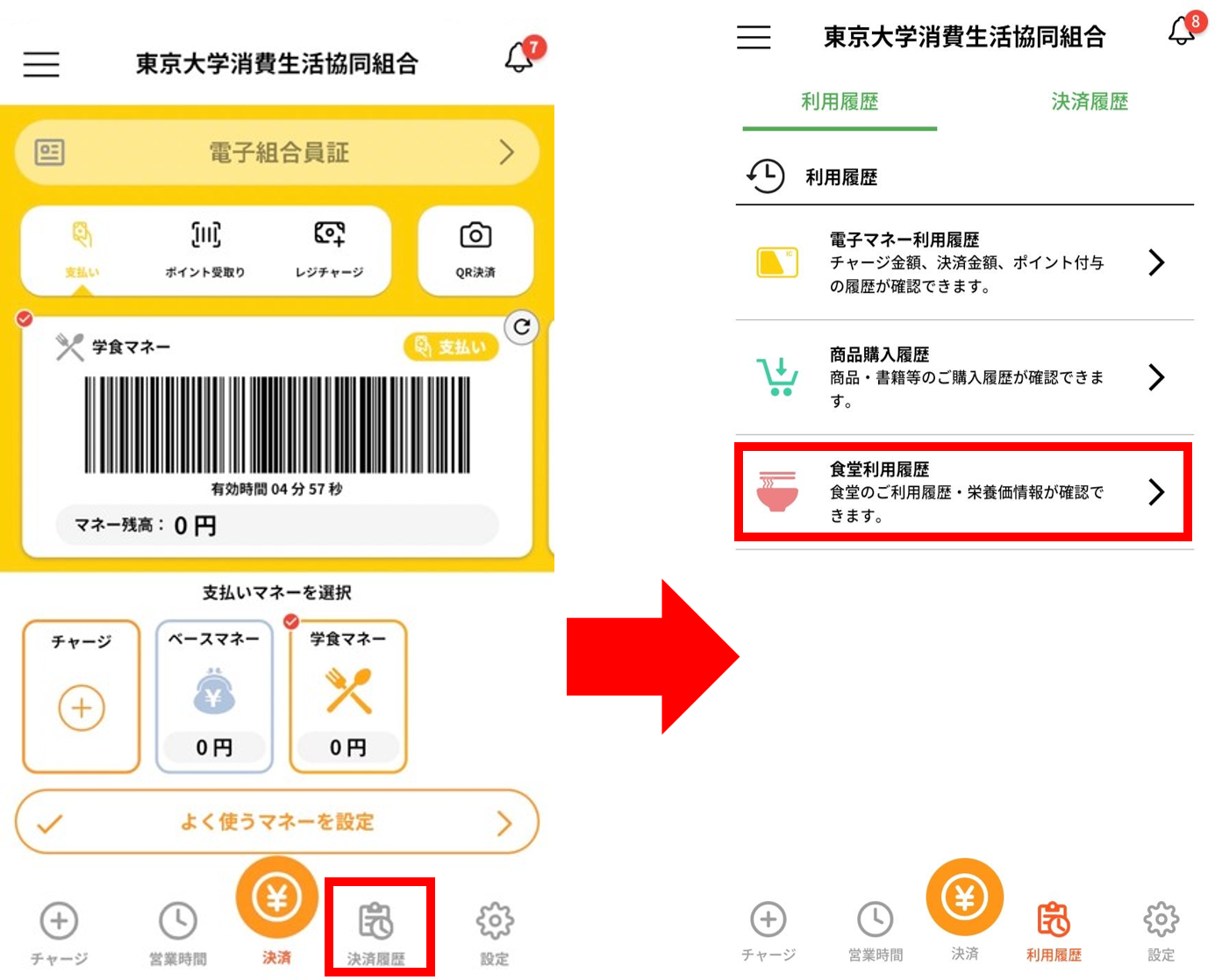
② Select the period you want to check your usage history for.
*If no selection is made, the entire period will be searched.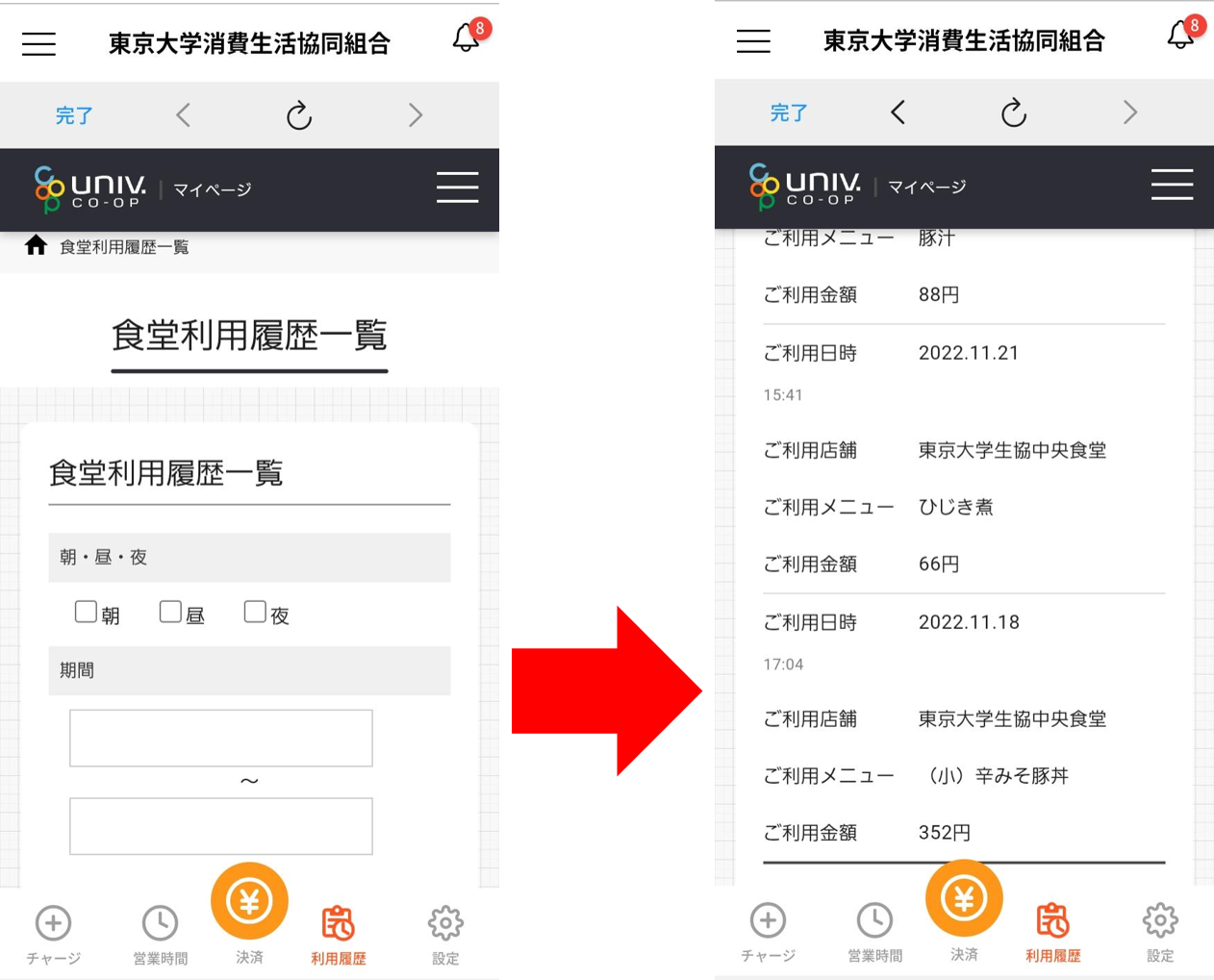
●How to read the nutrition graph
① On the cafeteria history confirmation screen, press the three lines in the top right corner,
then press Cafeteria Usage History.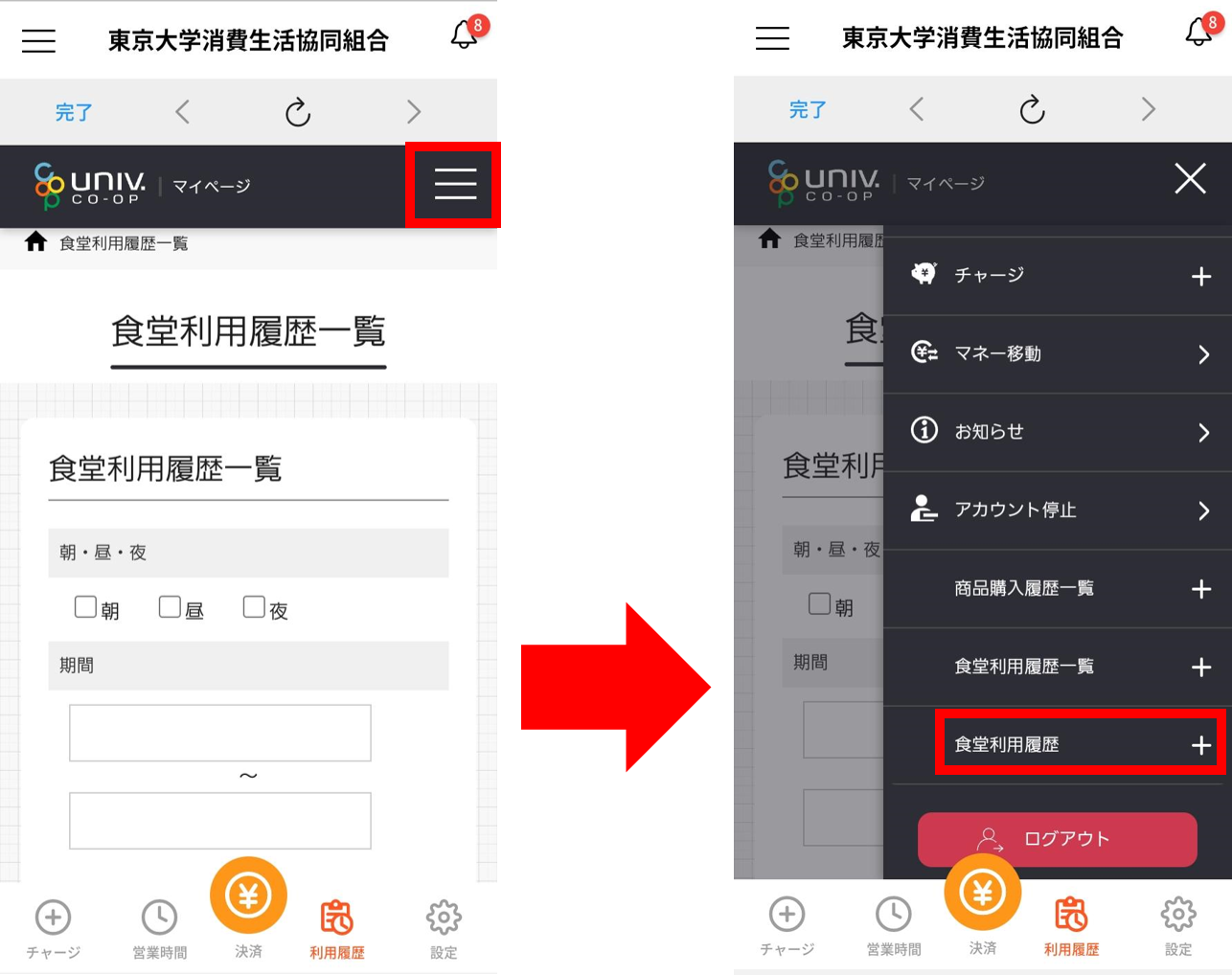
② Press your own cafeteria usage history and select your activity level.
③ The graph will be displayed.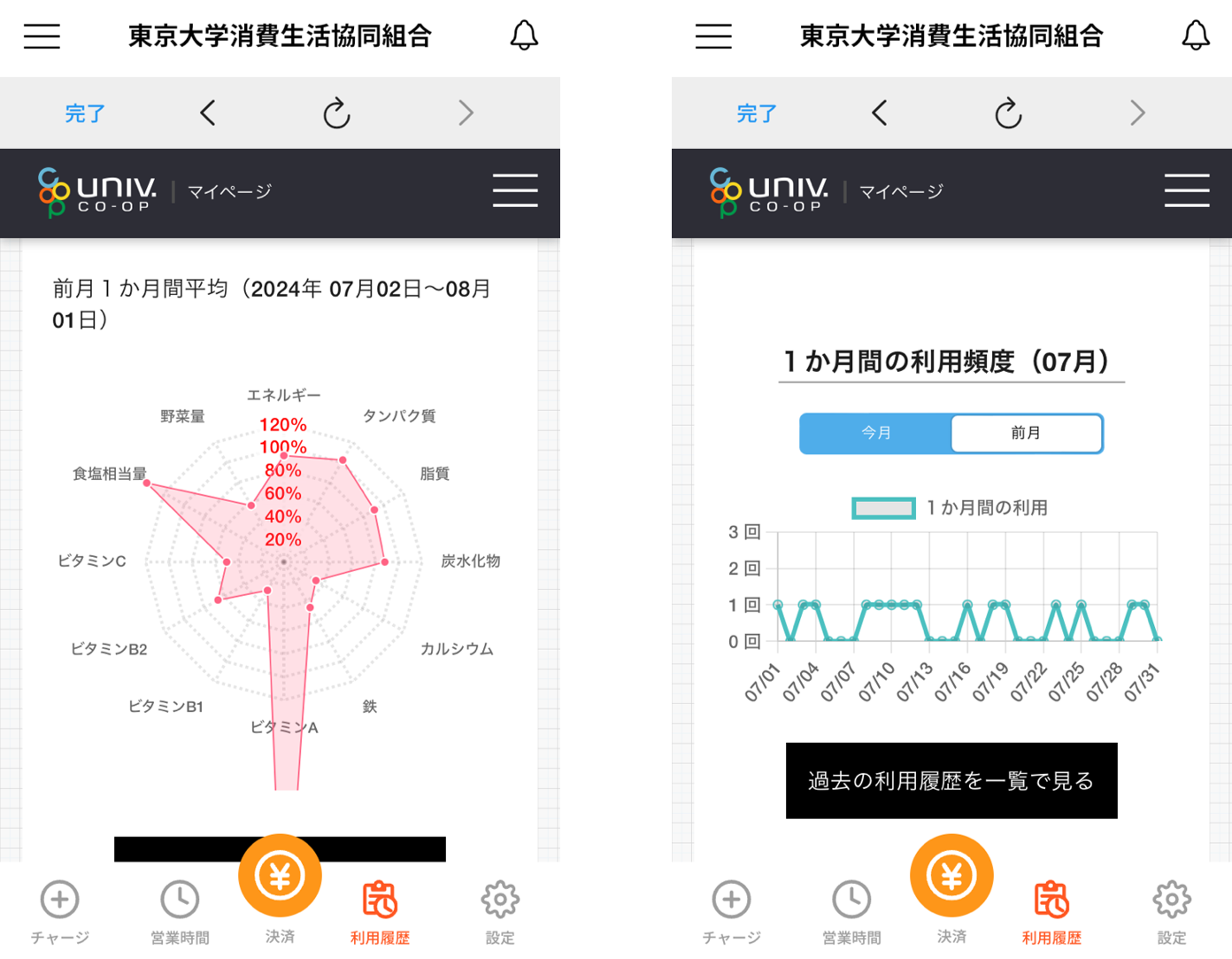
Various inquiries
- Inquiries regarding app login errors
If you receive a "login error" or similar error when signing in after signing up for the app (portal registration), please contact us using the form below.
*To sign up for the app, you will need the email address registered as your member information. If you signed up with a different address, please try again with the correct address, and if the error occurs again, please apply using the form.
<App error application form>
https://text.univ.coop/wfm_utcoop/app_error_2
- Inquiries about registration information
If you would like to change the address or verification phone number you signed up with in the app, please contact us using the form below.
<App registration address and verification phone number change form>
https://text.univ.coop/wfm_utcoop/app_update/
- Other inquiries
If you are unable to use the app or Gakushoku Money due to device issues, or if you are unable to confirm the transfer of your Gakushoku Money balance, or if you have any other inquiries other than app login errors, please contact the Member Center by email.
University of Tokyo Consumer Co-op Member Center
Email: sosen@mail.utcoop.or.jp
Q&A
Q. Where can I use "School Money"?
A. It can be used not only in the cafeteria but also to pay for food and drinks purchased at the store.
*Please note that it cannot be used to pay for stationery and other items other than food and drinks.
Q. Can I deposit money at the counter of the Member Center/Komaba Office/Central Cafeteria/Faculty of Agriculture store?
A. You cannot deposit money at the counter.
Please deposit money by credit card, convenience store, or cash charging machine (scheduled for November onwards). From January onwards, it will be possible to charge money with cash at the register.
Q. Can parents also check the history and make additional payments?
A. Payments can be made from the "Member My Page" and cafeteria usage history can be checked from the "univcoop My Portal".
Instructions on how to register and use are available on the following page:
"Notice regarding Co-op Electronic Money and Charges by Parents"
Q. Are the remaining balance and nutritional value information no longer displayed on receipts?
A. Due to a system change, this information is no longer printed on receipts.
Please check the remaining balance on the app screen. To check the nutritional value information, please sign in to "univcoop My Portal." For details, click here
Q. I have a "Gakushoku Pass Charge Ticket" as a housing benefit. Can I use it?
A. Yes, you can. Please register for the University Co-op app (official) and "Pokepay" and visit the Hongo Member Center/Komaba Housing Center.
*Points will be added to your base money. You can use it in the same way as Gakushoku Money.
Q. What is "Base Money"?
A. It is electronic money that can be used at all stores of the University of Tokyo Co-op.
Please use "Cafeteria Money" for meals on campus, and "Base Money" for other uses on campus.
The payment method is the same as "Cafeteria Money." Tap the icon and scan the money code to use it.
Q. What are "points"?
A. Points are awarded at events in stores and can be used when making payments.
*Please note that to prevent points from expiring, points will be consumed first when paying with base money.
We will announce the details of the point service as soon as they are decided.
Q. Can I transfer money?
A. You can only transfer from "Base Money" to "School Money."
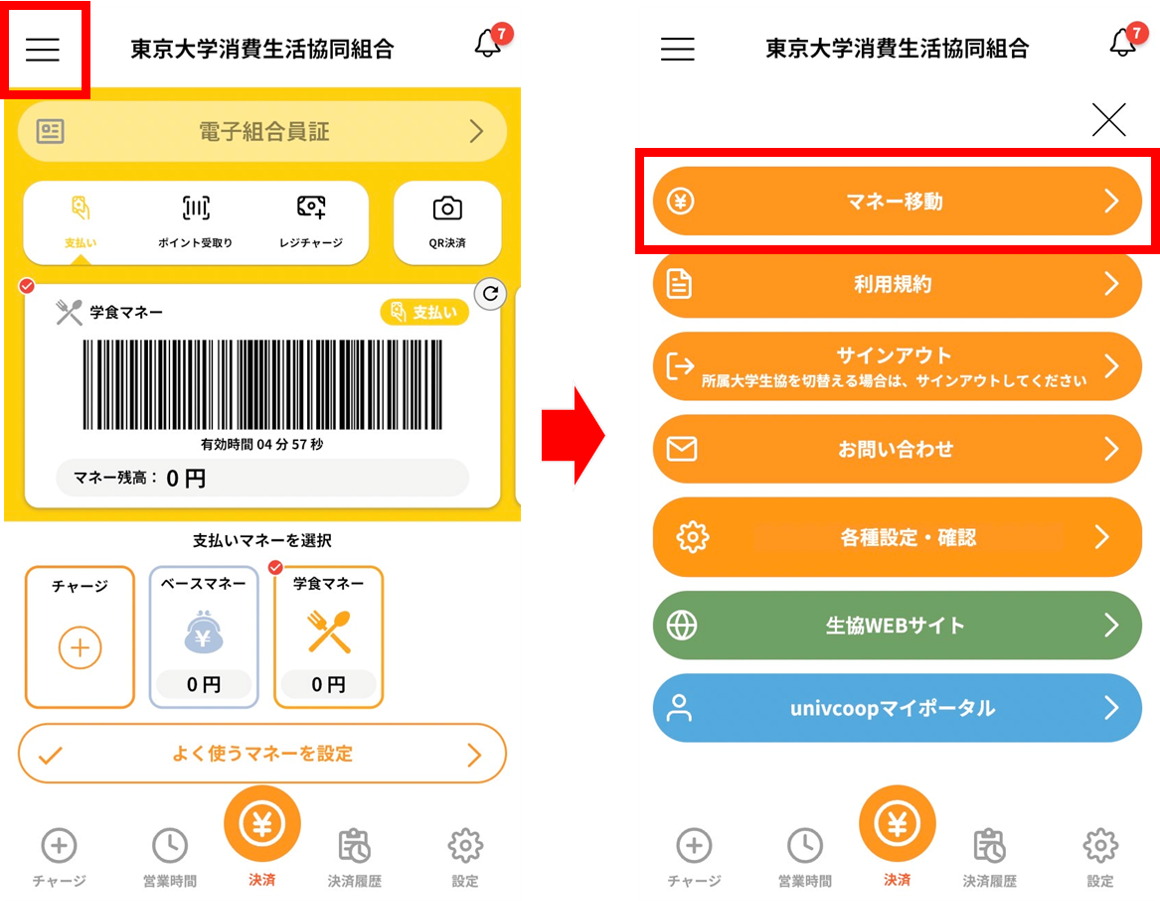
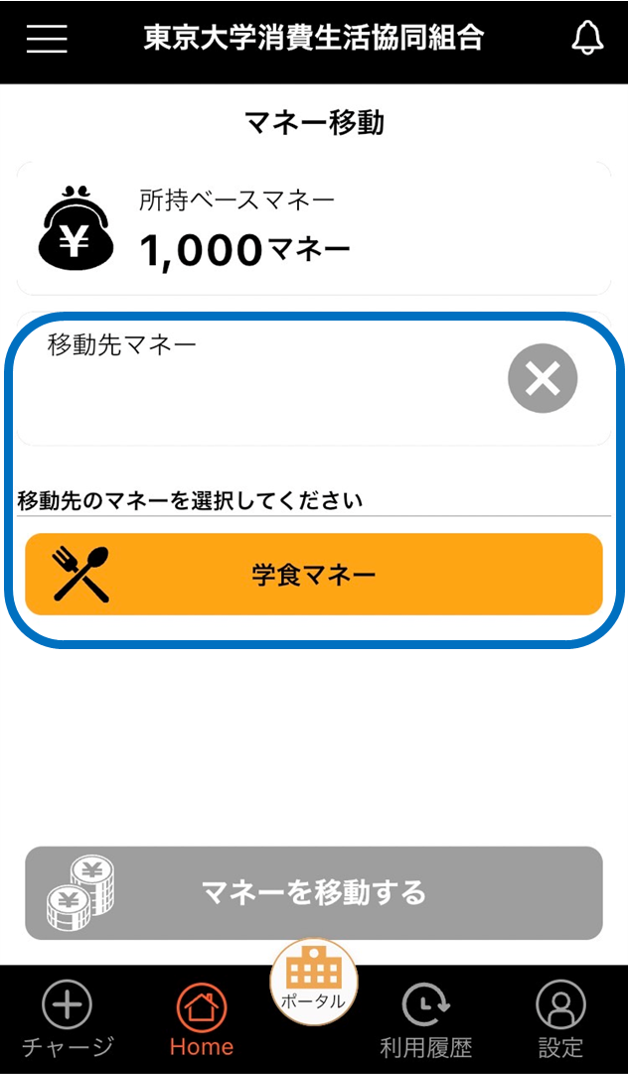
1. Tap "Money Transfer" from the menu in the upper left (three lines).
2. Select the destination money, "School Money," and enter the amount.
3. Finally, tap "Move Money" to complete the transfer.