



- Home
- University Co-op App/Co-op Electronic Money
- Regarding charging Co-op electronic money (for parents)
Regarding charging Co-op electronic money (for parents)
(Last updated 2026.3.11)
Currently, the only methods of topping up your card are via bank account (BankPay) and convenience store payment. We have discontinued credit card payments
Parents can now charge their Co-op electronic money.
This page
explains how parents and dependents can register and charge their cards To use the service, you will need to complete the following registration steps 1 to 5.
This registration process only needs to be completed the first time.
*Please make sure that the student has already completed the app registration before proceeding.
1. Sign up for univcoop My Portal
*If you have not yet signed up for My Portal (registering your email address, etc.), please proceed with the process here
① First, access "univcoop My Portal" and tap "Sign in" from the menu bar (or the three lines in the upper right corner on a smartphone)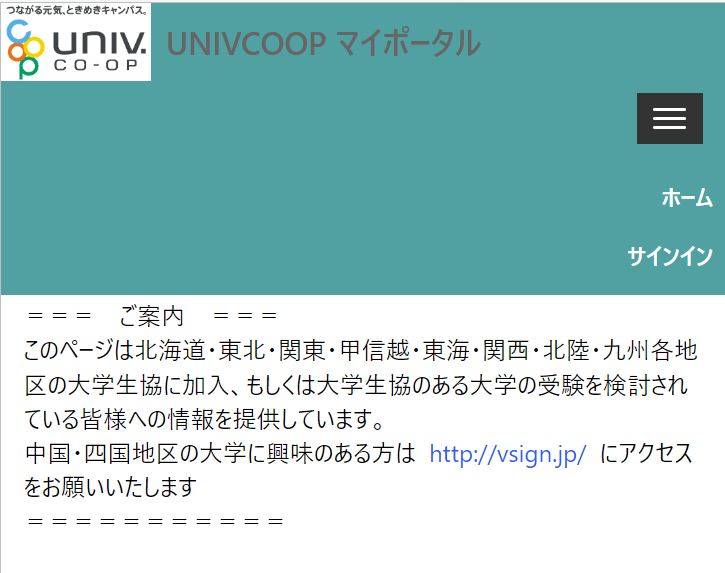
②When the sign-in screen appears, enter your email address and password to sign in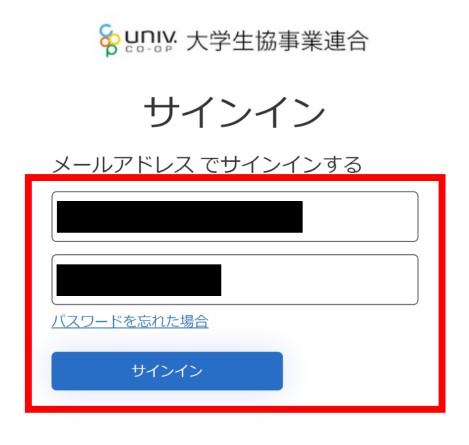
③Please complete the multi-factor authentication by following the instructions on the screen.
After receiving the code, enter it in the box to complete the authentication.
*If you cannot receive SMS messages on your smartphone or if you are using a landline number, tap "Call" to receive the code via phone.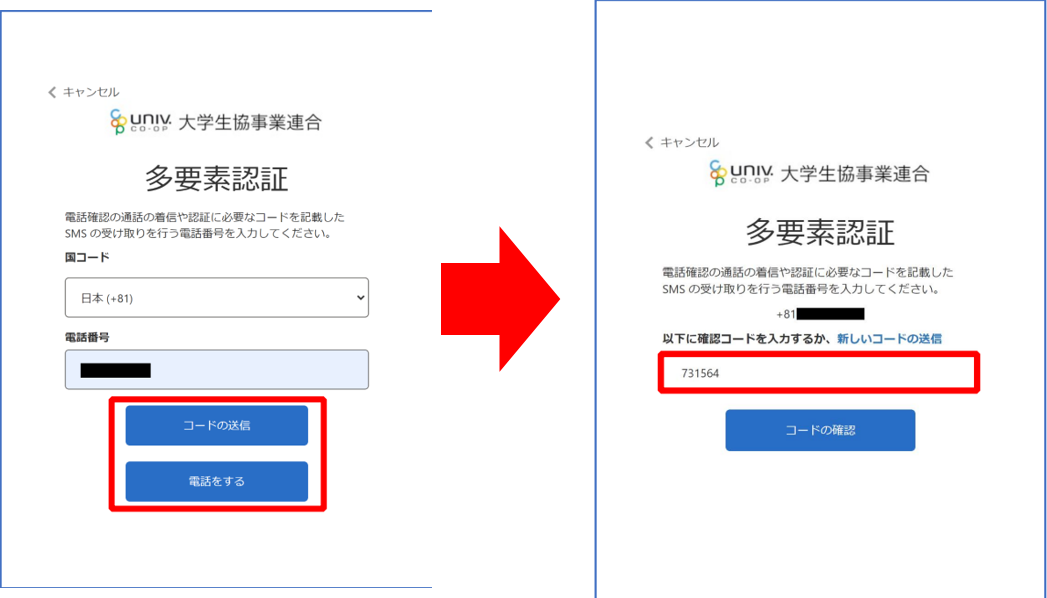
8. You will be taken to the profile screen.
Please enter your parental information.
After entering the information, tap "Change User Information" at the bottom.
*If the "Home" screen is displayed, you do not need to enter parental information.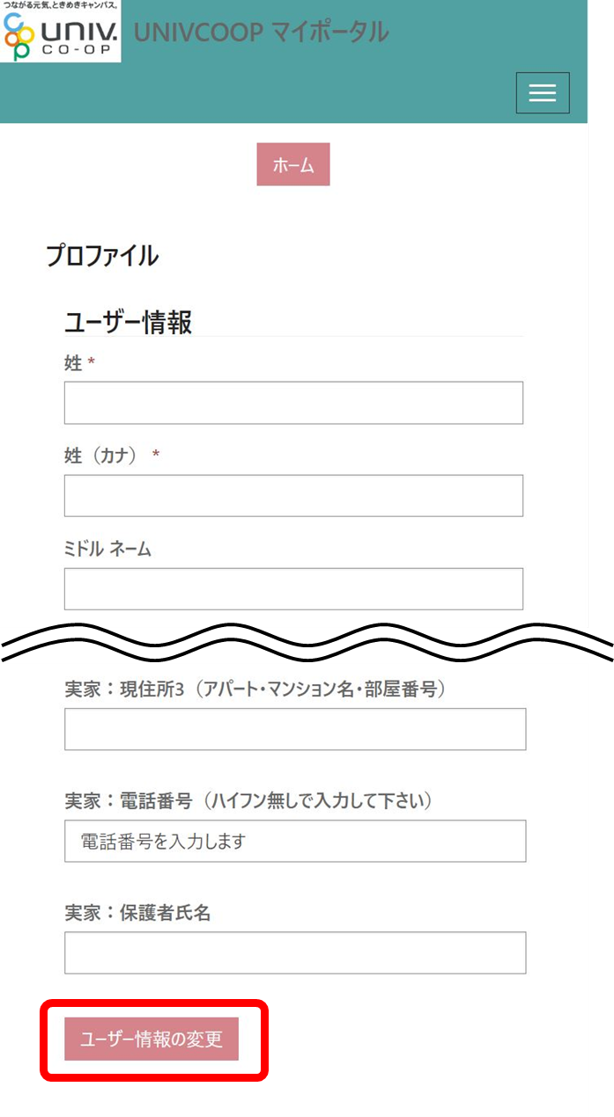
2. Family application for children
① Tap "Family Application" from the menu bar (three lines on smartphones)。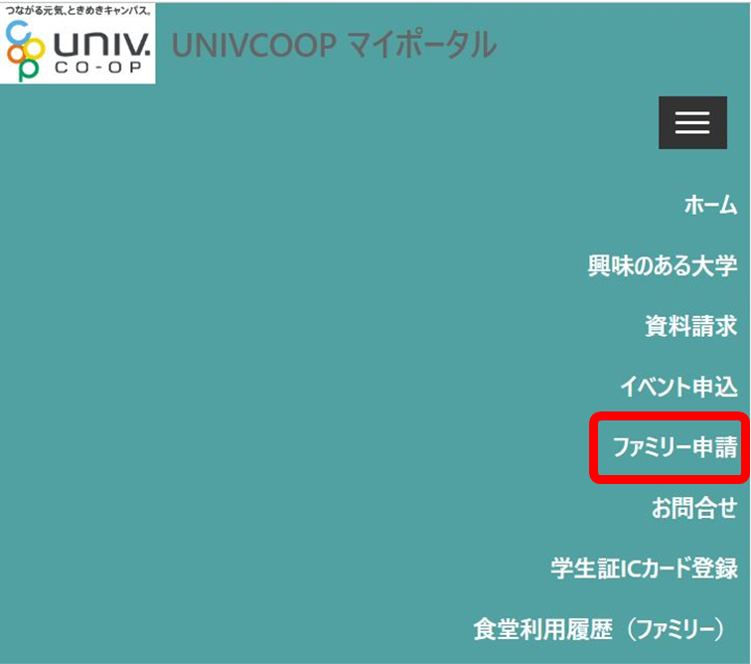
② Tap "New Family Application Registration" to proceed to the registration screen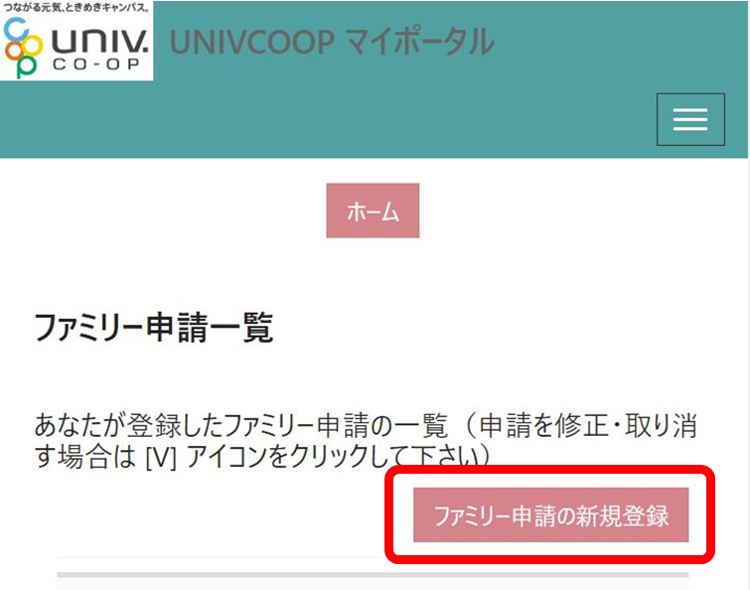
③Enter the required information and tap "Register Family Application."
・Email address of the person applying for family
→ Enter the address your child uses for the university co-op app.
・Relationship to the person applying for family from your perspective
→ Select "Child."
・Set a "password" and tell it to your child.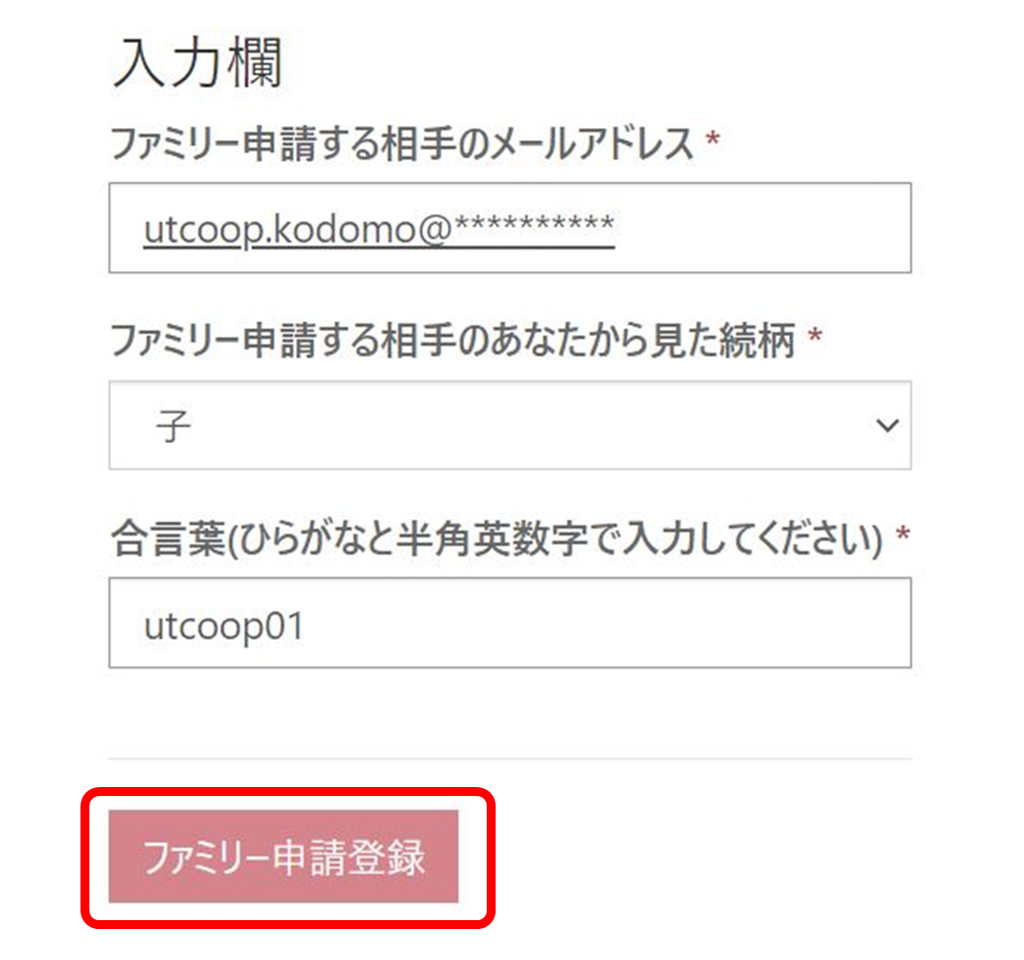
*If you make a mistake in your application, please register again by clicking "Register New Family Application."
3. Child's approval of family application
This procedure will be carried out within your child's univcoop My Portal (first time only)
1. Tap "univcoop My Portal" in the app, enter your email address and password, verify your phone number, and then "sign in."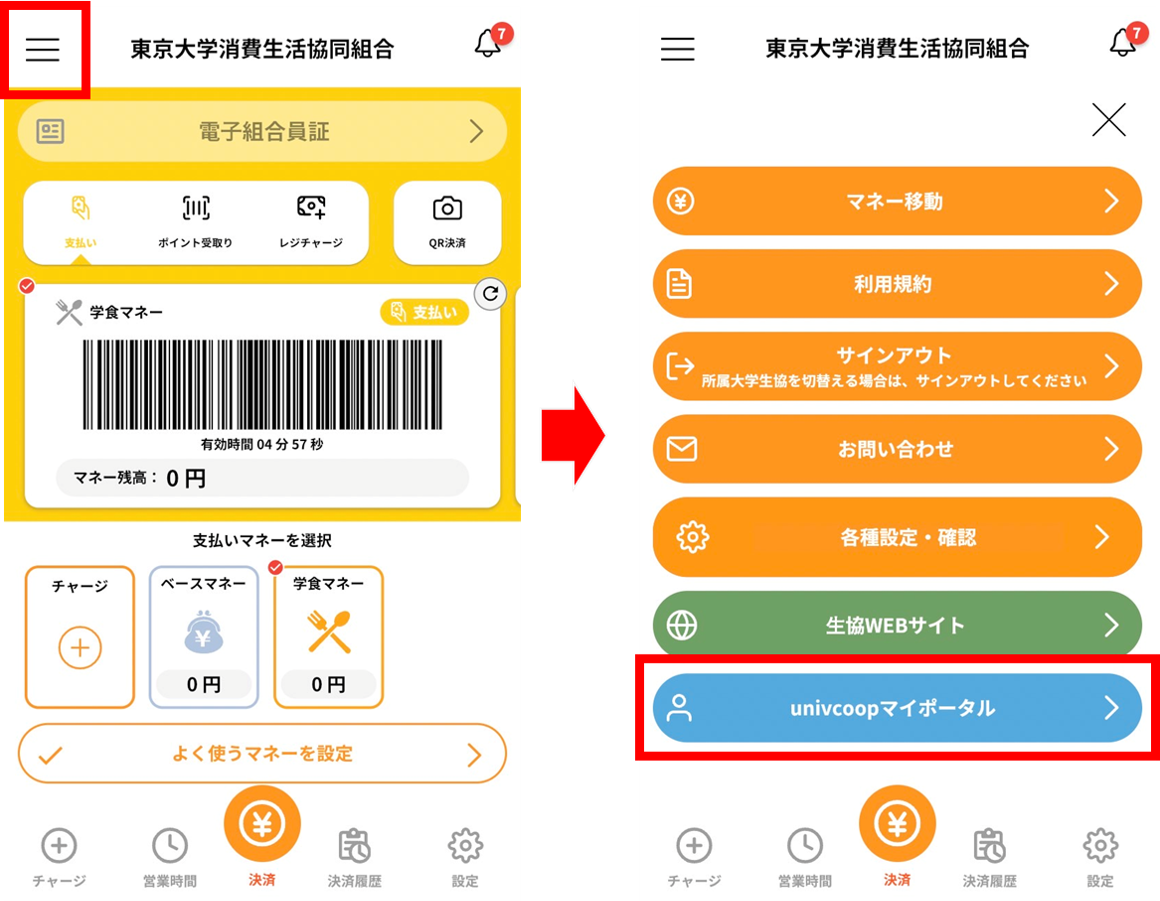
② Tap "Family Application" from the menu (three lines)
③ The parent's application will be displayed in the "List of Family Applications Sent to You." Select the "V" mark in the displayed list and tap "Approve Family Application."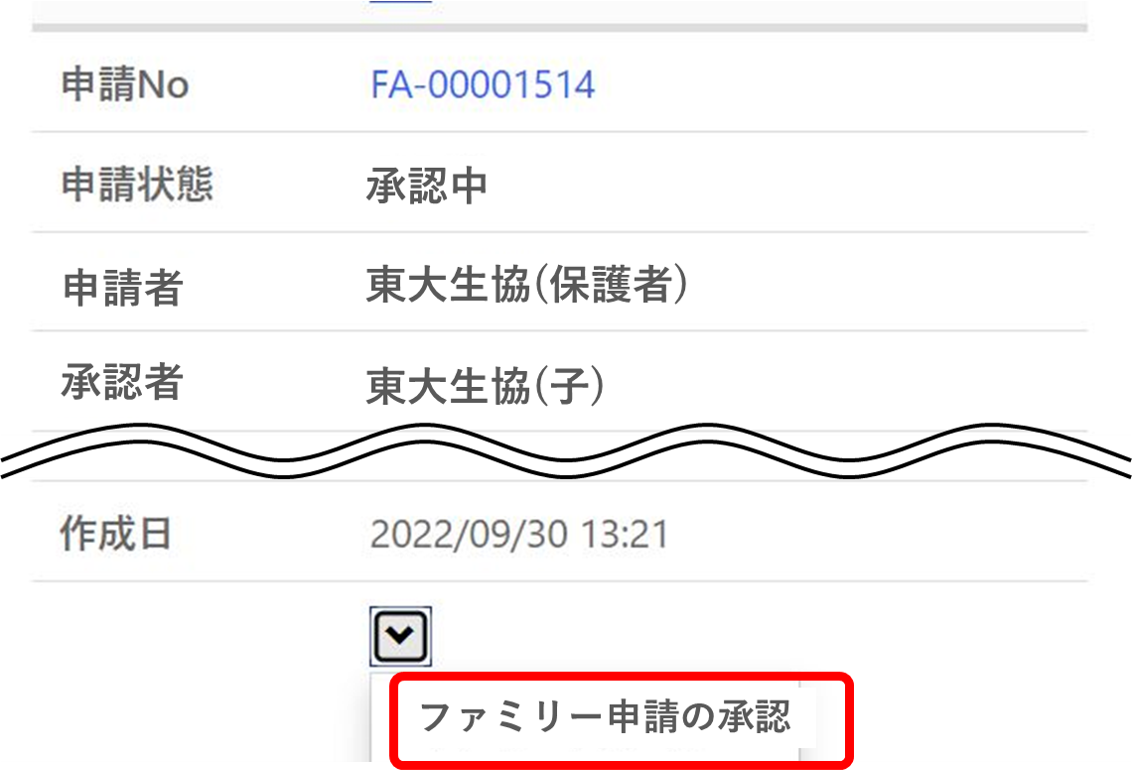
④ You will be taken to the Family Approval screen. Enter the "password" and select "Approve." Tap "Register Family Approval."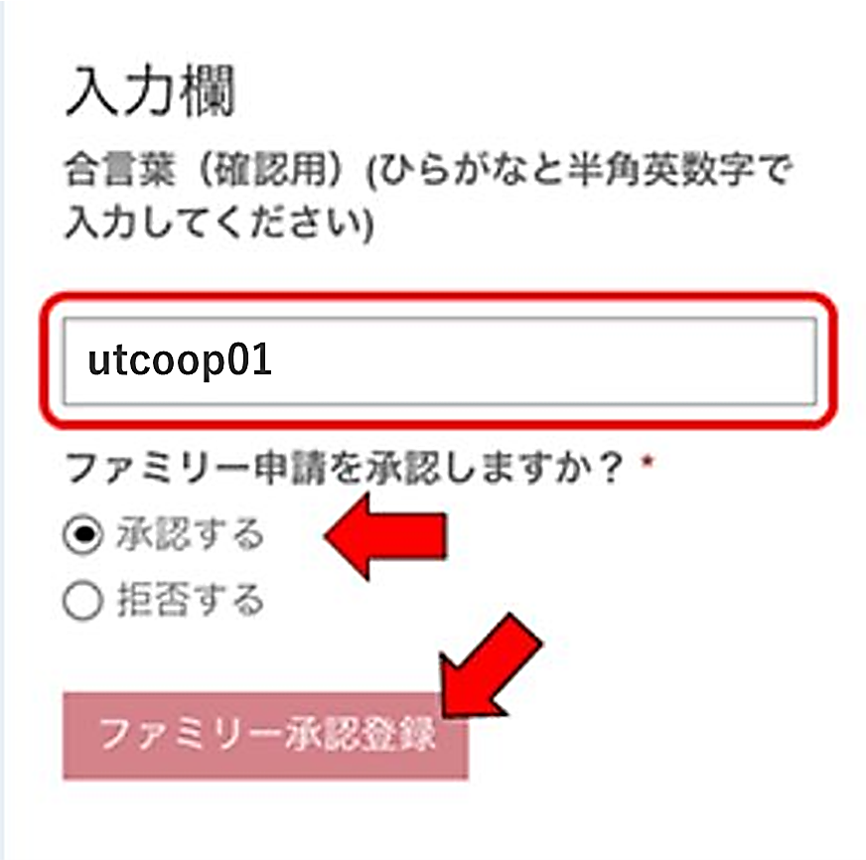
4. Member My Page/Money Account Registration
① After your child approves the "Family Application," access your "Member My Page" and log in.
*You will not be able to log in to My Page until approval has been granted. System processing may take some time. If you are unable to log in even though your child's "approved" status is displayed in univcoop My Portal, please try logging in again the next day.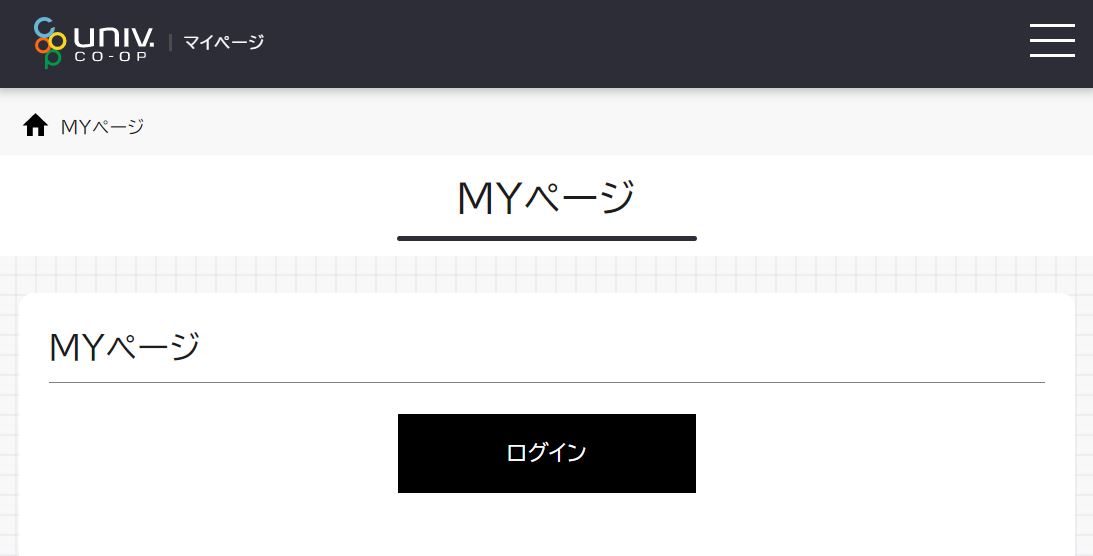
②Sign in using the email address and password registered with the univcoop My Portal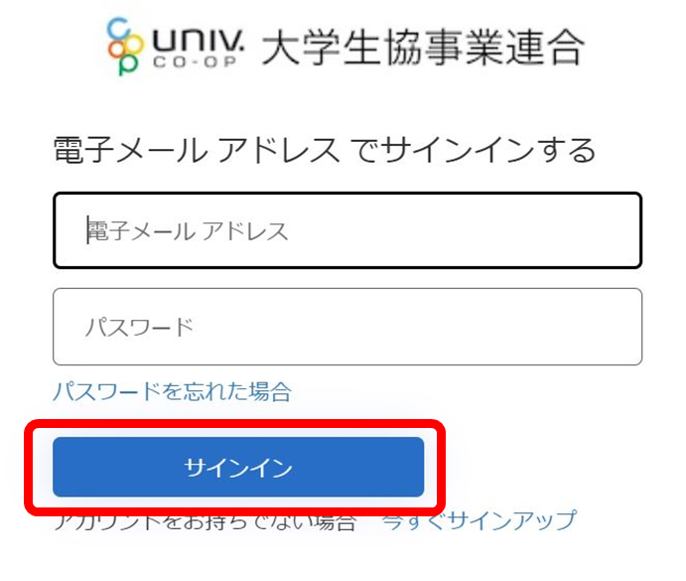
③ Tap "Send verification code" and a code will be sent to your email address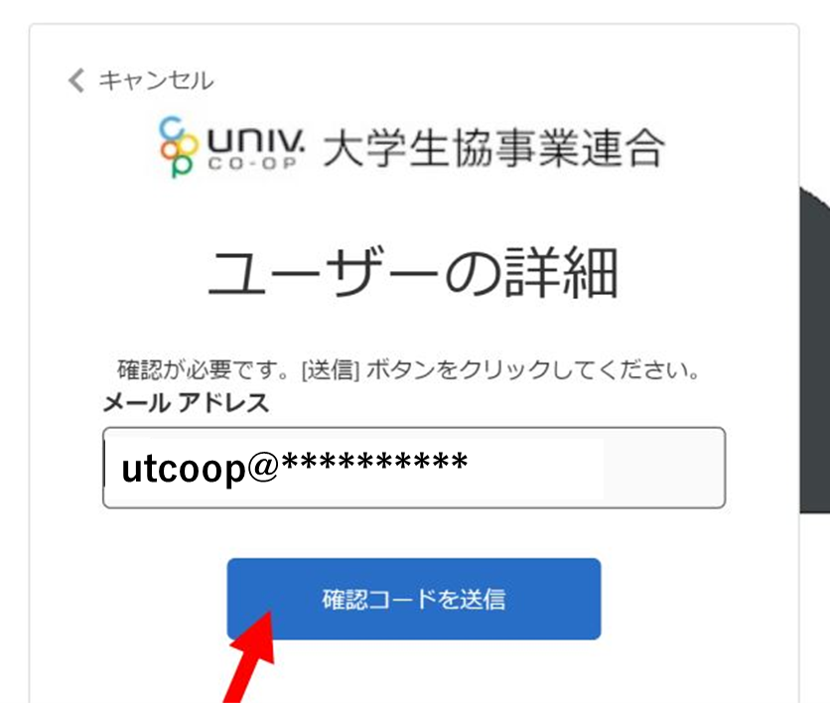
④Enter the code you received and tap "Confirm Code"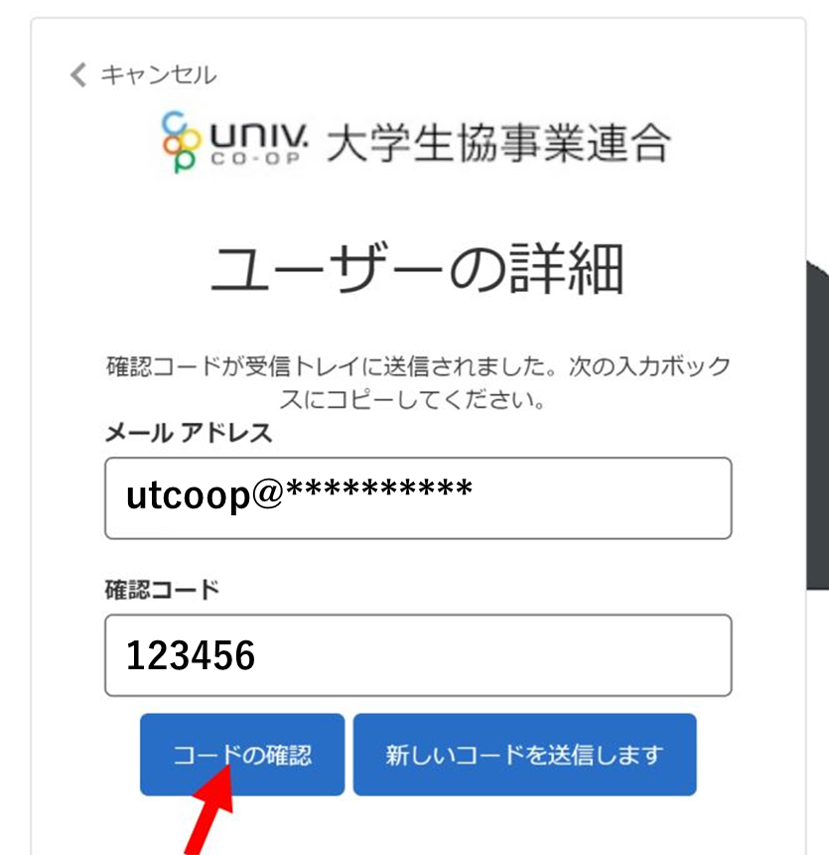
⑤ Make sure that you see the message "Your email address has been verified. You can continue now." and tap "Continue."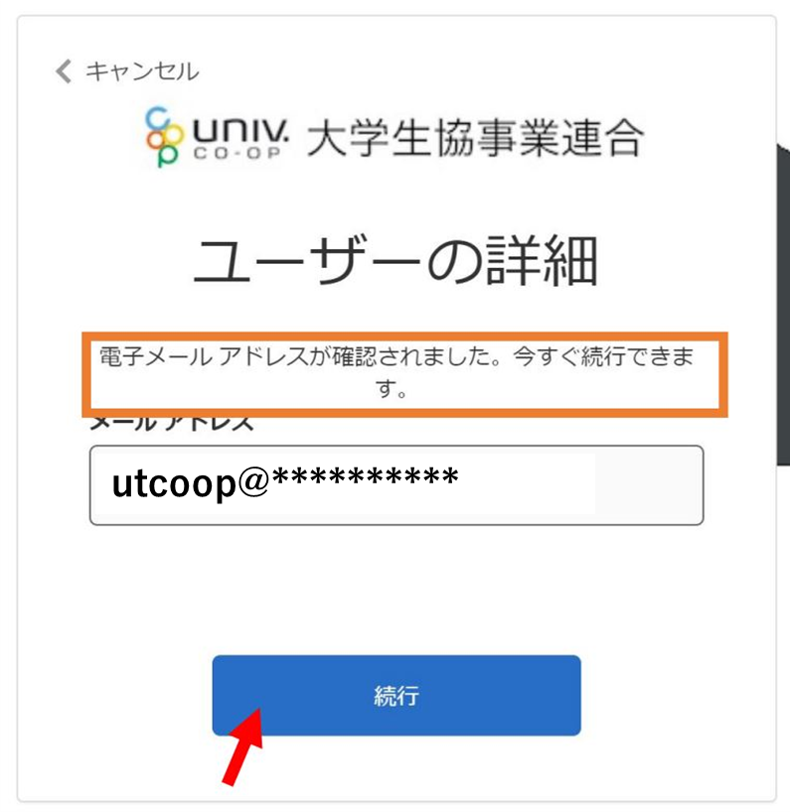
⑥ You will be taken to the PokePay "Login/New Registration" screen. Enter your phone number or email address and click "Login/New Registration."
*We recommend that you register with the address you registered with your Univcoop My Portal so you don't forget.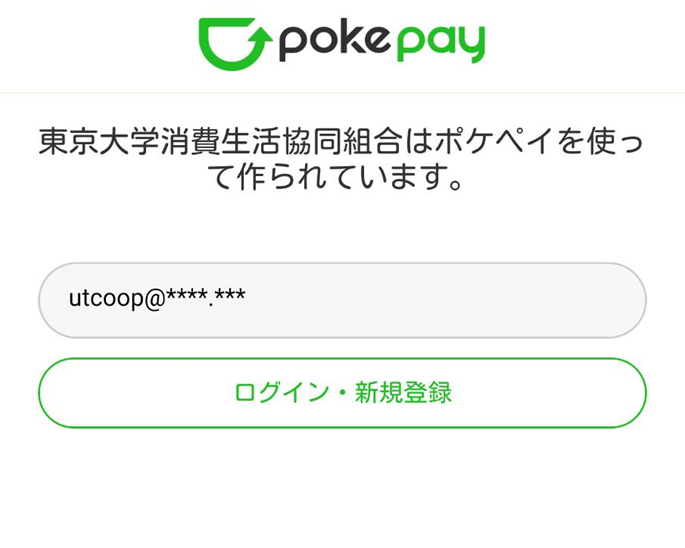
⑦ A confirmation code will be sent to the phone number or email address you entered. Enter the 6-digit confirmation code and tap "Login."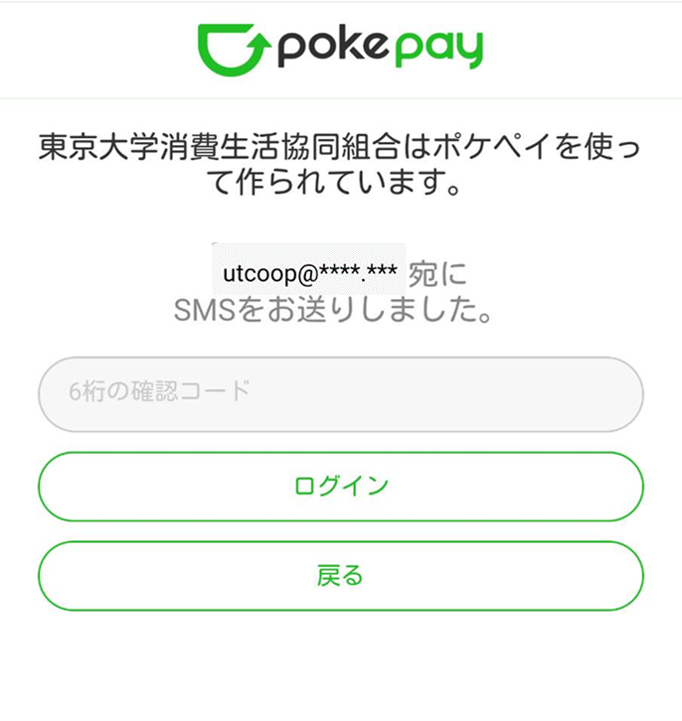
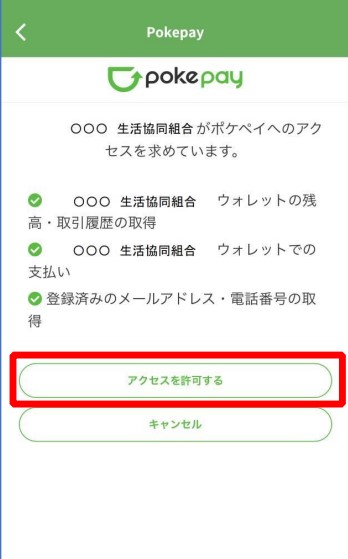
8. You will be taken to the access permission screen. Tap "Allow access."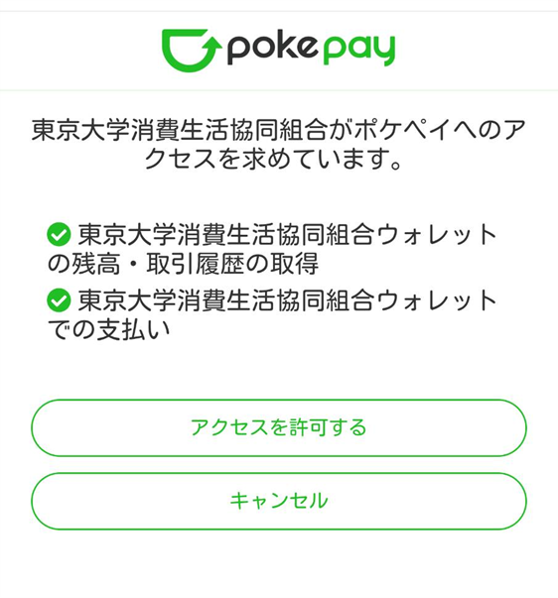
9. The home page of your member's personal page will be displayed and the process is complete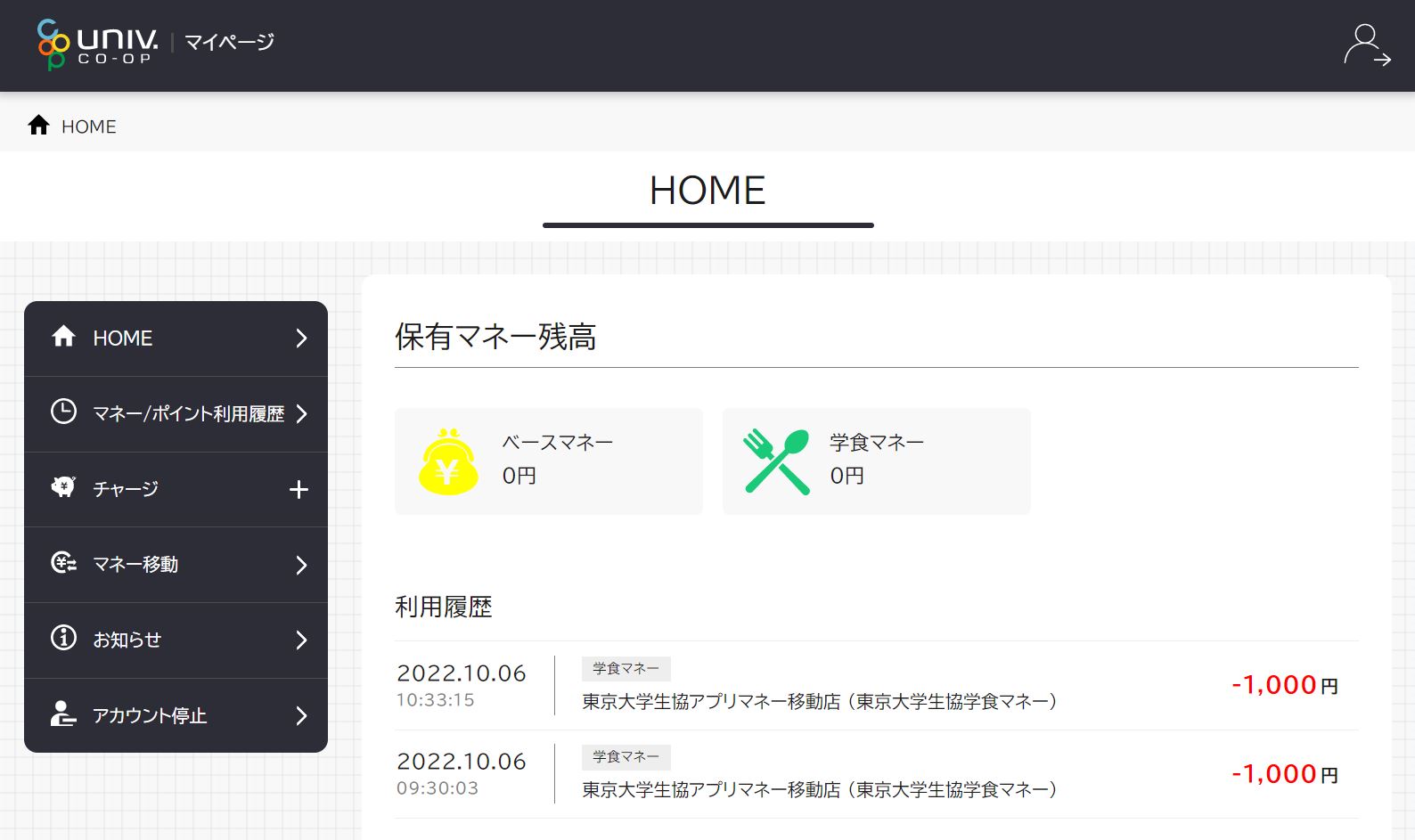
5. Check your child's balance and charge
Currently, the only methods of topping up your card are via bank account (BankPay) and convenience store payment. We have discontinued credit card payments
To charge from a computer or browser, click here. To
charge via the app, click here .
①
Tap "Charge" under "Dependent Charge" on the HOME screen of My Page *If you are using a smartphone, tap the menu (three lines) in the upper right corner to display it.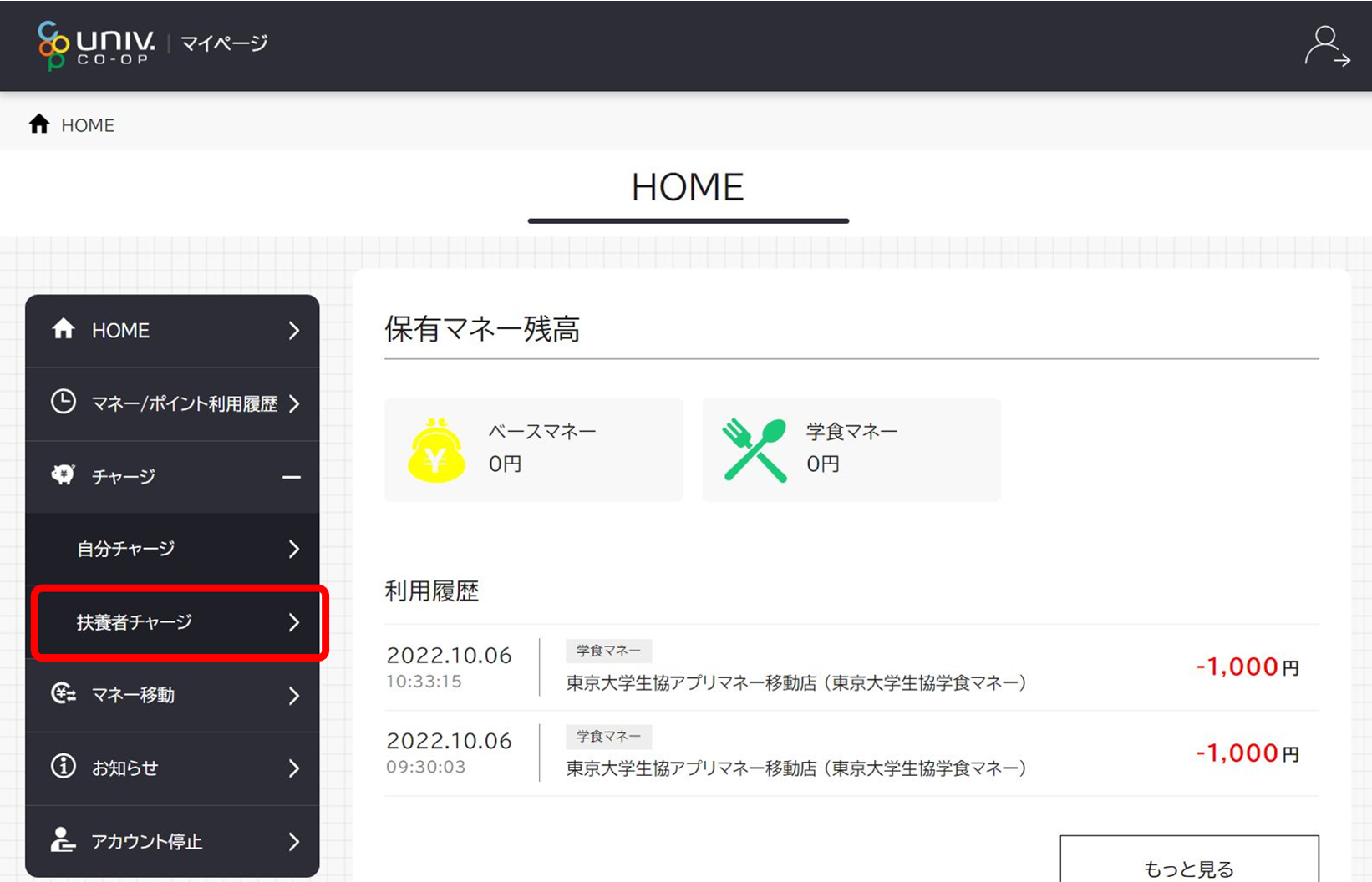
② When you select "Charge recipient," your child's balance will be displayed at the bottom of the screen .
*If you have applied for family status multiple times, the same child's name may be displayed multiple times. Please rest assured that the charge will be processed regardless of which option you select. We are currently checking with the business association regarding the correction. Please continue to use the service as is for the time being.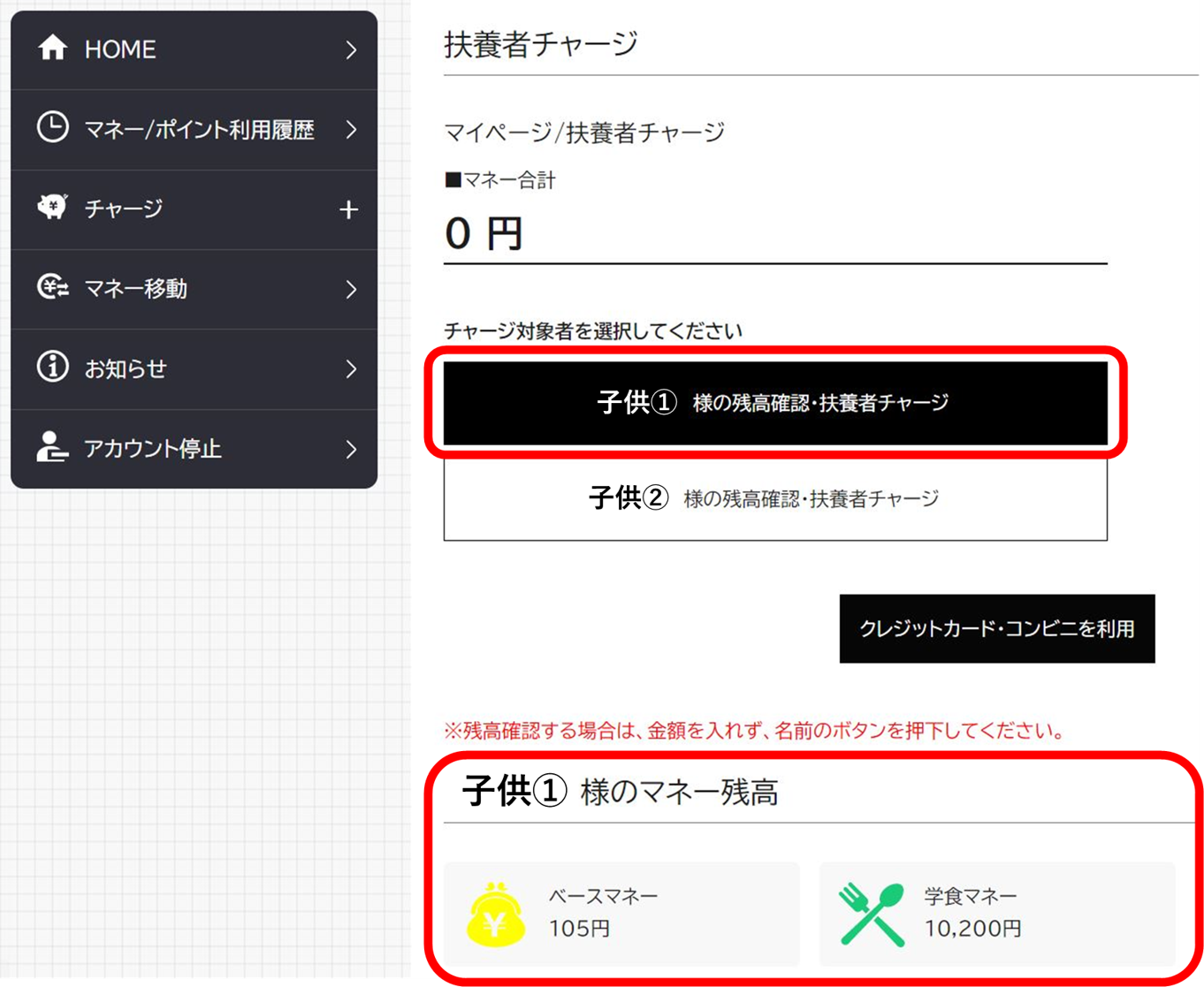
3. With "Charge recipient" selected, tap "Use credit card/convenience store."
*If you have applied for family status multiple times, the same child's name may be displayed multiple times. Please rest assured that the charge will be processed regardless of which option you select. We are currently checking with the business association regarding the correction. Please continue to use the service as is for the time being.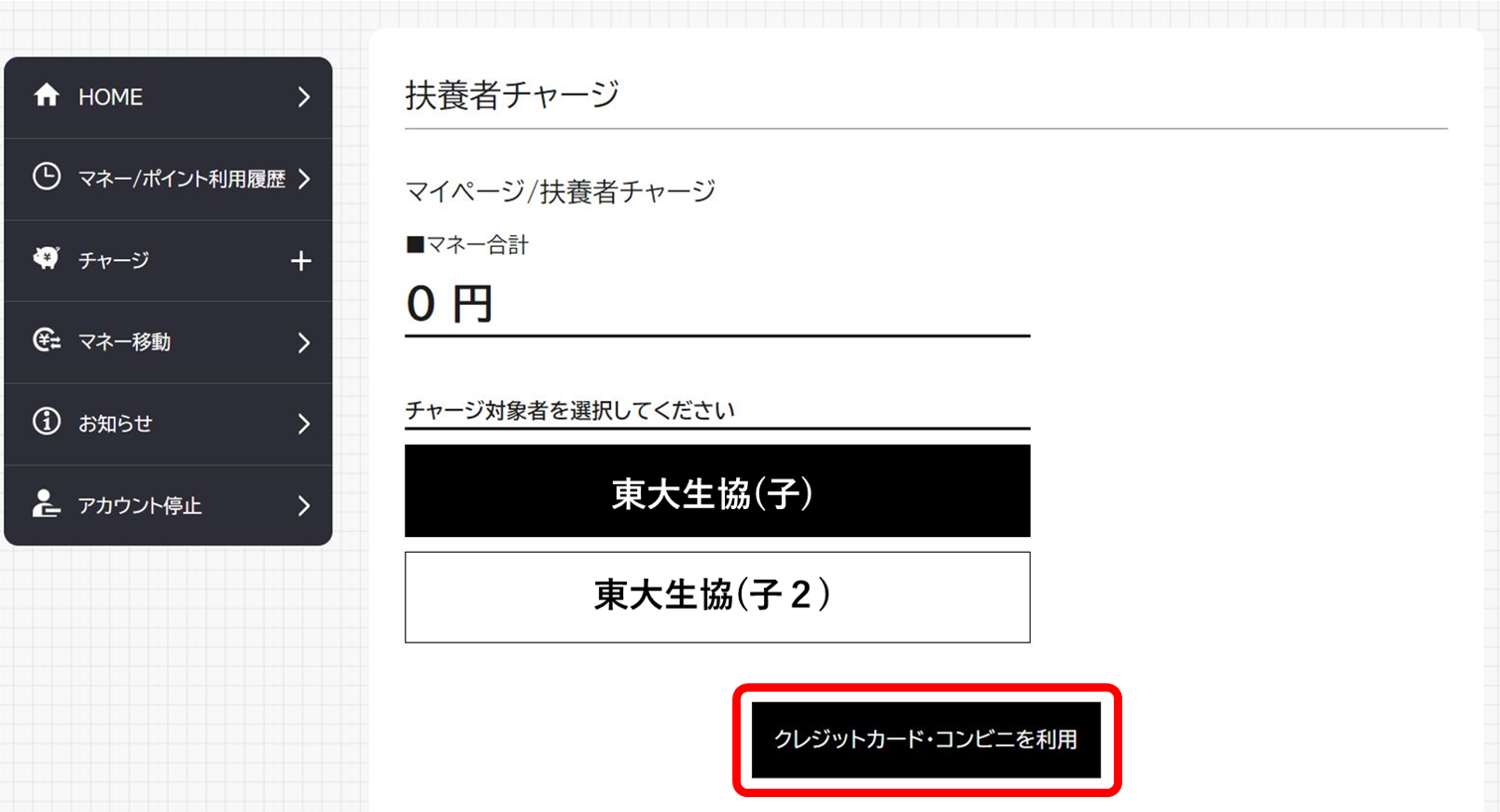
④ Set the amount to be charged and tap "Credit card" or "Convenience store."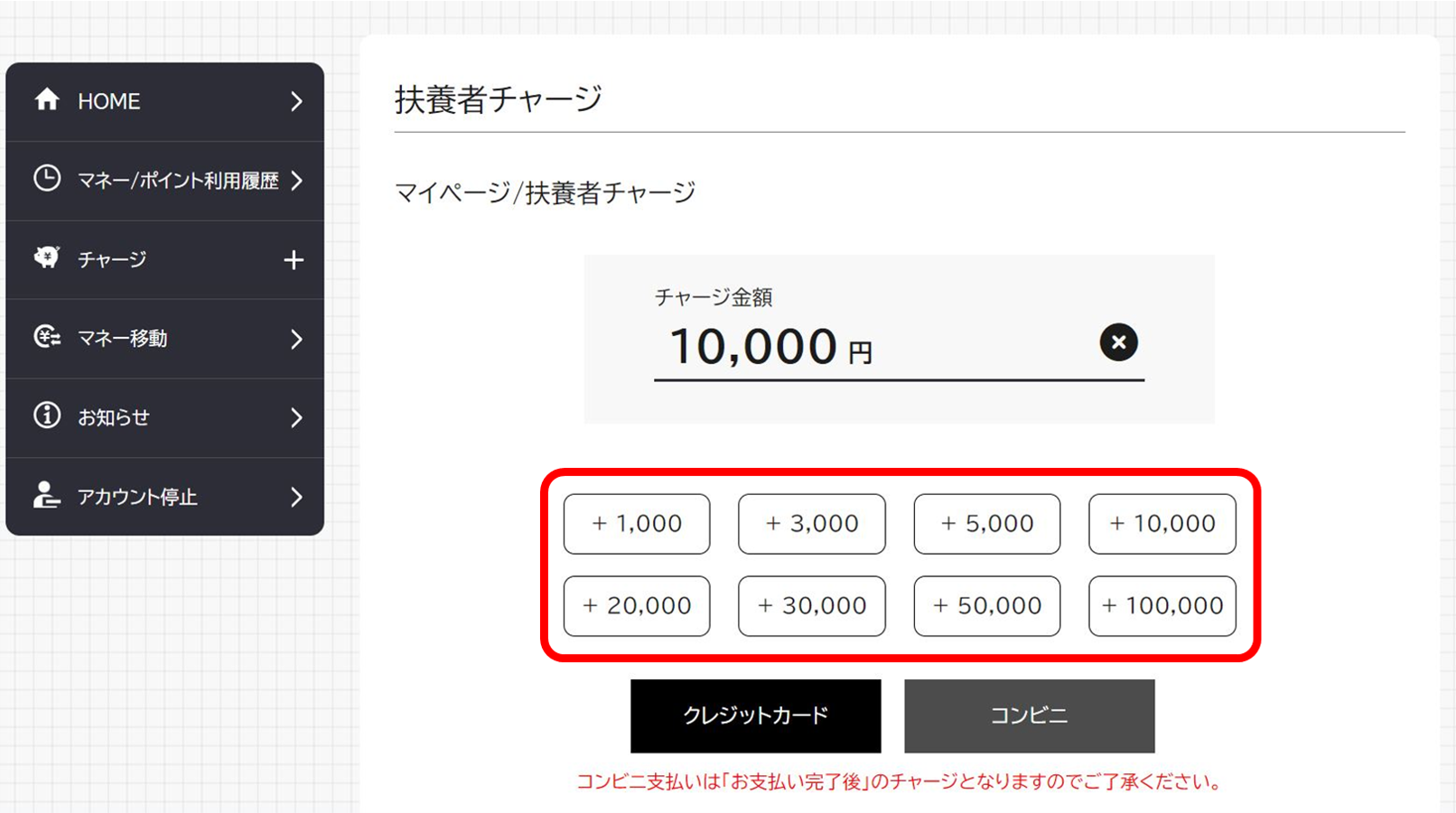
5. <For credit cards>
Select the amount you want to charge and enter your credit card information. Tap "Purchase" to complete the payment.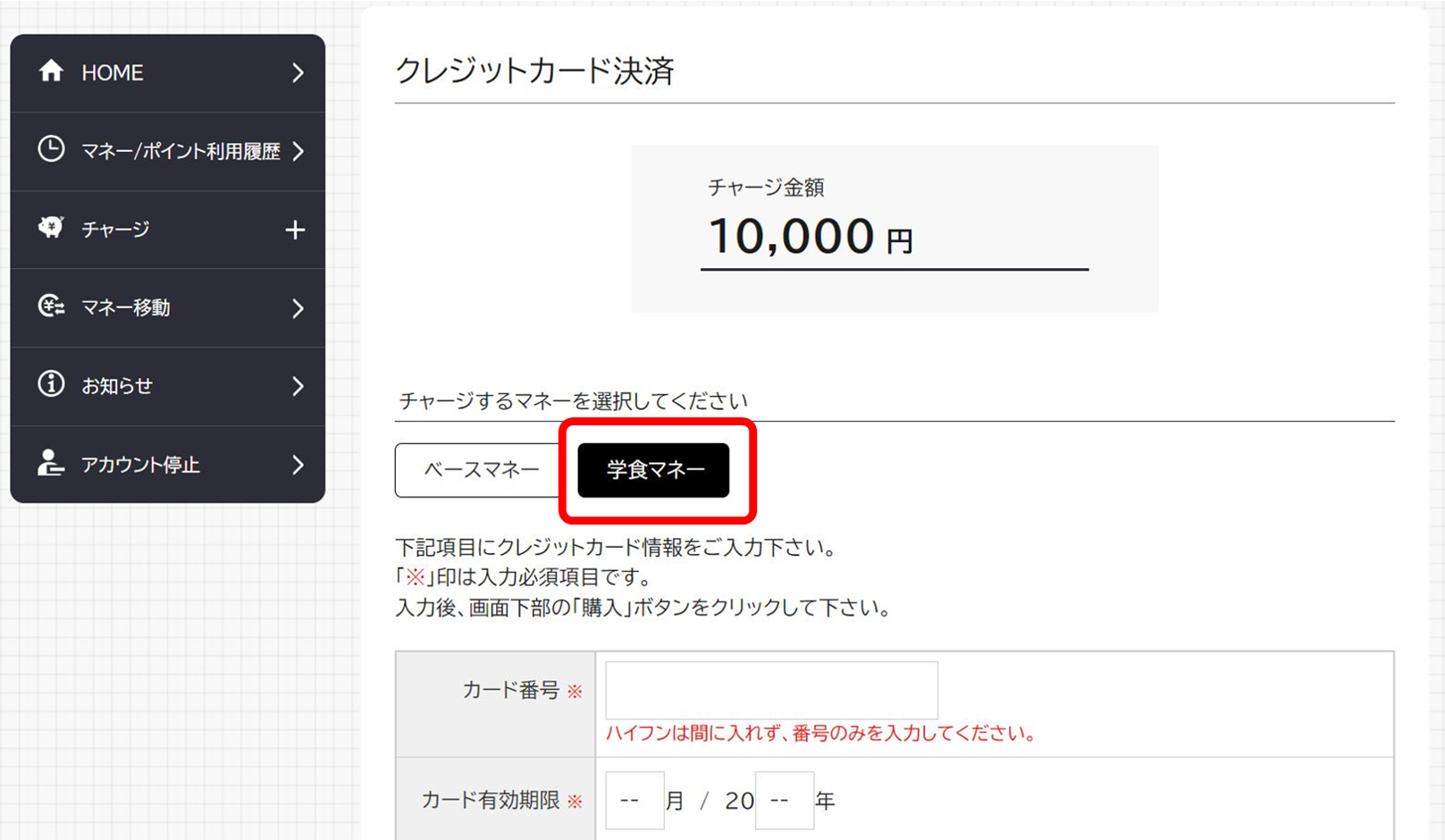
⑥ <For credit cards>
A screen will appear indicating that the charge is complete.
*Currently, the balance cannot be confirmed on the HOME screen of the parent's My Page. We apologize for the inconvenience, but please check the balance on your child's app.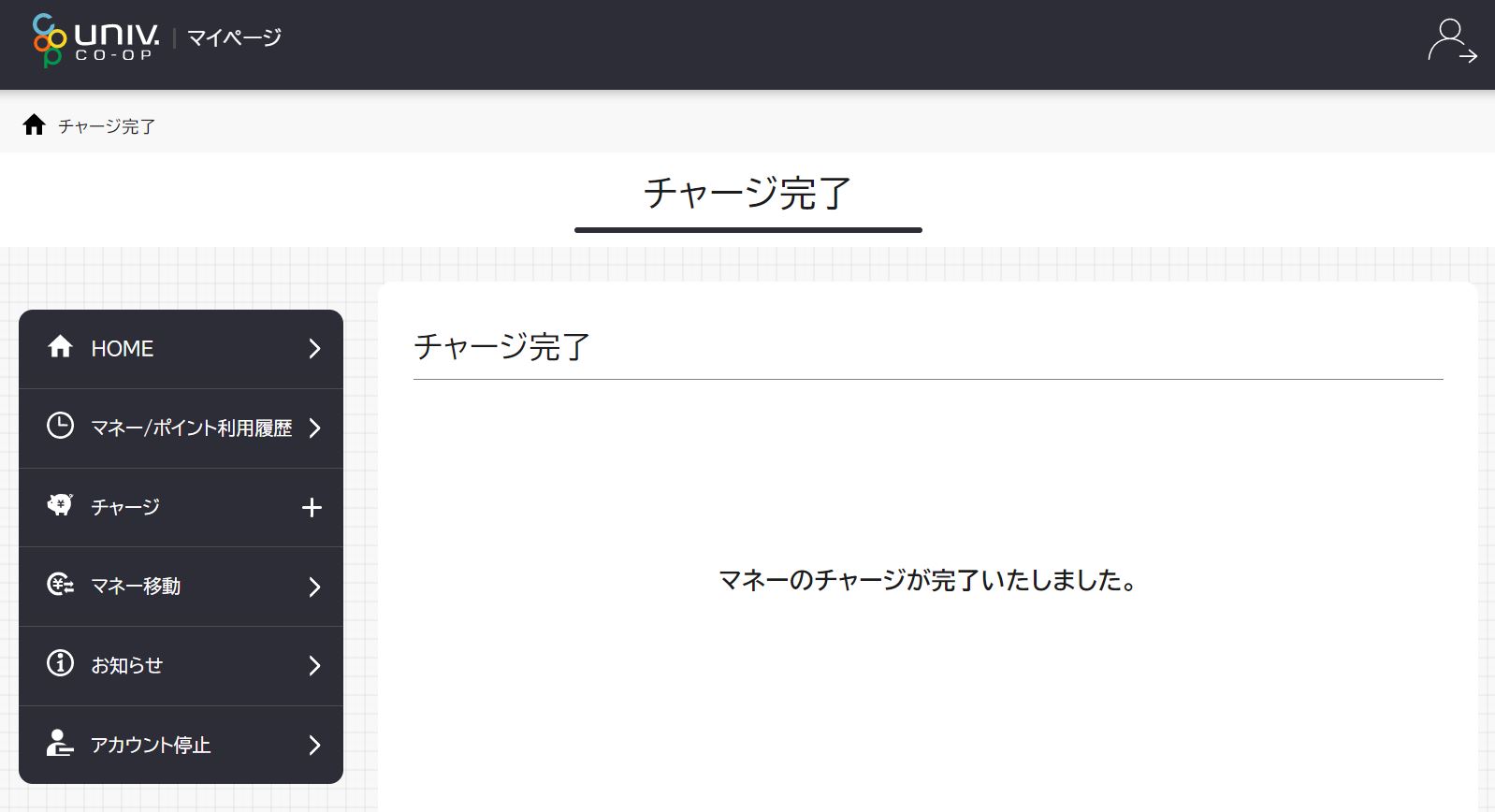
⑤ <At a convenience store>
Select the money you want to charge and enter the required information. Tap "Confirm" to confirm the payment method at the convenience store.
*You will also receive an email with instructions on how to make a "convenience store payment" to the address you entered in the required information.
*The charge will be complete once you have completed the payment at the convenience store.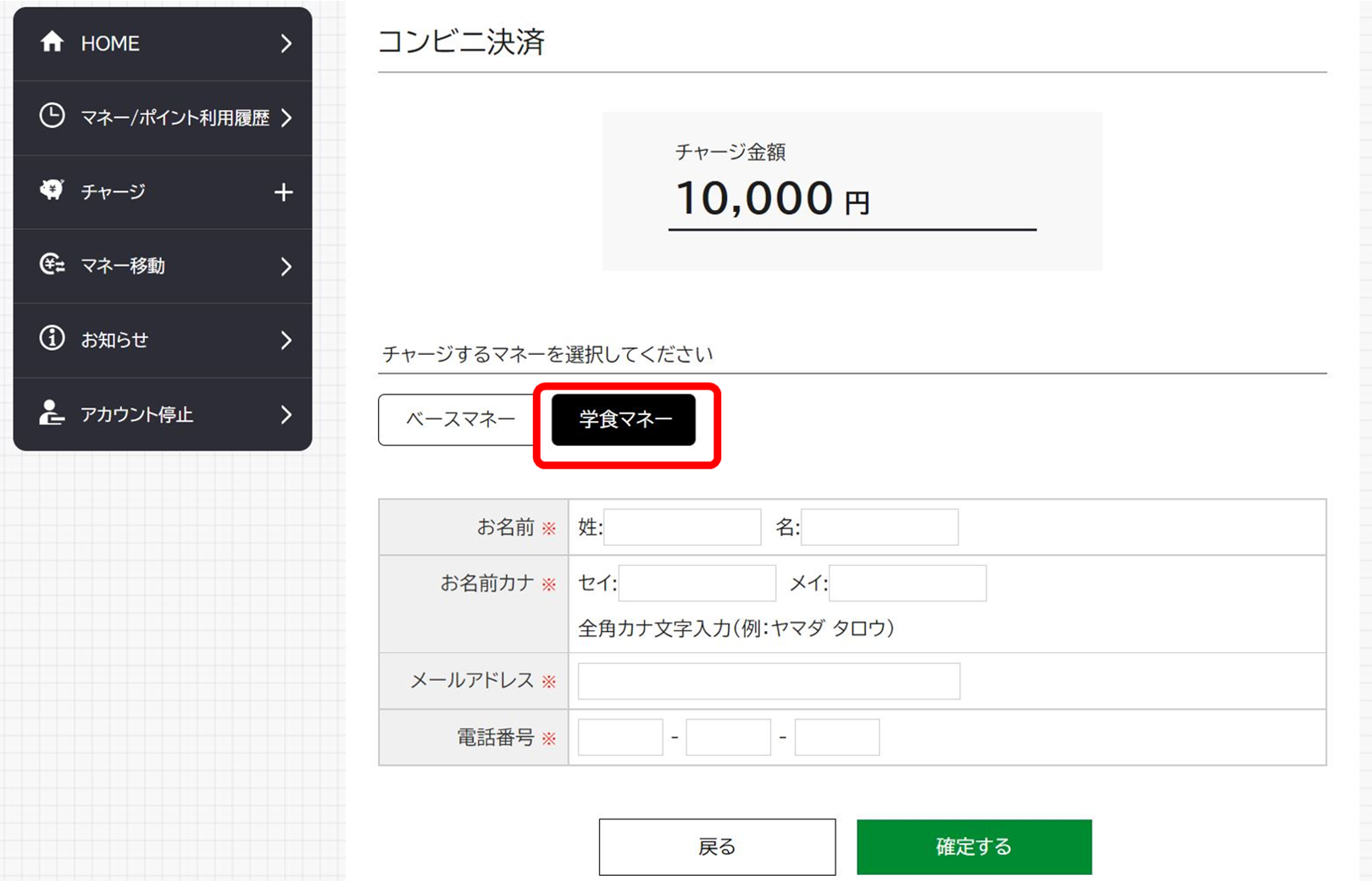
<Charge from the app>
If you have already completed the initial setup of the app, please see here .
1. Download the app and sign in.

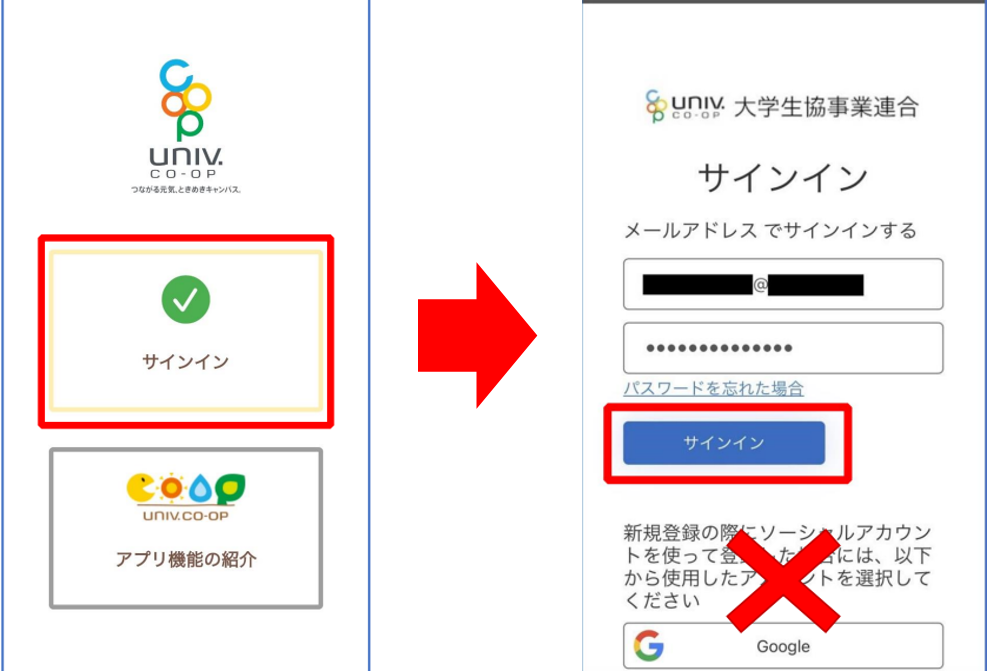
② Follow the instructions on the screen to perform multi-factor authentication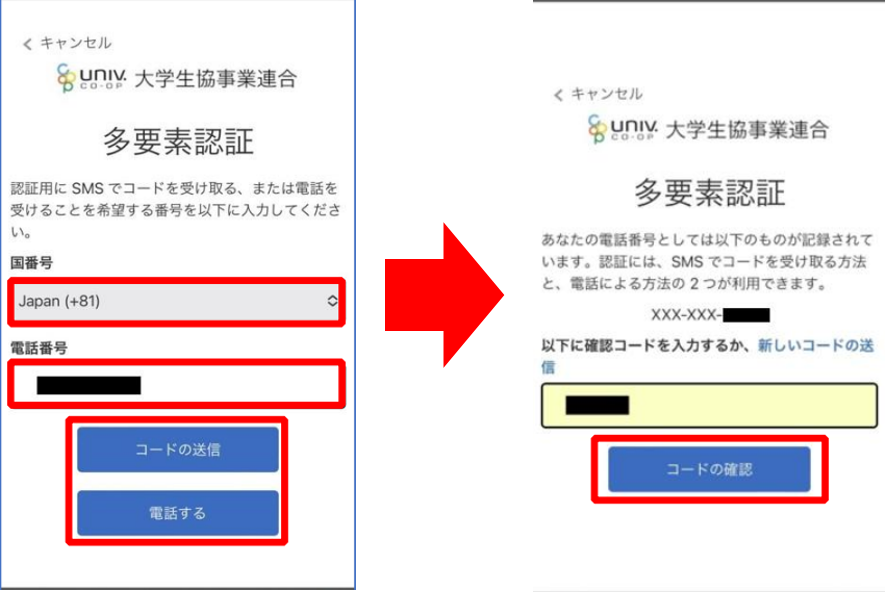
③Register for payment.
Enter your email address and a confirmation code will be sent to you.
④Enter the confirmation code sent to you, log in, and then press the "Allow access" button
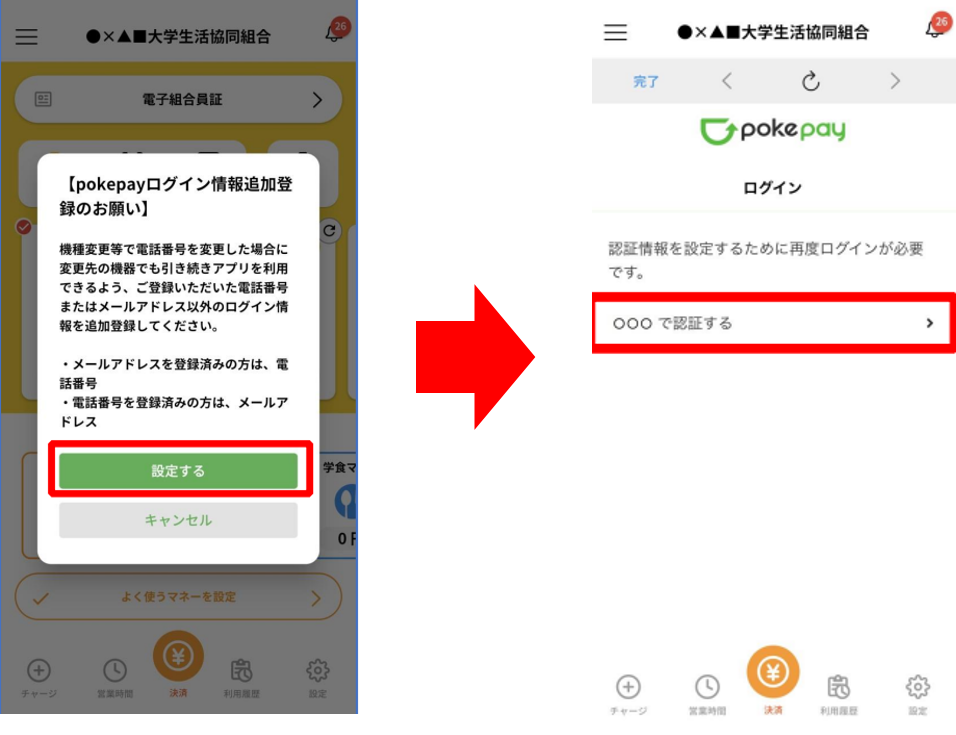
⑤ Please register additional information.
Please follow the instructions on the screen to register additional information.
⑥Enter the code sent to you and continue with authentication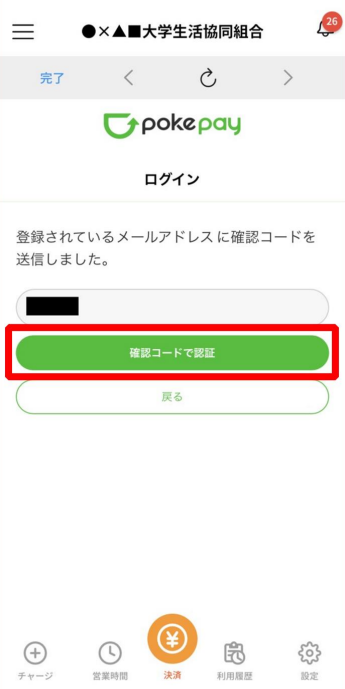
⑦ If you want to add or change information, please set it on this screen.
To finish, tap the "Done" or "Pay" button.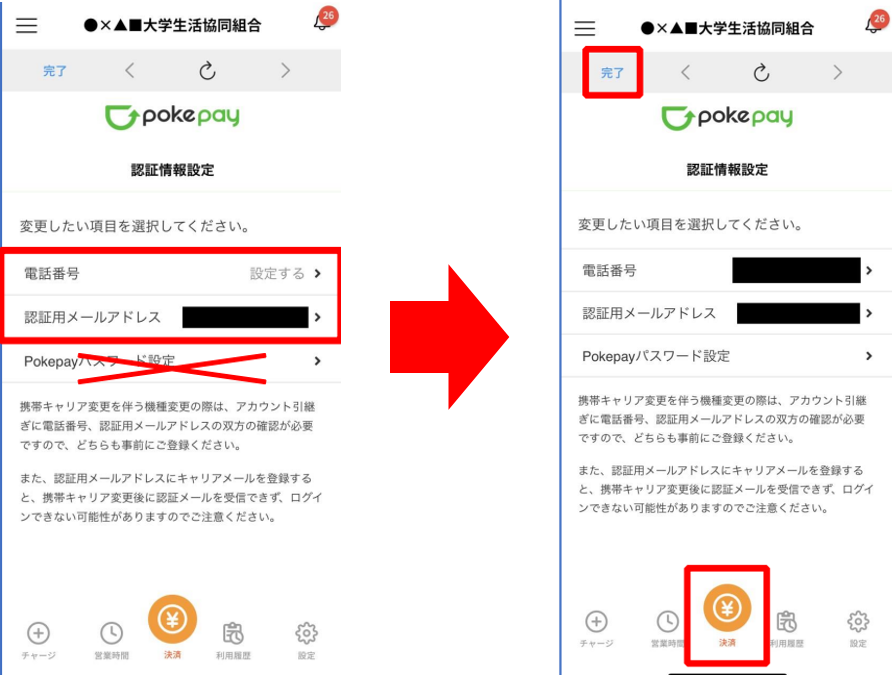
⑧ Charge via the app
After launching the app, tap the charge button.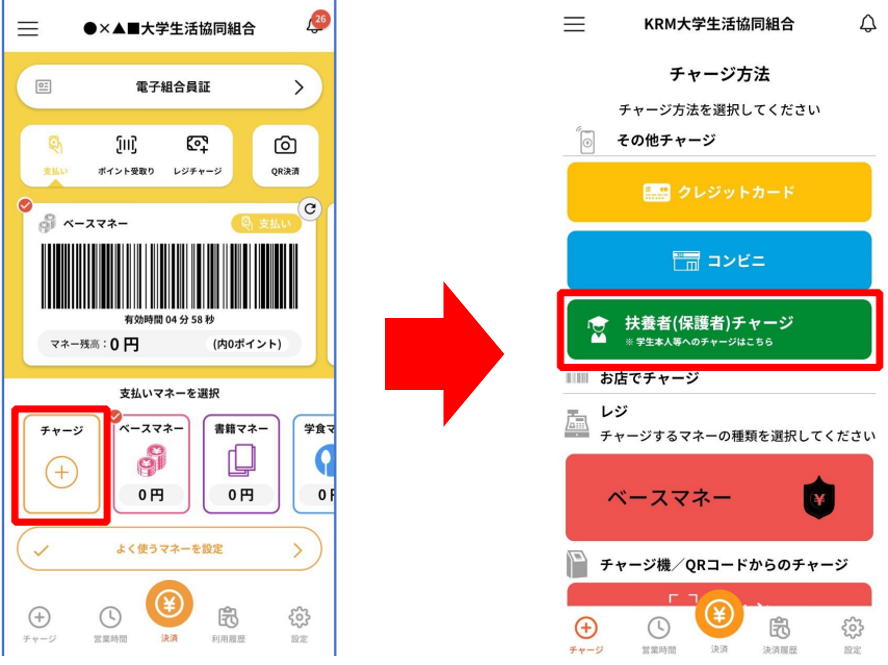
⑨Log in to your MY page and enter the verification code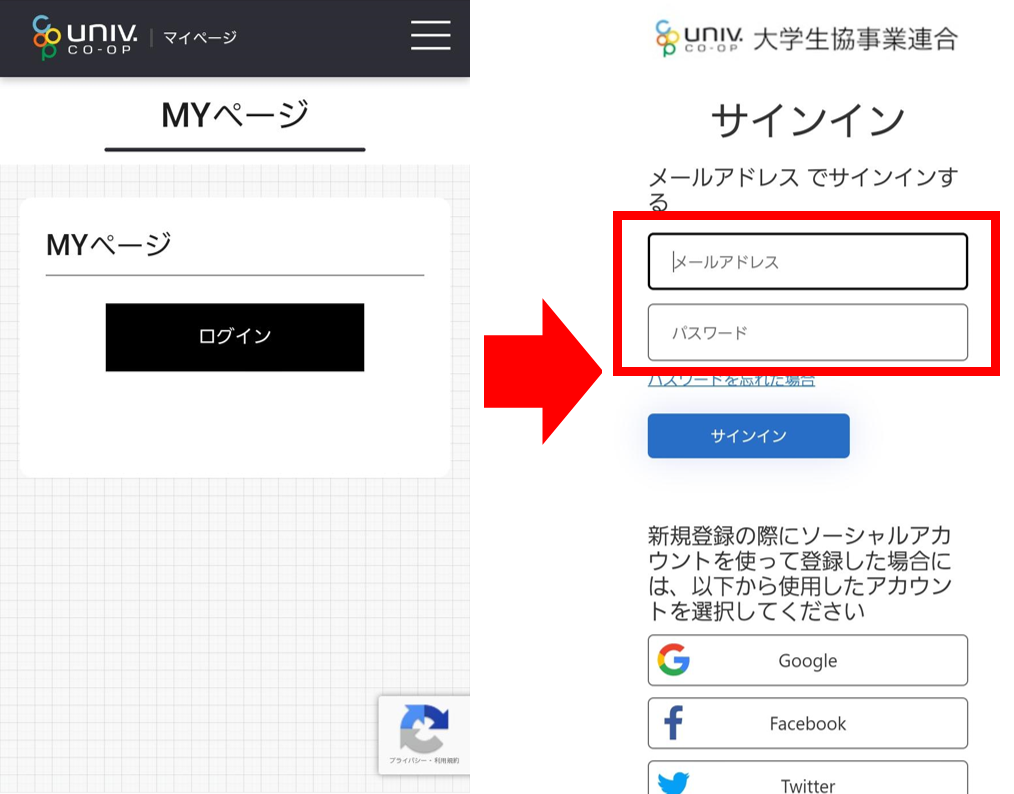

10. Tap the three lines in the upper right corner and select Parent Charge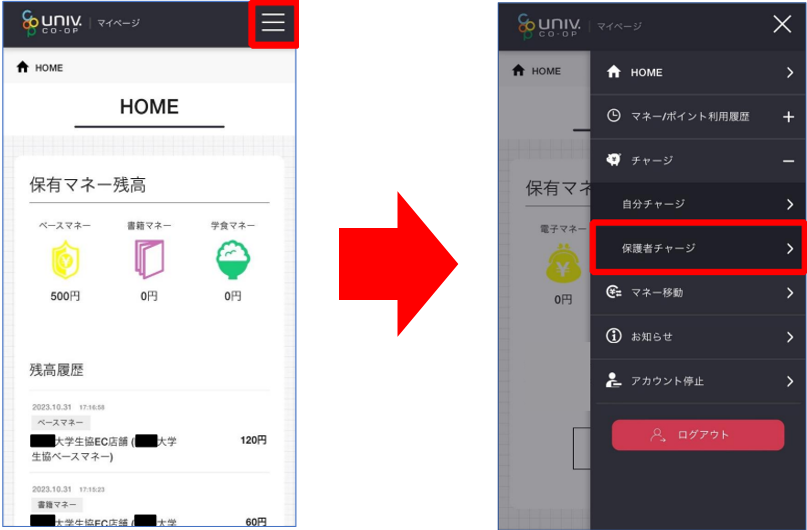
⑪Select the person to be charged, tap "Use credit card/convenience store" and select the amount.
*If you are charging your child from your parent's balance, select "Use money/points."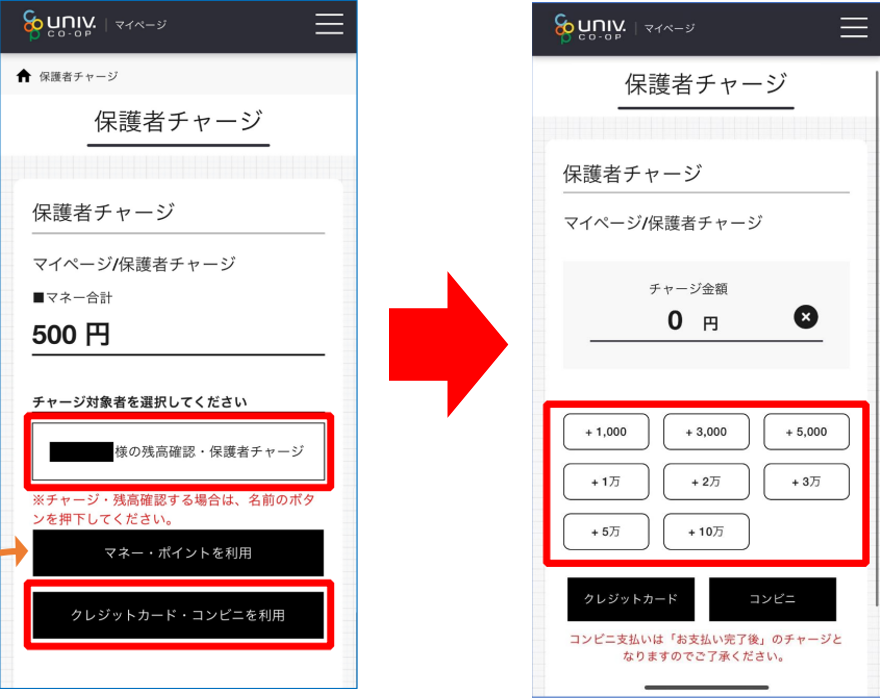
<Credit card payment> ⇒Here <
Convenience store payment> ⇒Here
<Credit card payment>
1. Select the money you want to charge and enter your credit card information.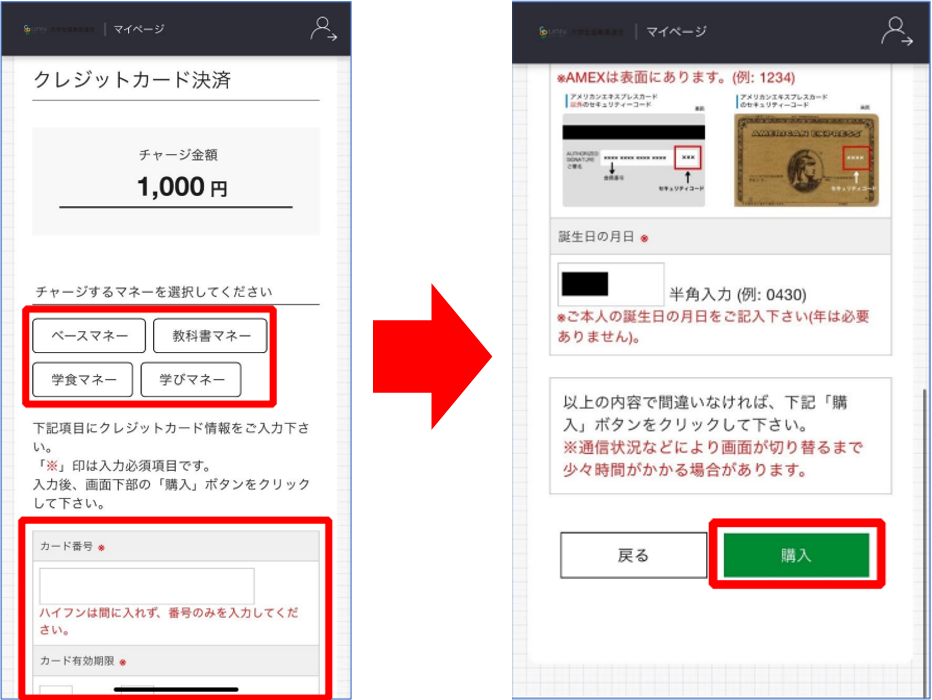
<Convenience store payment>
1. Select the money you want to charge and enter the required information.
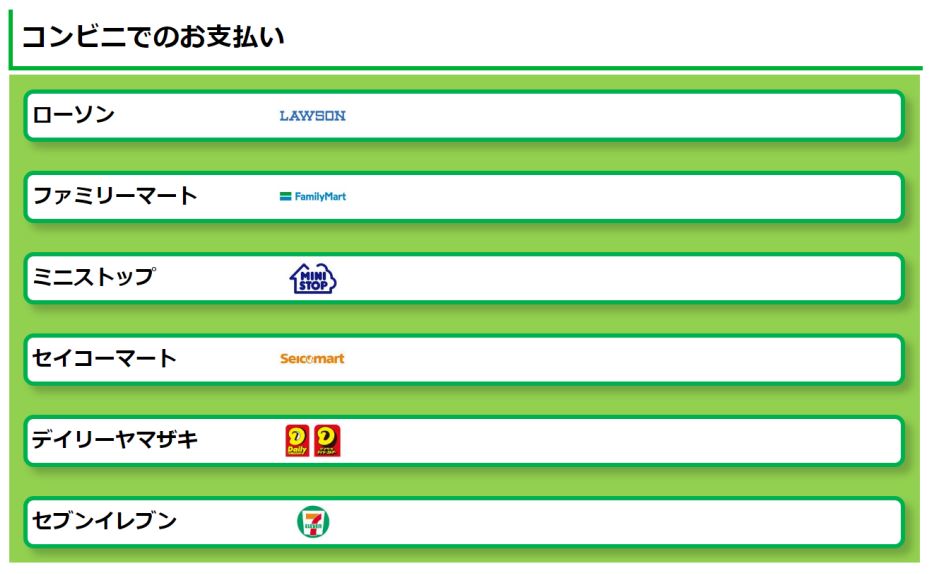
Select the convenience store where you want to make the payment and confirm the procedure.
A payment email will be sent to your registered email address, so please make the payment at the convenience store.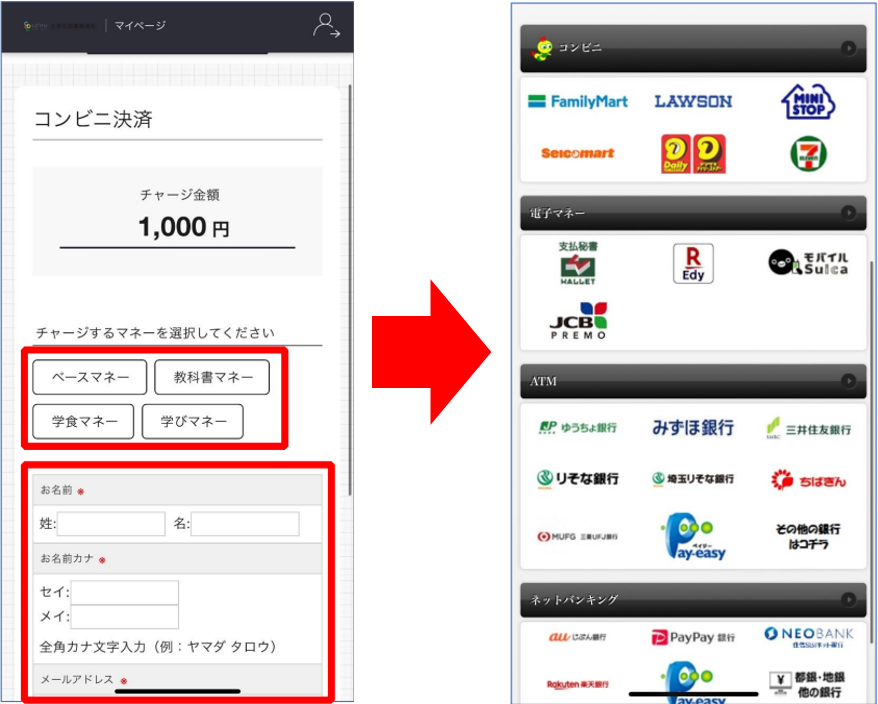
6. Check your dining hall usage history
You can check it on your computer or app
You can check this on
your computer via After logging in to My Page, the process is the same as for the app.
Check from the app
<Electronic money usage history>
1. Tap the app's payment history → student's electronic money usage history.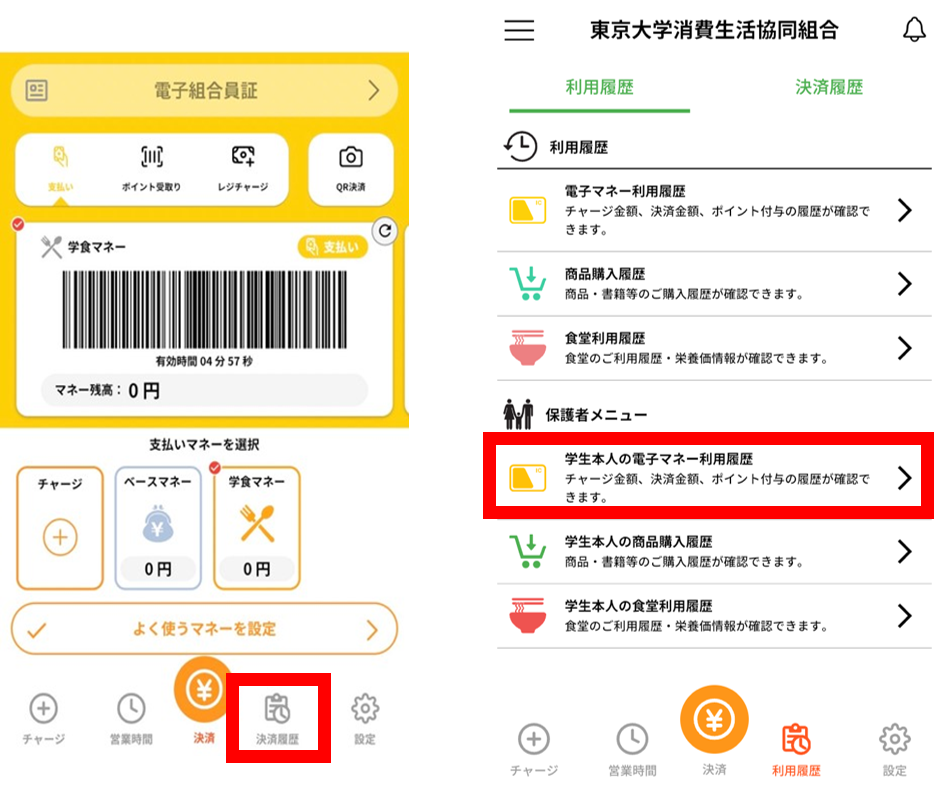
②Tap on the three lines in the top right corner of the MY page to see your usage history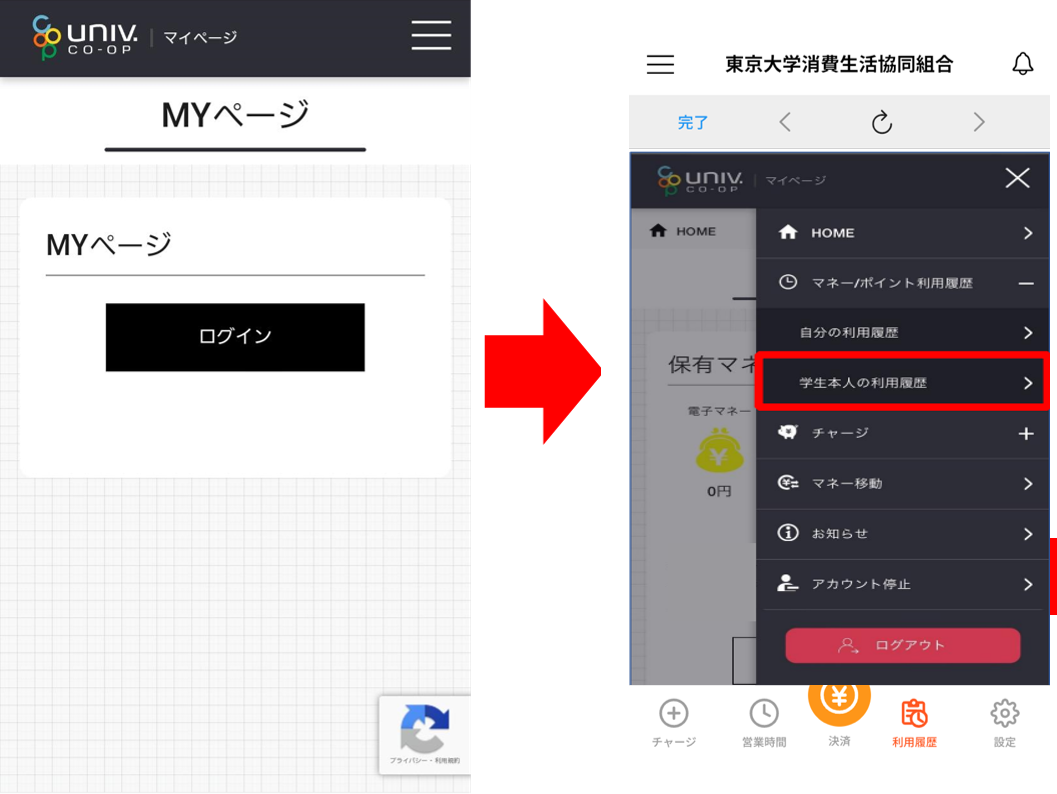
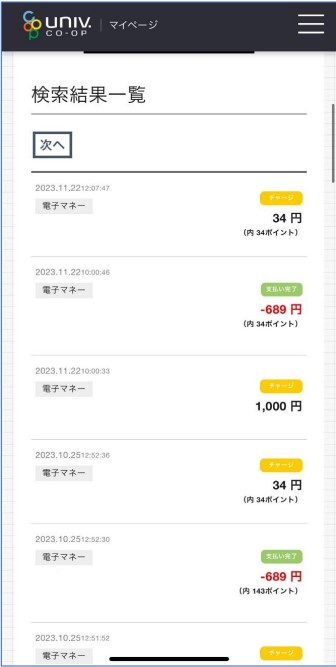
③Select the type of usage you want to check and search.
*If no date is specified, the search will cover the entire period.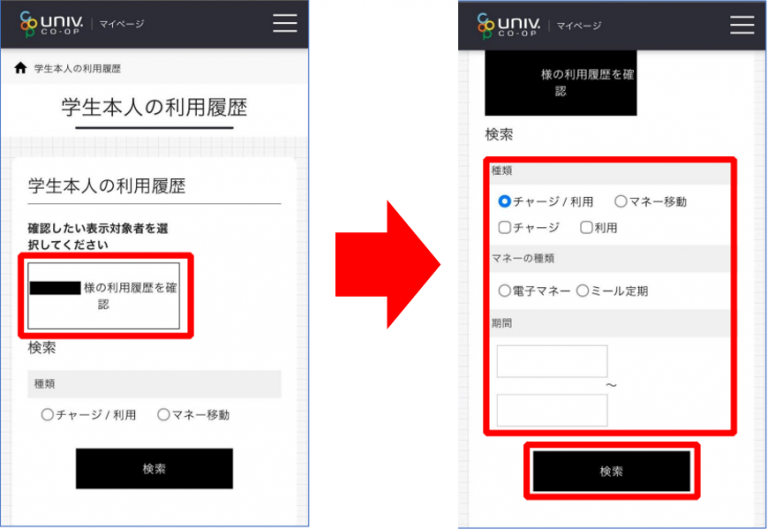
<Product purchase history>
1. Tap the student's product purchase history in the app.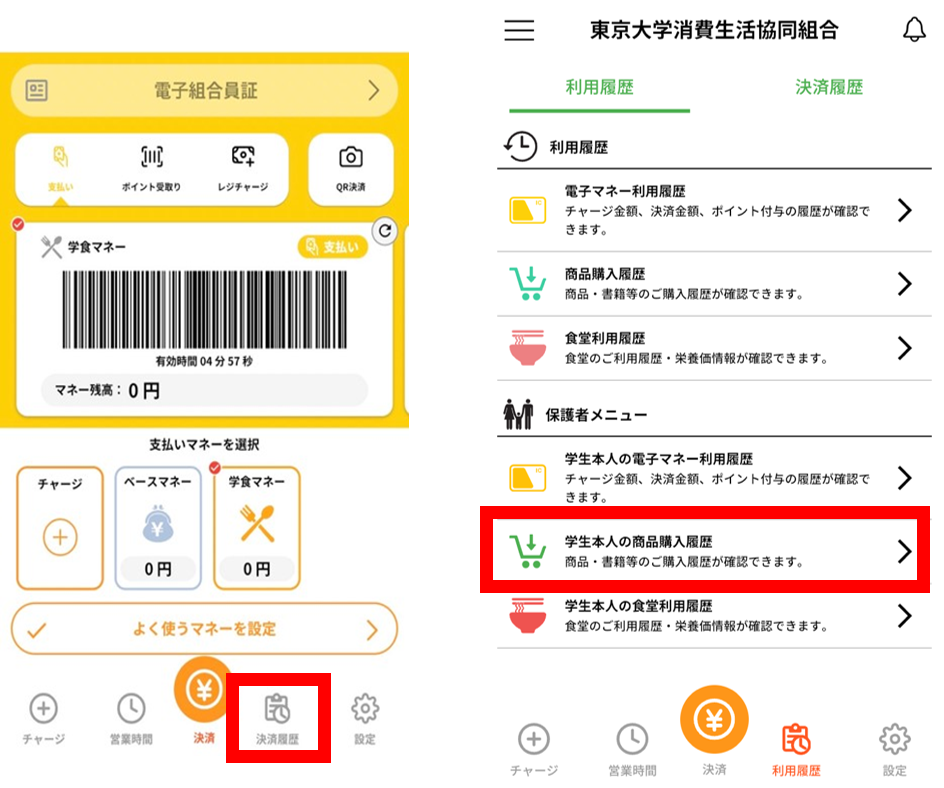
②Select "Product Purchase History" from the three lines in the upper right corner and tap on your own history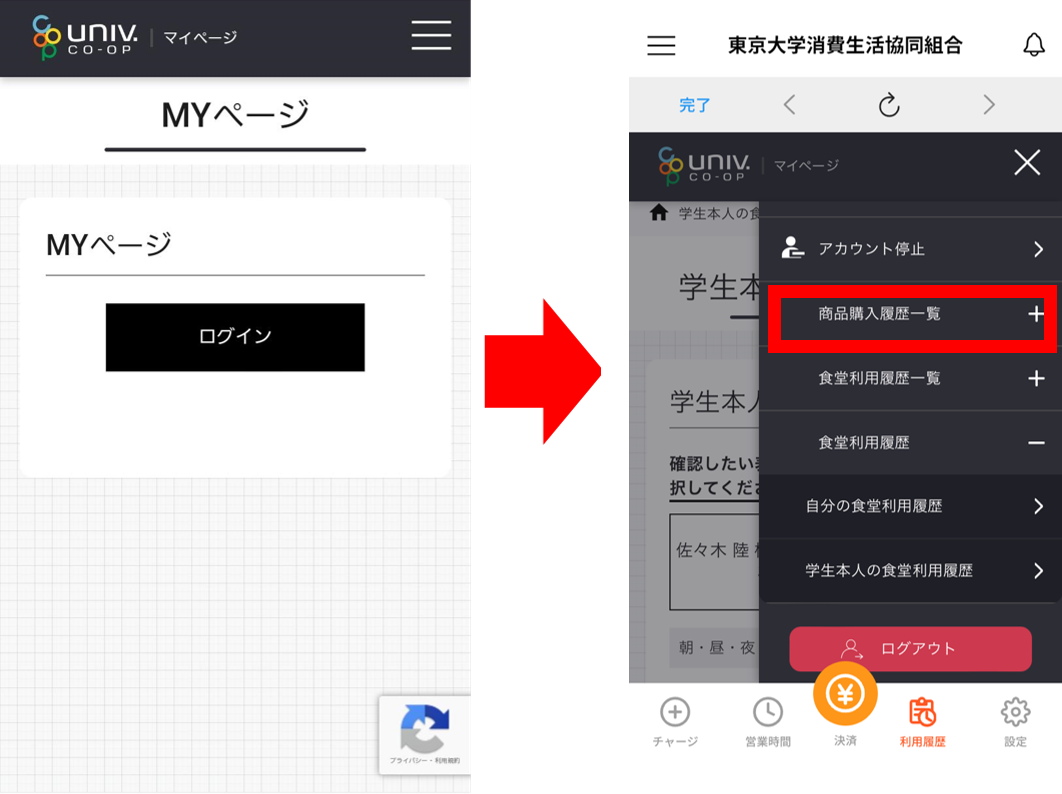
③Select the period you want to search and perform the search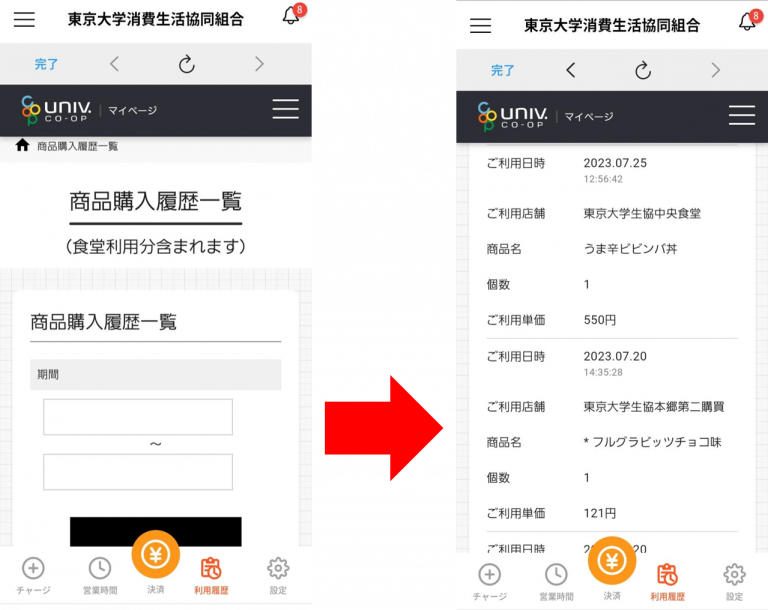
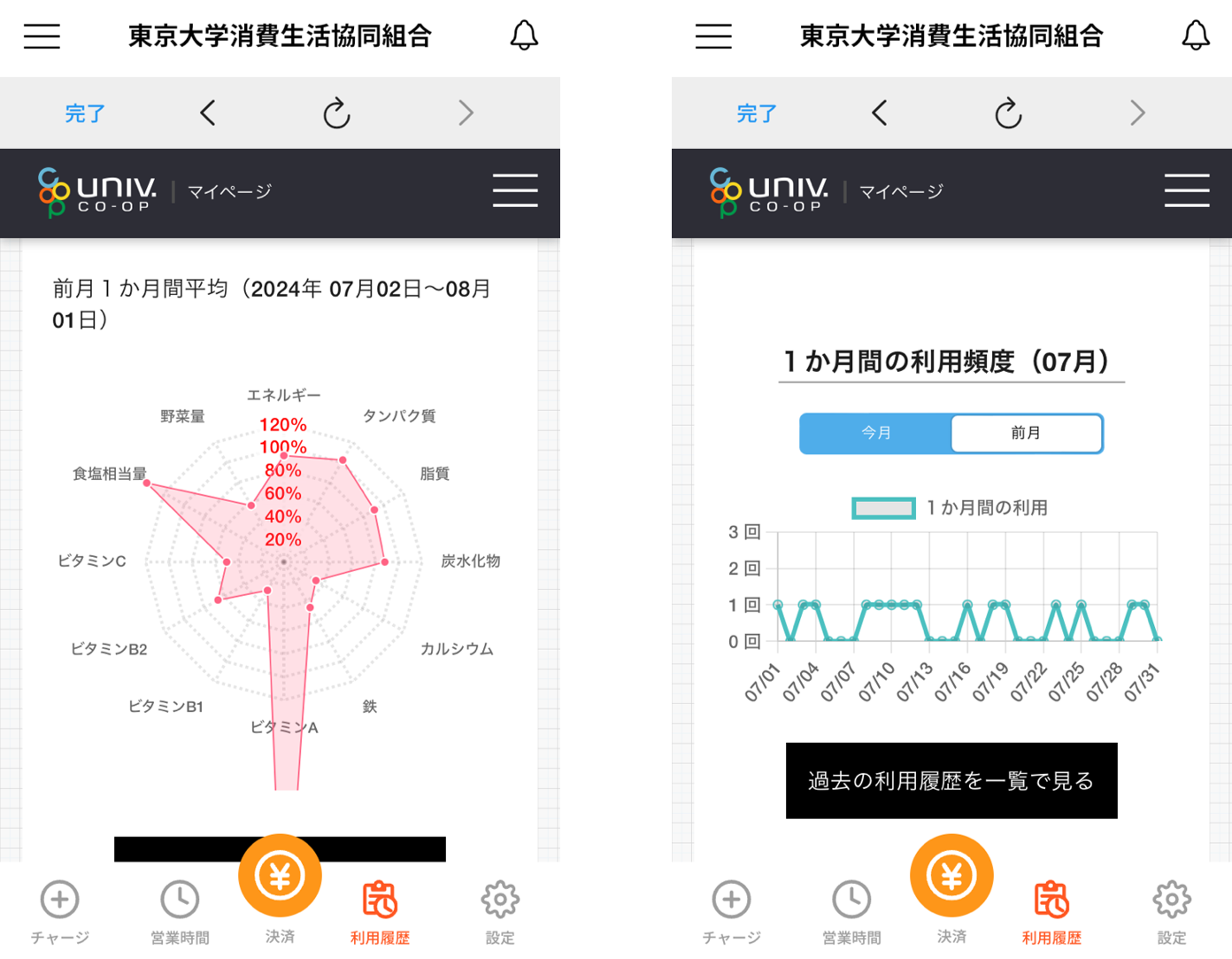
<Check dining history and nutrition graph>
1. From the app, tap Check dining history.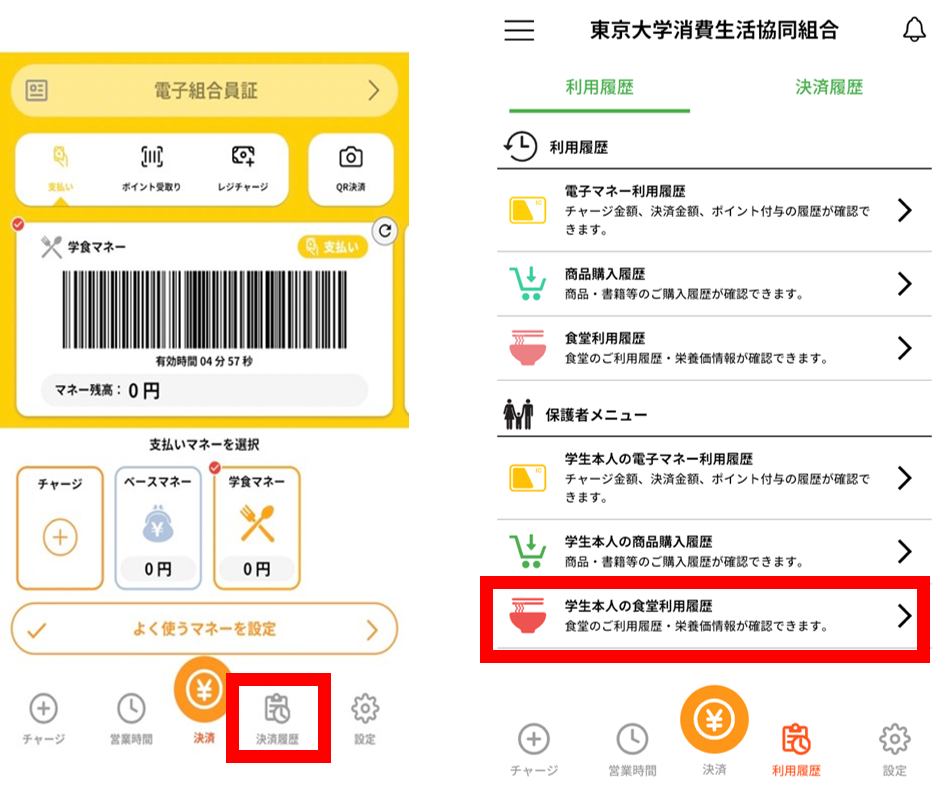
②Tap the dining history list from the three lines in the top right corner of the MY page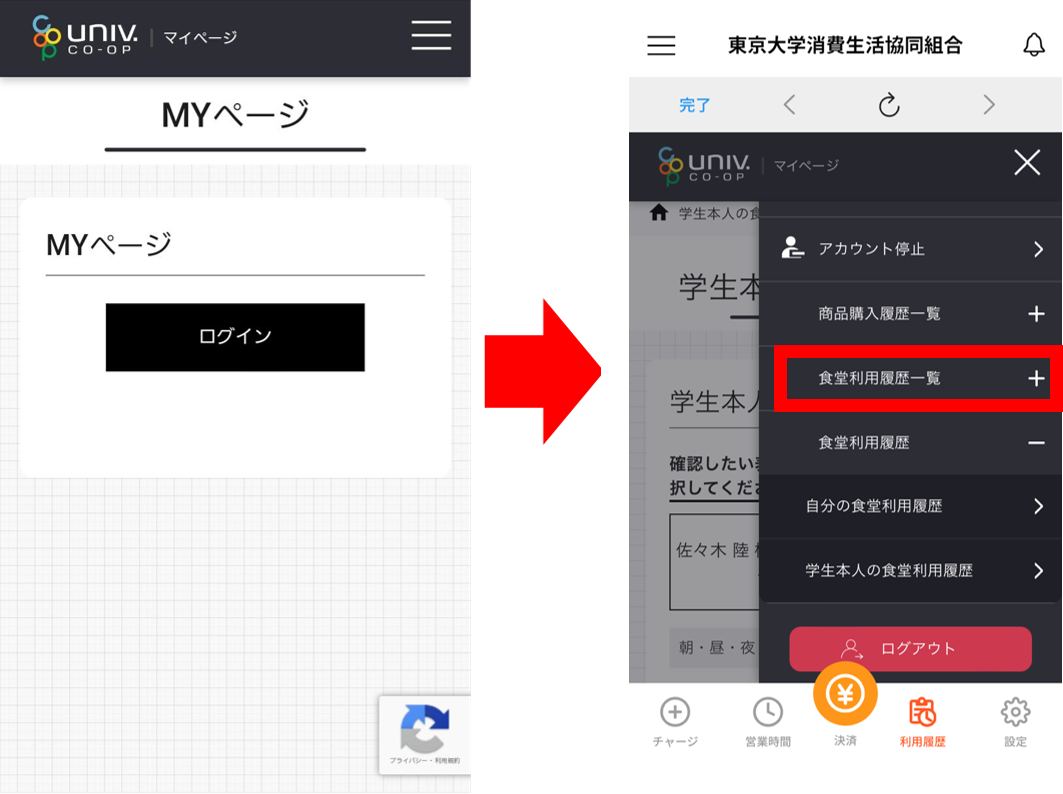
③Select the date and choose the amount of activity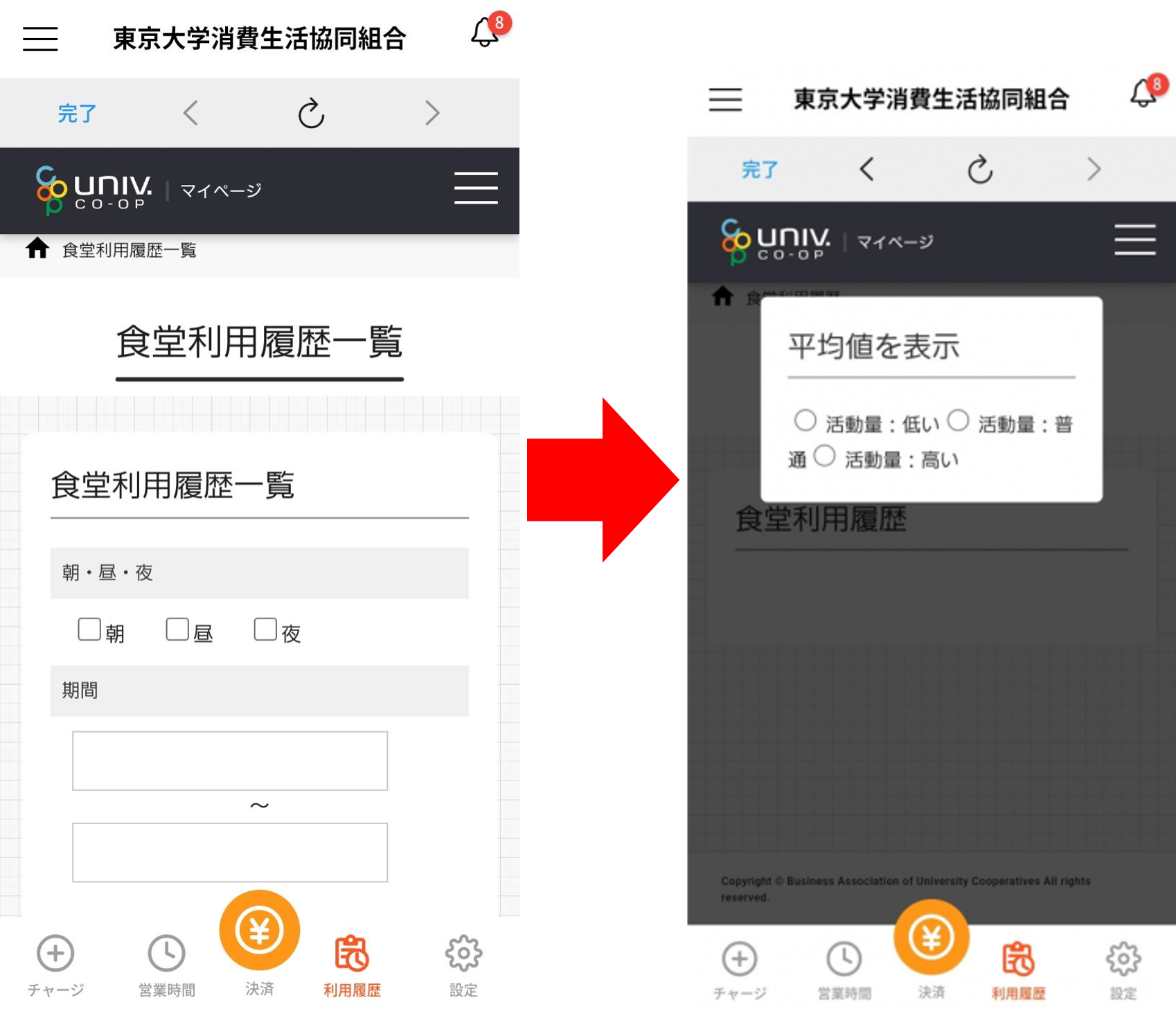
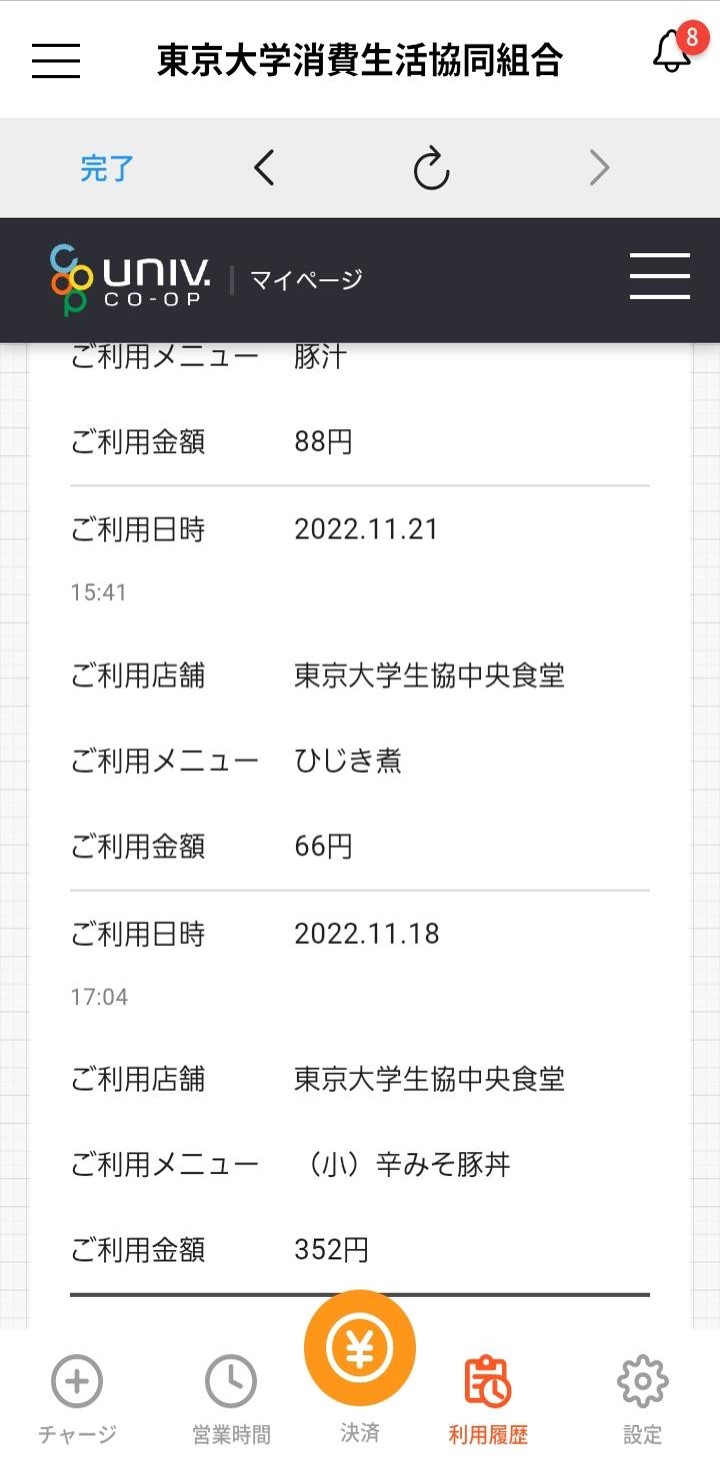
How to read the nutrition graph
① Tap on the cafeteria usage history in the app.
② Tap the student's cafeteria usage history from the three lines in the top right corner of the MY page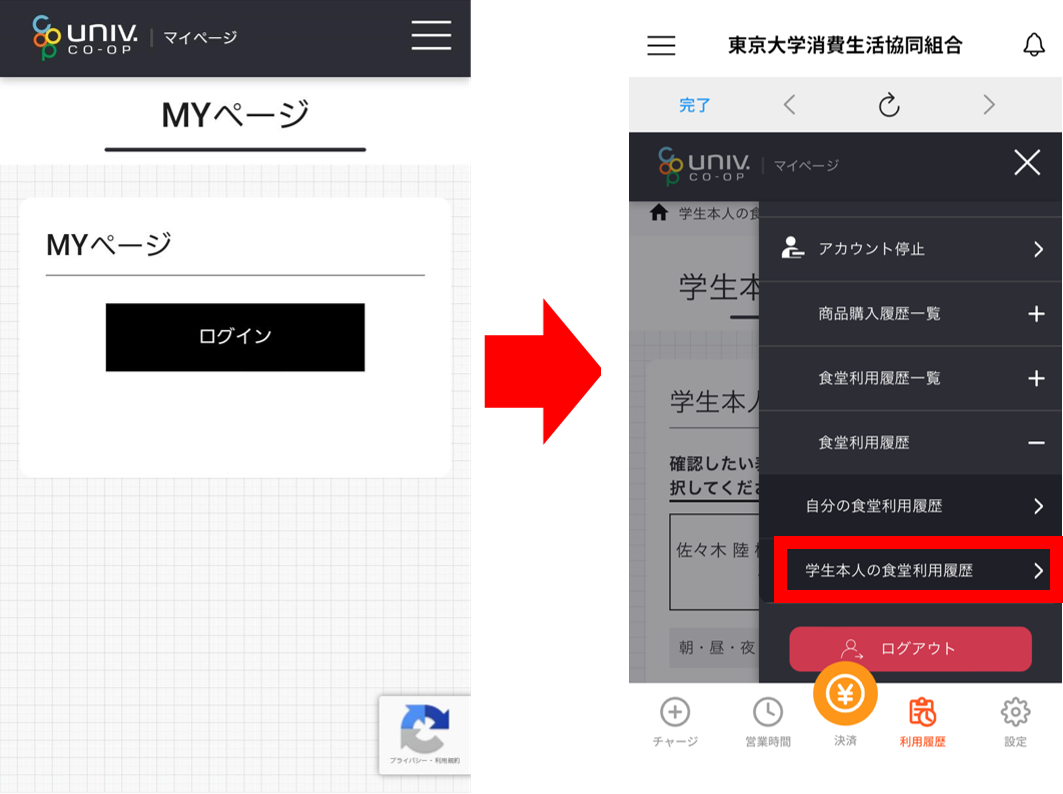
③Select the child you want to view and select the activity level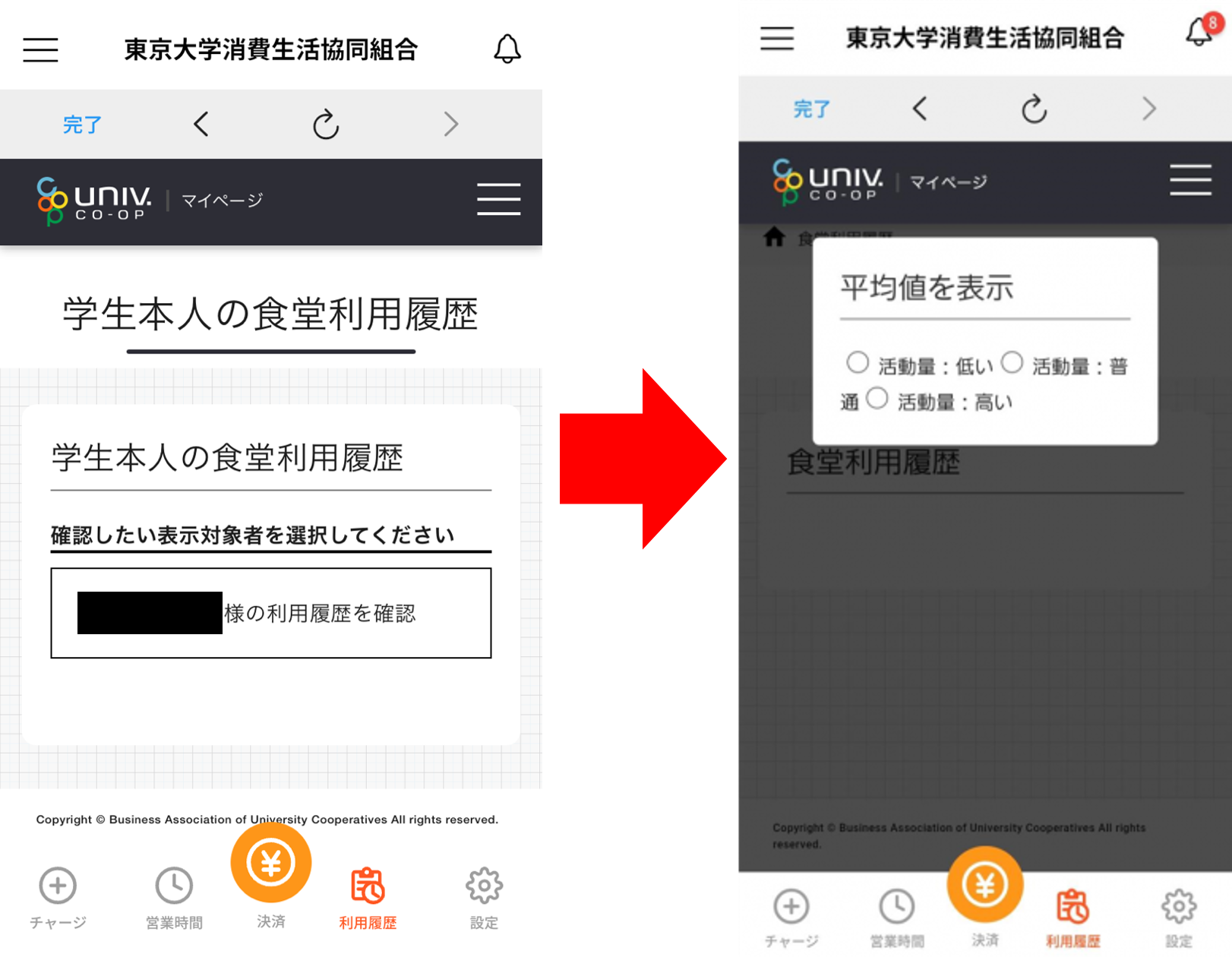
Q&A
Q. I can't log in to the Member My Page.
A. Please check the following. Check
that your "Family Member Number" is displayed at the bottom of "Profile" on univcoop My Portal.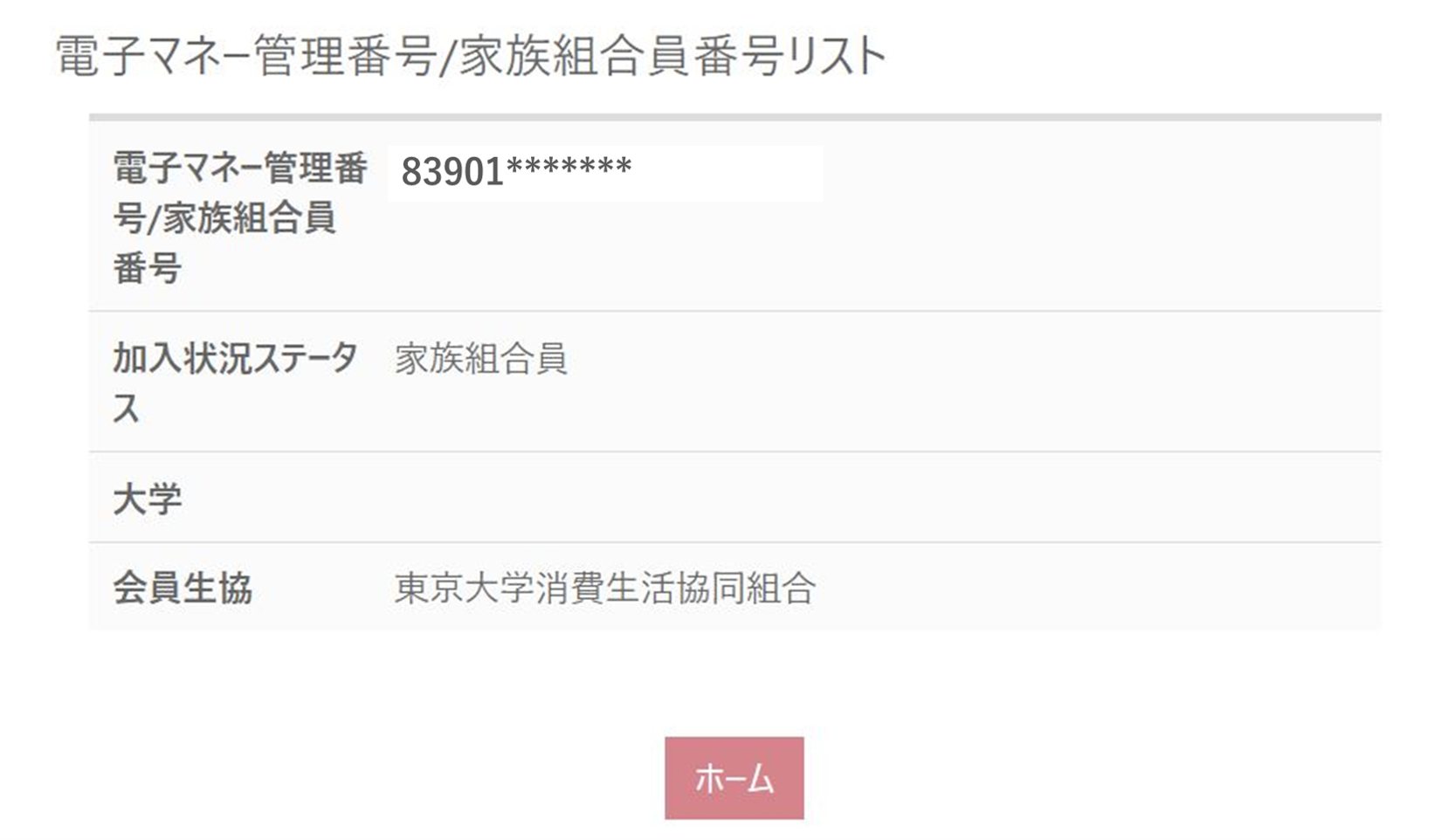
If it is not displayed, please check that your family application has been completed.
● Check that the family application is "Approved"
● Check that you entered your child's address correctly when applying *
Registration will not be successful unless you apply to the email address your child has registered in the app.
● Check that the family application relationship is "Parent" → "Child" *If
you have made a mistake in your application, please register again by clicking "New Family Application Registration."
Q. I can't check my child's charge or balance.
A. Currently, parents cannot check their child's charge history or balance from their member's personal page. The business association is currently revising the system so that parents can check. We apologize for the inconvenience, but please check with your child to see if the charge has been reflected or the remaining balance.
(Updated 10/26)
You can now view your child's money balance from the "Dependent Charge" section of your member's personal page. here for more details
Q. I "charged myself." Can I transfer this money to my child?
A. Yes, you can. Please open the "Charge for Dependents" screen again, select your child's name, and tap "Use Money/Points" on the same screen.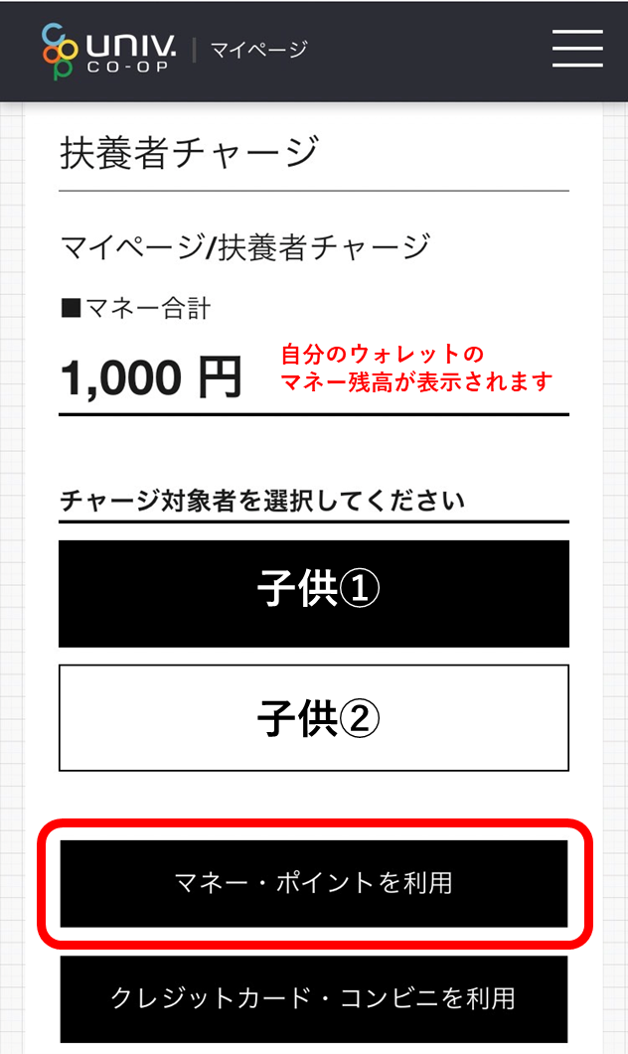
(continued...) Select which wallet to transfer from, enter the amount, and tap "Confirm" to complete the charge to your child.
*The charge will be made to "Base Money" on your child's app screen. Please use it by transferring it to "School Cafeteria Money" on your child's app.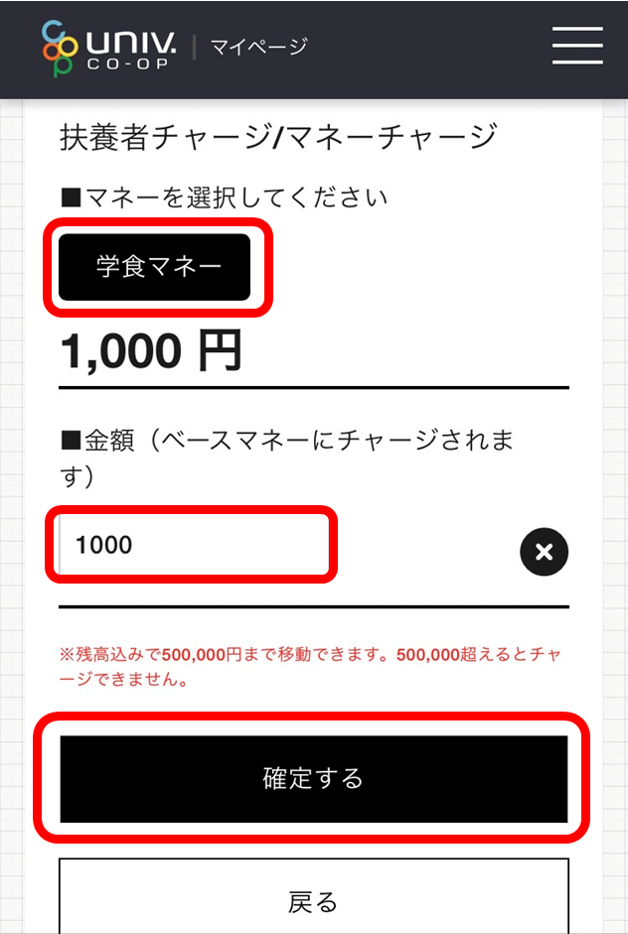
Q. Multiple child names are displayed on the top-up page. Which one should I choose? Can I change it?
A. If you have applied for family status multiple times, the same child's name may be displayed multiple times. Please rest assured that the top-up will be completed no matter which one you choose. We are currently checking with the business association regarding the change. Please continue to use the service as is for the time being.
Q. Where can I use "School Money"?
A. It can be used not only in the cafeteria but also to pay for food and drinks purchased at the store.
*Please note that it cannot be used to pay for stationery and other items other than food and drinks.
Q. What is "Base Money"?
A. It is electronic money that can be used at any store in the University of Tokyo Co-op.
Please use "Cafeteria Money" to pay for meals on campus, and "Base Money" for other uses on campus.
The charging method is the same as for "Cafeteria Money."
