



How to register for the Co-op app (for parents/new registration)
★Steps to use★
1. Registration of the user
1. User Registration
A: Those who have already registered their guardian's information when joining the cooperative.
①
"here" to verify your date of birth and set a passcode.
Please enter your "membership number" and "registered email address".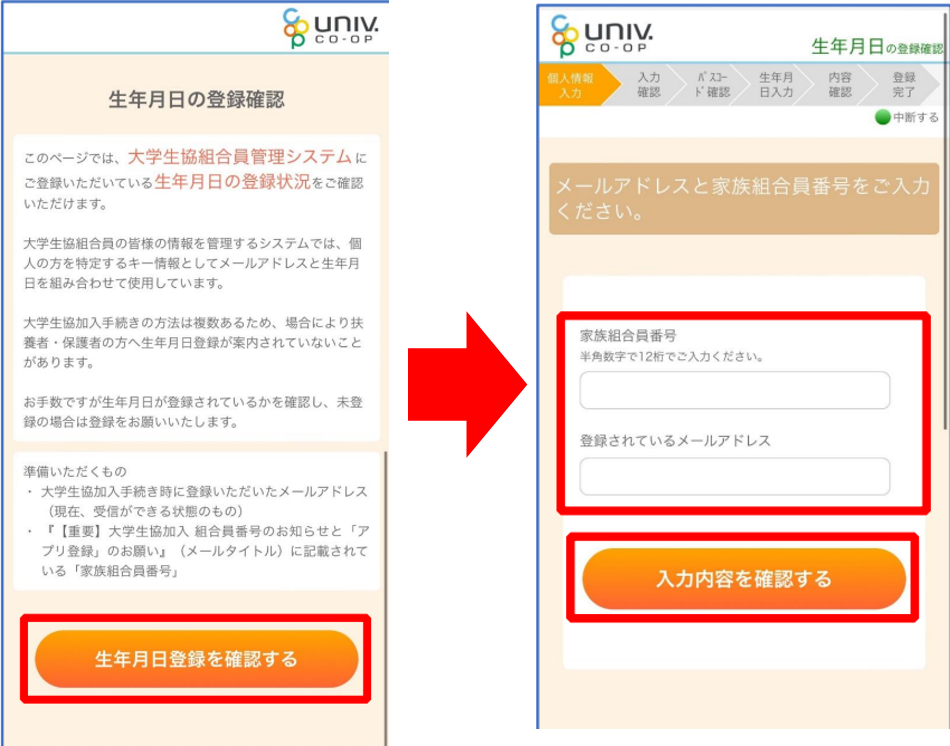
② The details of the passcode issuance and entry
registration will be displayed. After reviewing the details, if there are no problems, press "Send Passcode".
The passcode will be sent to your email address, so please check your email.
Open the URL at the bottom of the email and enter the passcode.
③ Access " here and enter the email address of the registered guardian/parent.
to verify your user information for password setting
Enter the passcode sent to your registered email address and press "Verify Code".
④ Set your password
, mixing lowercase letters, uppercase letters, numbers, and symbols.8 characters or morePlease set a password of
This completes the setup before downloading the app! 🌸
Proceed to app download procedure → here

1. User Registration
B: Those who did not register parental information when joining the cooperative.
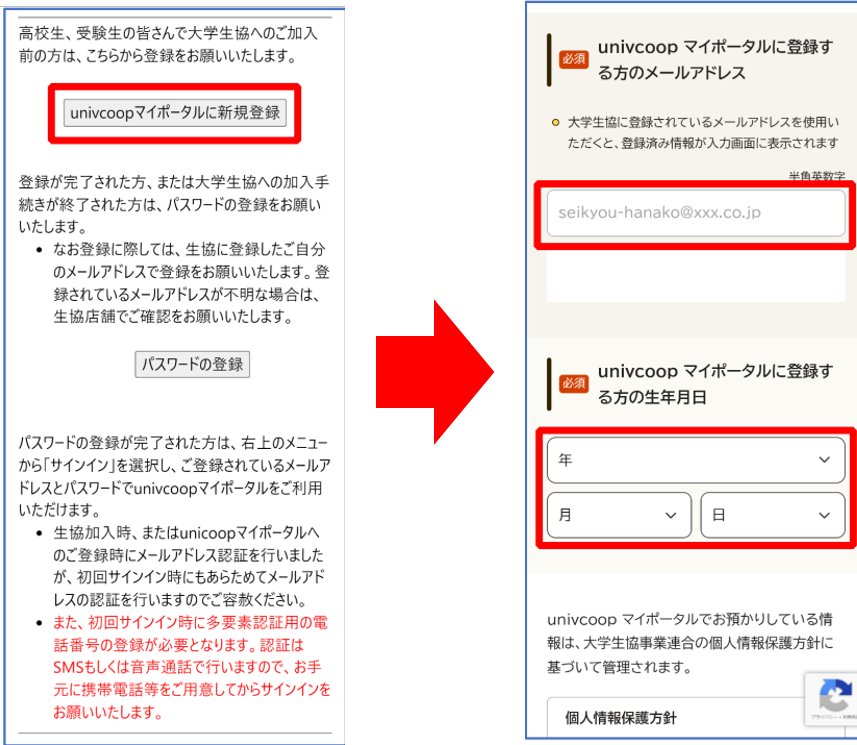
① To register for the univcoop My Portal
"here" and register your email address.
Enter your "email address to register" and "date of birth," then
click "Register email address" at the bottom.
② Registering information on the univcoop My Portal
Please access the URL in the email you received and register the various information.
*If you are already registered with the university cooperative, your information will be filled in the input fields.
Please enter any corrections or missing required information.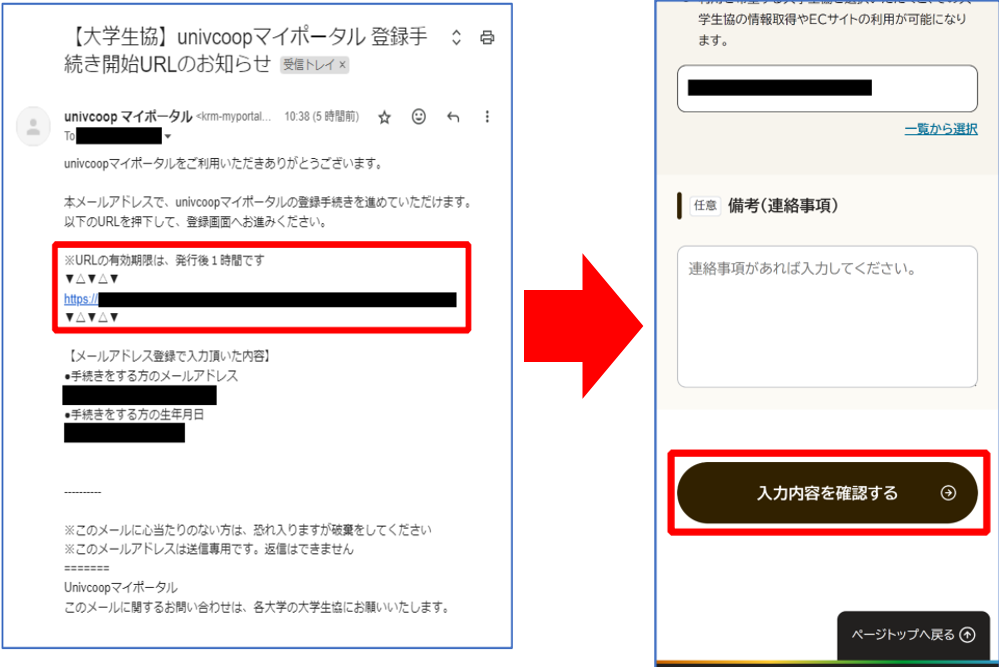
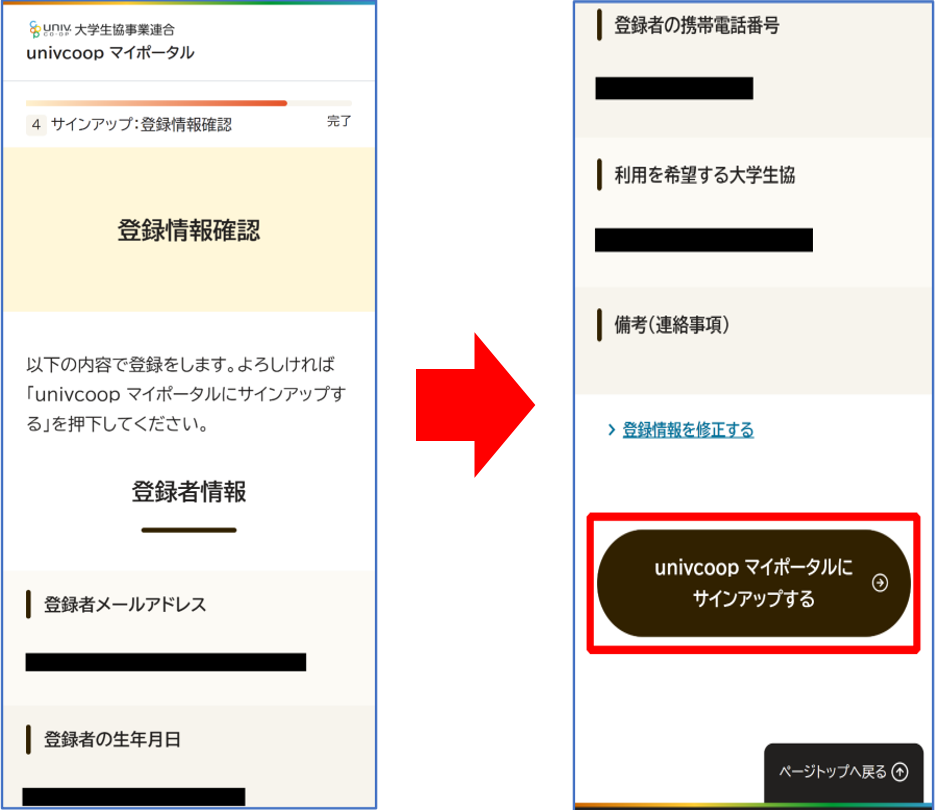
③ After confirming the registered information, sign up for the univcoop My Portal.
After confirming the registration details, press the "Sign Up" button to complete the pre-registration!
④ Password setting:
"here" and "register your password".
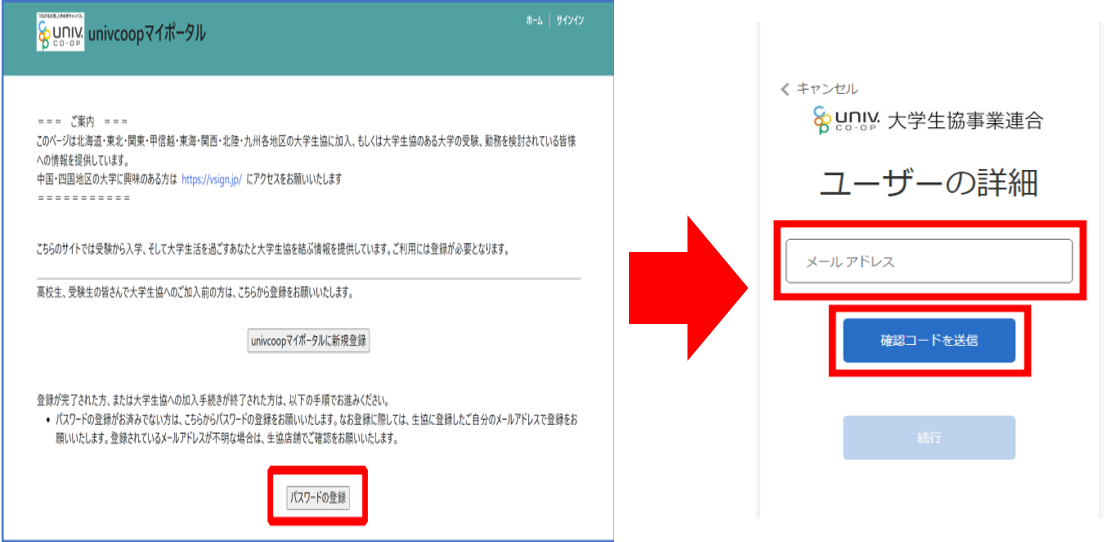
⑤ Enter the verification code.
A verification code will be sent to the registered email address. Enter the code to complete the verification process.
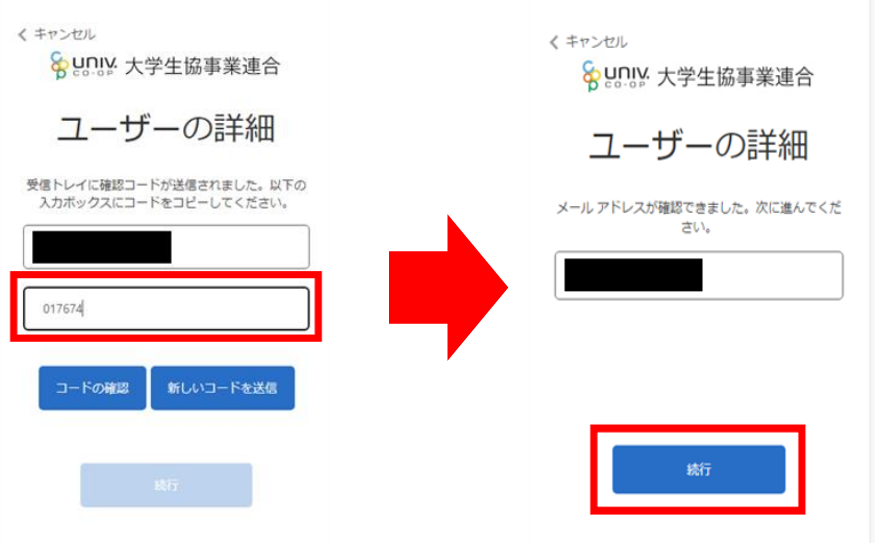
⑥ Set a password.
and includes a mix of lowercase letters, uppercase letters, numbers, and symbols.is 8 characters or longerPlease set a password that
⑦ To prepare for family setup,
press the three lines in the upper right corner of the univcoop My Portal, then press "Profile"
and check if the "Family Member Number" is displayed.
*If it is displayed, please proceed to download the app from here 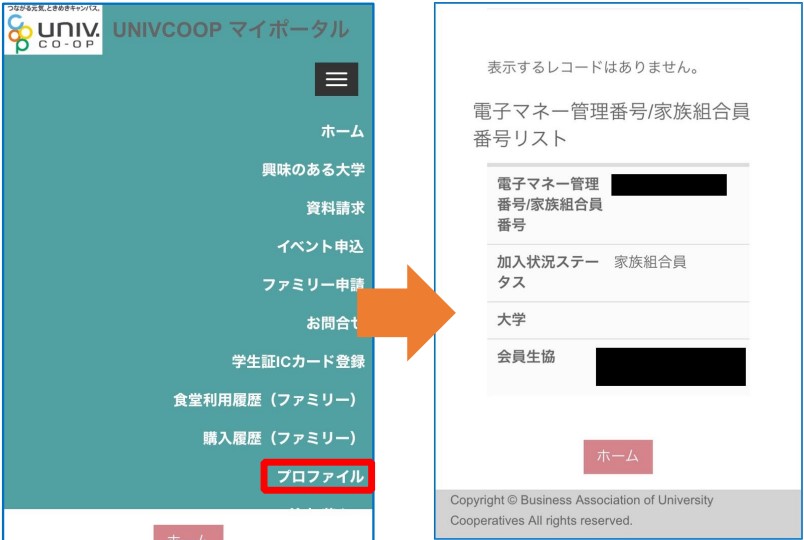
⑧ From the menu to check the family application records
, select "Family Application" and confirm that there are no records in the "Family Application List".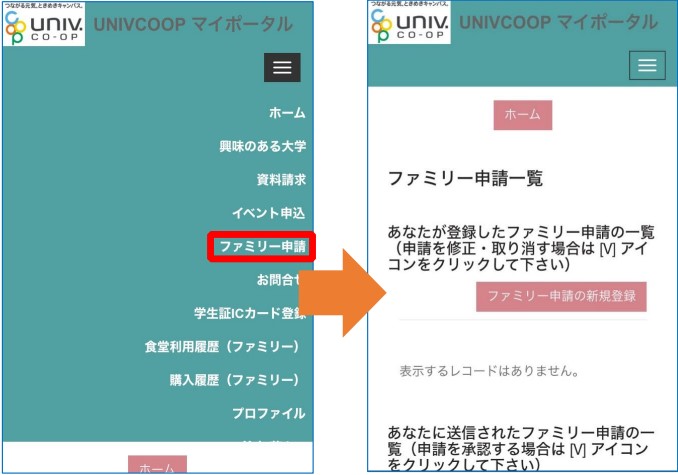
⑨ To apply for a family membership,
please enter the required information from "New Family Membership Registration".
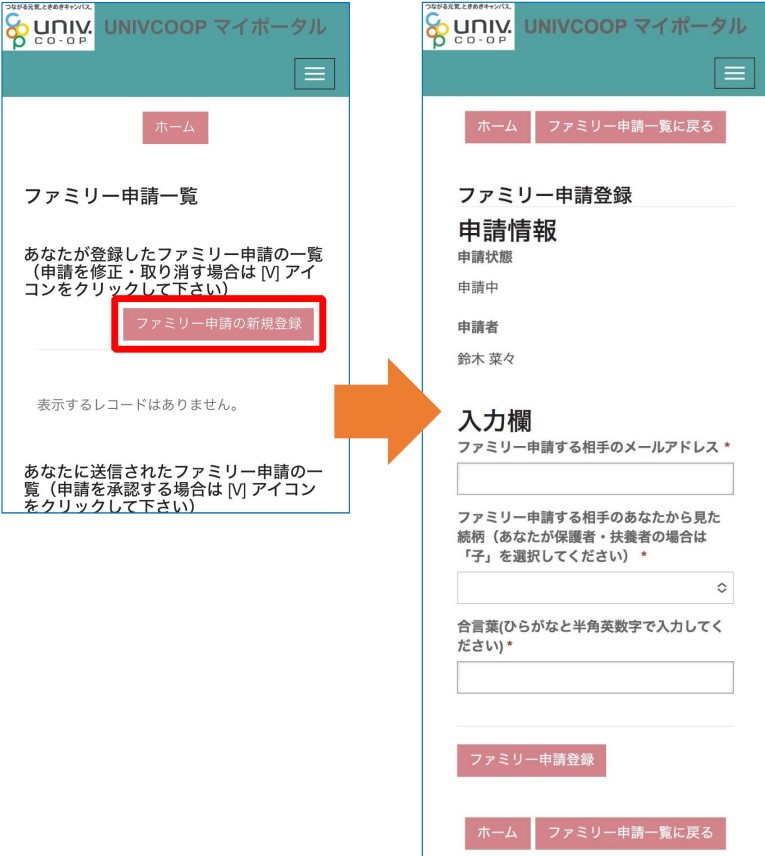
⑩ After logging into the univcoop My Portal and obtaining approval from your child (the union member)
, tap "Family Application" from the menu, select "V", and then tap "Approve Family Application" that appears.
Enter the password and tap "Register Family Approval".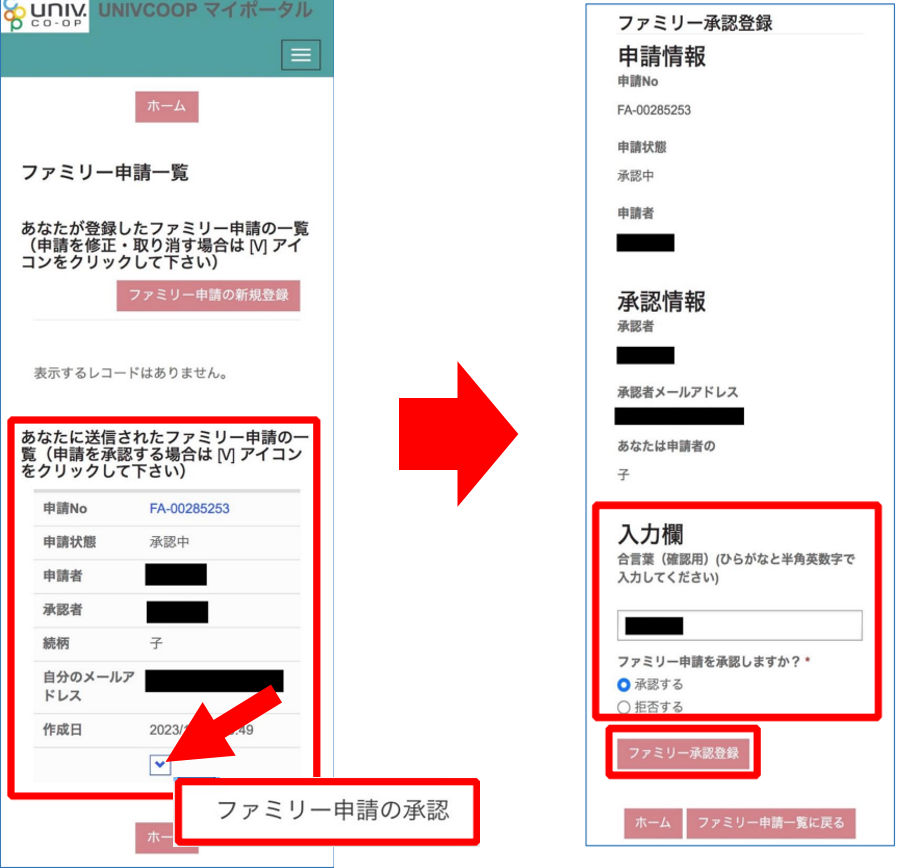
That's all for the setup before downloading the app! 🌸
Proceed to download the app →Click here
2. Download the app
Download the app here!


3. Configure the app
After downloading the app, you will need to log in for the first time!
For detailed instructions, please clickhere!
*The procedure after downloading the app is the same as for the student themselves.
to "3. Setting up the app" in the link above
Please refer
4. Inquiries and when you have problems
- App Error Inquiry:If you encounter an error when signing in after signing up for the app (portal registration), please submit a request using the app error request form. *App sign-up requires the email address registered as your member information. Please submit the form only if you still encounter an error even after using the correct email address.
- <App Error Report Form>https://text.univ.coop/wfm_utcoop/app_error_2
- For inquiries
other than app errors, such as those related to your device or other issues preventing you from using the app or cafeteria money, or those who cannot confirm the transfer of their remaining balance from their cafeteria pass, please contact the Member Center by email.
University of Tokyo Consumer Cooperative Member Center
Email:sosen@mail.utcoop.or.jp
